

Picture a devoted stage manager who ensures every spotlight and cue runs flawlessly—until one night a tiny misstep plunges the entire theatre into darkness. That is often the role of IOMap64.sys inside an ASUS gaming PC. It is a system file tied to ASUS GameFirst technology, a feature built into many Republic of Gamers motherboards to prioritize network packets so that online matches feel fluid and lag‑free. When it works, it is invisible magic; when it stumbles, the result is a startling blue screen of death that can leave even seasoned enthusiasts scratching their heads. As we move through 2026 and countless systems now run Windows 11, this legacy driver sometimes struggles to keep pace with modern updates, causing abrupt crashes.
The root of the trouble is rarely a single villain. More often it resembles a clumsy domino cascade: one outdated driver nudges another, a corrupted configuration file tips over, and suddenly the entire operating system finds itself staring at a STOP code. Common triggers include drivers that have grown stale or incompatible with the latest Windows releases, direct clashes between GameFirst and other network‑optimization utilities, or even a failing network adapter that no longer reports its status correctly. In other cases, the ASUS AI Suite—a companion tool meant to centralize tuning—becomes the source of friction, or the essential IOMap64.sys file itself gets nibbled by malware or disk errors. It is like a meticulous chef who occasionally grabs salt instead of sugar; one wrong ingredient ruins the entire recipe.
Before diving into deep system modifications, the first wisdom is to strip away anything non‑essential. Unplug USB hubs, external drives, printers, and VR headsets. A peripheral with its own outdated driver can act like a musician playing a completely different tune than the rest of the orchestra, drowning the performance in noise. Reboot the machine with only a keyboard, mouse, and monitor connected. If the blue screen vanishes, reconnect devices one at a time to unmask the problematic performer.
👉 Refresh the driver stack
The most common cure involves shaking off old GameFirst or network adapter drivers and welcoming fresh ones. Navigate to the ASUS support page for the exact motherboard model (search by serial number if the box has long vanished). Download the latest GameFirst package—even if the site shows a 2024 or 2025 version, it may contain crucial compatibility tweaks for Windows 11 24H2 and later.

Once the file rests on the desktop, press Win + X and open Device Manager. Expand the Network adapters branch, right‑click the adapter that carries “GameFirst” or “ASUS” in its label, and choose Uninstall device. If the option “Delete the driver software for this device” appears, tick it to wipe old leftovers completely. Confirm the removal, then double‑click the downloaded installer and follow the prompts.
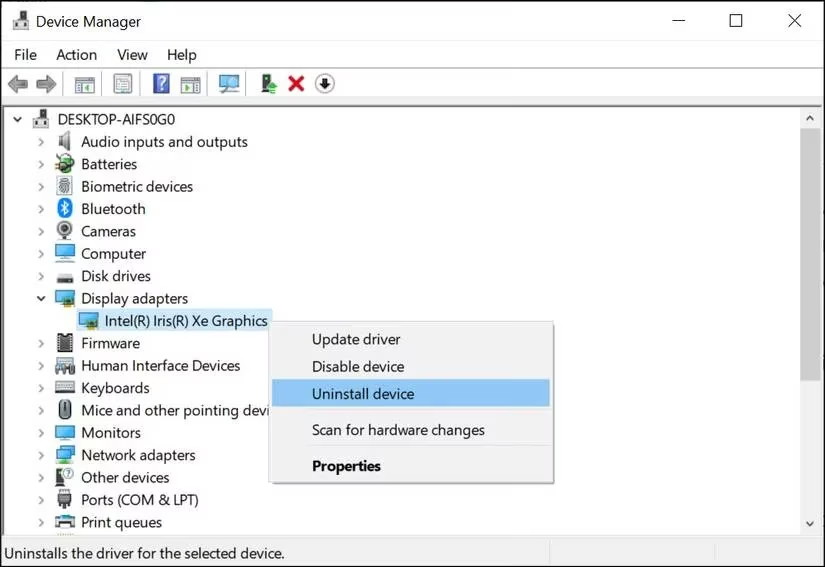
Restart the computer afterward. The system will often rediscover the hardware and bind it to the clean driver, much like a fresh coat of polish removing the old rust.
👉 Extract the ASUS AI Suite
If the crash persists, ASUS AI Suite can be the hidden culprit. This utility bundles overclocking controls, fan tuning, and power management, but its background services occasionally hog resources or conflict with Windows’ own power plans. Open the classic Control Panel, jump to Programs > Uninstall a program, and locate ASUS AI Suite in the list.
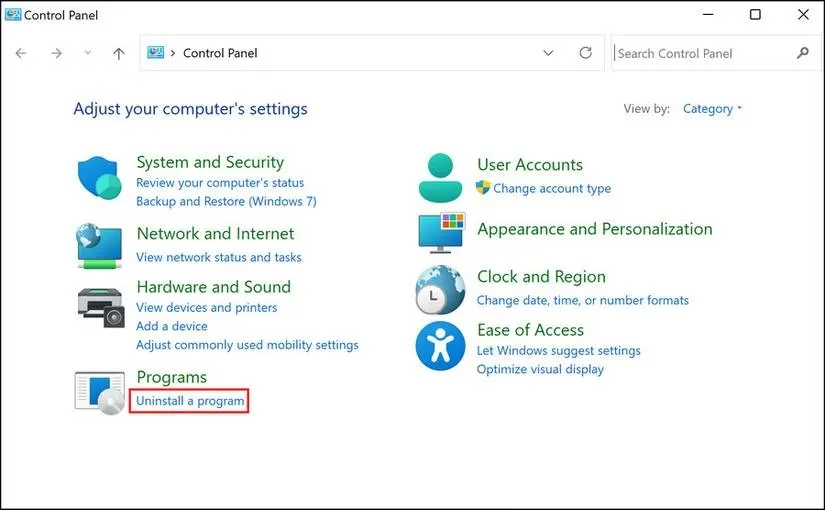
Right‑click it and select Uninstall. Follow the on‑screen wizard, which might ask to remove related components—agree to all.
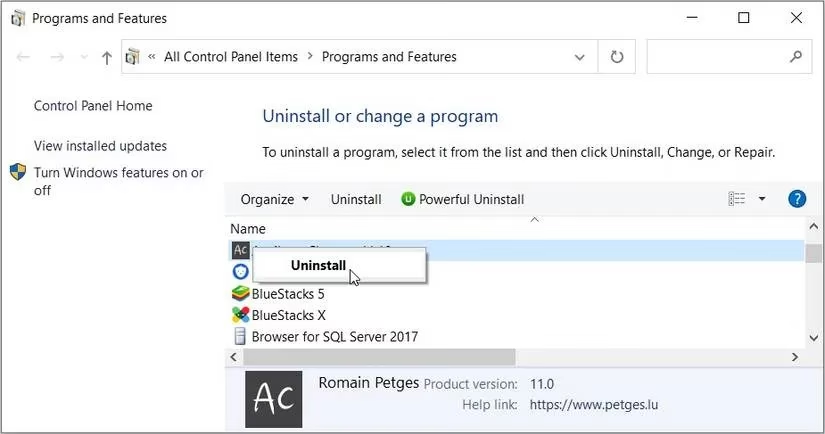
After the process ends, reboot once more. Many users find that GameFirst works perfectly fine without the bulky AI Suite package, and the system breathes easier as a result.
👉 Call in the emergency toolkit
When the tailored fixes fail, a few stock Windows utilities can act as a safety net.
-
Safe Mode: Boot into Safe Mode with Networking to see if the blue screen still appears. If it does not, a third‑party service or startup app is likely wrestling with GameFirst. Use the System Configuration tool (
msconfig) to disable all non‑Microsoft services and then re‑enable them in small groups to isolate the offender. -
System File Checker: Open an elevated Command Prompt and run
sfc /scannow. This tool acts like a librarian who repairs torn pages, swapping corrupt system files for pristine copies stored in the component store. -
Disable overclocking: Any manual CPU, memory, or GPU overclock—even a tame XMP profile—can push an aging driver beyond its tolerance. Reset the BIOS to optimized defaults and test stability.
-
System Restore: If the blue screen arrived after a Windows patch or a software installation, roll the system back to a restore point captured before the trouble began. Type “Create a restore point” in the taskbar search, open the System Protection tab, and launch System Restore.
A blue screen is never a welcome guest, but it is far from unbeatable. By methodically peeling away conflicting drivers, shedding heavyweight utilities, and deploying Windows’ own repair tools, any ASUS rig can return to its role as a smooth‑running gaming powerhouse. Keeping drivers up‑dated and performing a quick sfc /scannow every month will go a long way toward preventing the IOMap64.sys phantom from staging a comeback.