
I used to blame my aging hardware for every stutter, crackle, and lag spike on my PC. It felt like an inevitable slide towards an expensive upgrade. Then I discovered that the real culprits were often invisible, lurking beneath Windows' surface – misbehaving drivers and background processes silently choking my system's real-time responsiveness. It wasn't the engine that was failing; it was like having a single, sticky valve in a complex mechanism, throwing the entire timing off kilter. That's where LatencyMon, a tool I initially thought was just for audio geeks, became my revelation. It shines a spotlight on the hidden latency monsters dragging your performance down, often without requiring a single new component.
What LatencyMon Actually Measures (And Why You Should Care)
LatencyMon isn't your typical resource monitor. Instead of just showing CPU or RAM usage, it dives deep into the core timing mechanisms of Windows:
-
DPC (Deferred Procedure Call) Execution Time: High-priority tasks queued by drivers for the kernel to handle later.
-
ISR (Interrupt Service Routine) Execution Time: Code that runs immediately in response to hardware signals (like a keypress or network packet arrival).
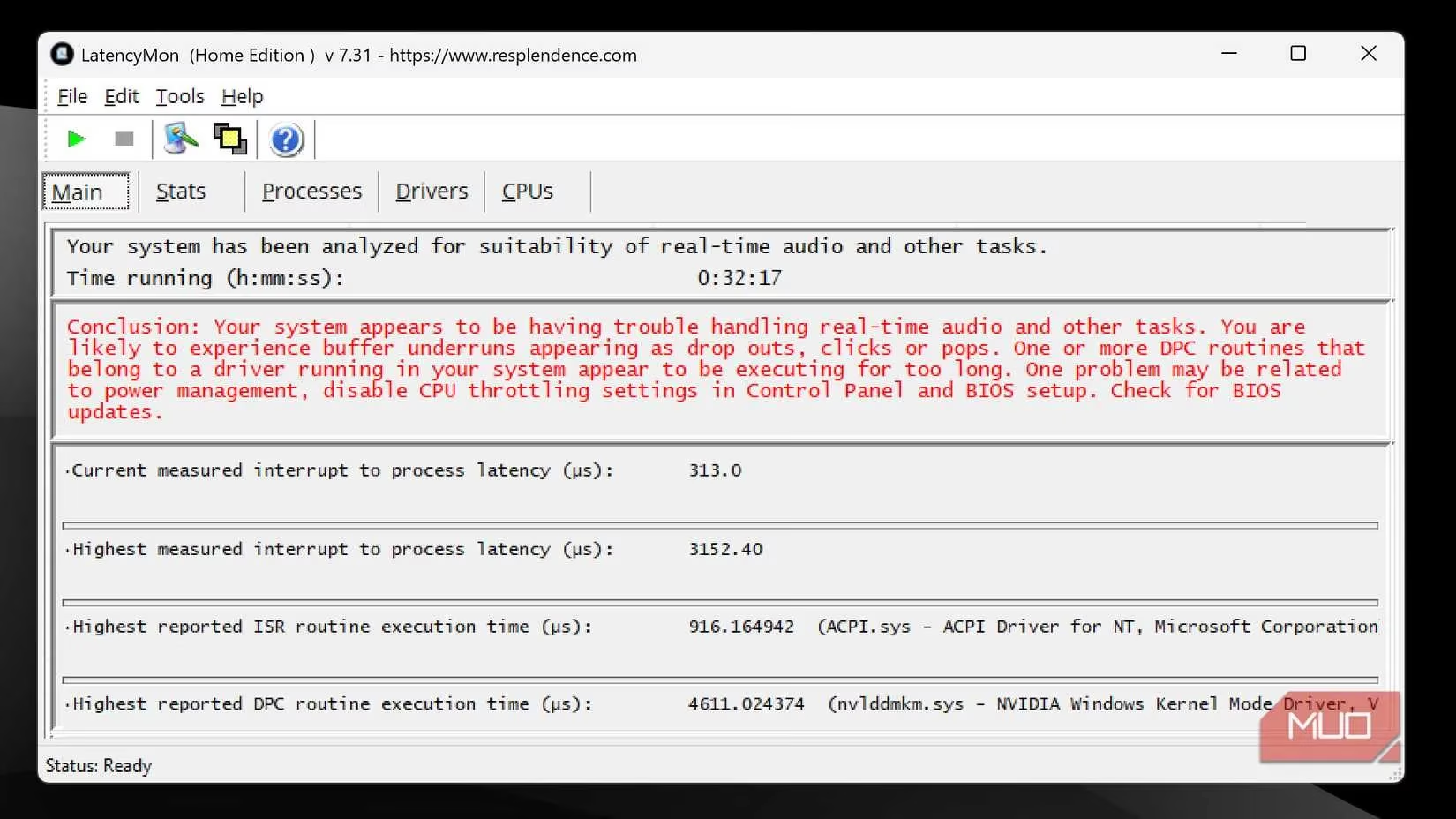
Think of your PC as a bustling city's traffic control center. DPCs and ISRs are the emergency vehicles and critical signals. If one ambulance driver (a driver) takes a bizarrely long, meandering route to a call (processes an interrupt slowly), it doesn't just delay that one emergency – it snarls up the entire network of high-priority traffic. 🚨 LatencyMon identifies that slow driver. High DPC/ISR latency isn't just about audio glitches for musicians; it manifests as:
-
Game stuttering and frame drops 🎮
-
Choppy video playback during streaming 🎥
-
Laggy mouse movements or keyboard input ⌨️
-
Skype/Zoom call freezes and robotic audio 📞
-
General system "hitches" and unresponsiveness
People Also Ask:
-
Can high DPC latency damage my hardware? No, but it severely degrades real-time performance and user experience.
-
Is this only a problem on old PCs? Absolutely not! Even brand-new, high-end systems can suffer from poorly optimized drivers.
The Usual Suspects: What LatencyMon Often Finds
Running LatencyMon is incredibly simple: download, install, hit Start, and use your PC normally for 5-10 minutes. The verdict is clear:
| Latency Reading (Microseconds) | System Status | Action Needed |
|---|---|---|
| Below 2,000 µs | ✅ Good | None. System is responsive. |
| 2,000 - 4,000 µs | ⚠️ Doubtful | Investigate potential issues. |
| Above 4,000 µs | ❌ Problematic | Definite action required! |
LatencyMon doesn't just give a number; it points the finger. My scans, and countless others, consistently reveal these frequent offenders:
-
Network Drivers (Especially Wi-Fi):
ndis.sys,tcpip.sys, or specific Wi-Fi adapter drivers are notorious latency generators. Sometimes, simply toggling to Airplane mode instantly smooths things out! 📶 -
Graphics Drivers: Both NVIDIA (
nvlddmkm.sys) and AMD (amdkmdag.sys,atikmpag.sys) can be culprits if outdated, corrupted, or conflicting. Intel's integrated graphics drivers aren't immune either. -
USB Host Controllers & Drivers:
usbport.sys,usbxhci.sys– anything managing your ports and connected devices. -
Power & Thermal Management:
acpi.sys,intelppm.sys, and specifically Intel Dynamic Platform and Thermal Framework (DPTF) on laptops. These try to save power or reduce heat but can introduce significant delays, like a cautious conductor slowing the entire orchestra to avoid overheating a single instrument. 🎻 -
Storage Drivers: Surprisingly, Intel Rapid Storage Technology (RST) drivers (
iaStorAVC.sys) are often flagged for high DPCs. Uninstalling RST (if you don't need RAID) can work wonders. -
Windows Kernel Itself: Sometimes
ntoskrnl.exeshows high counts, often pointing back to a driver misusing kernel services.
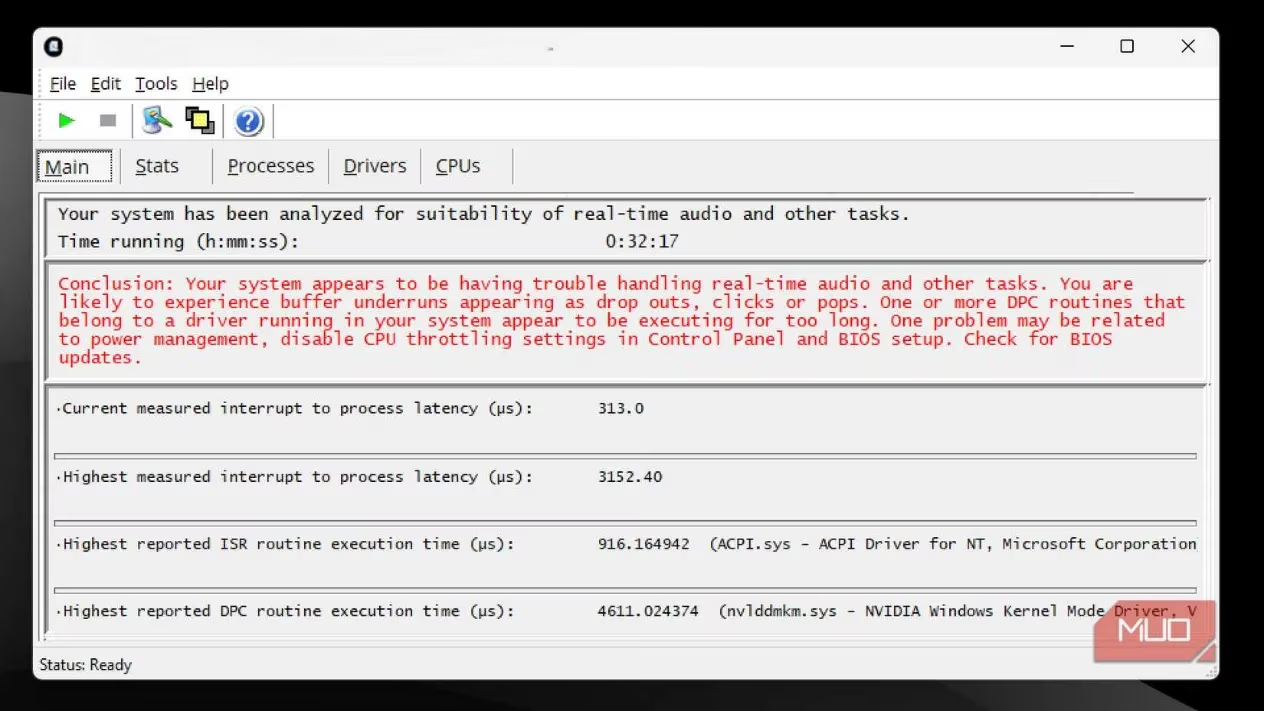
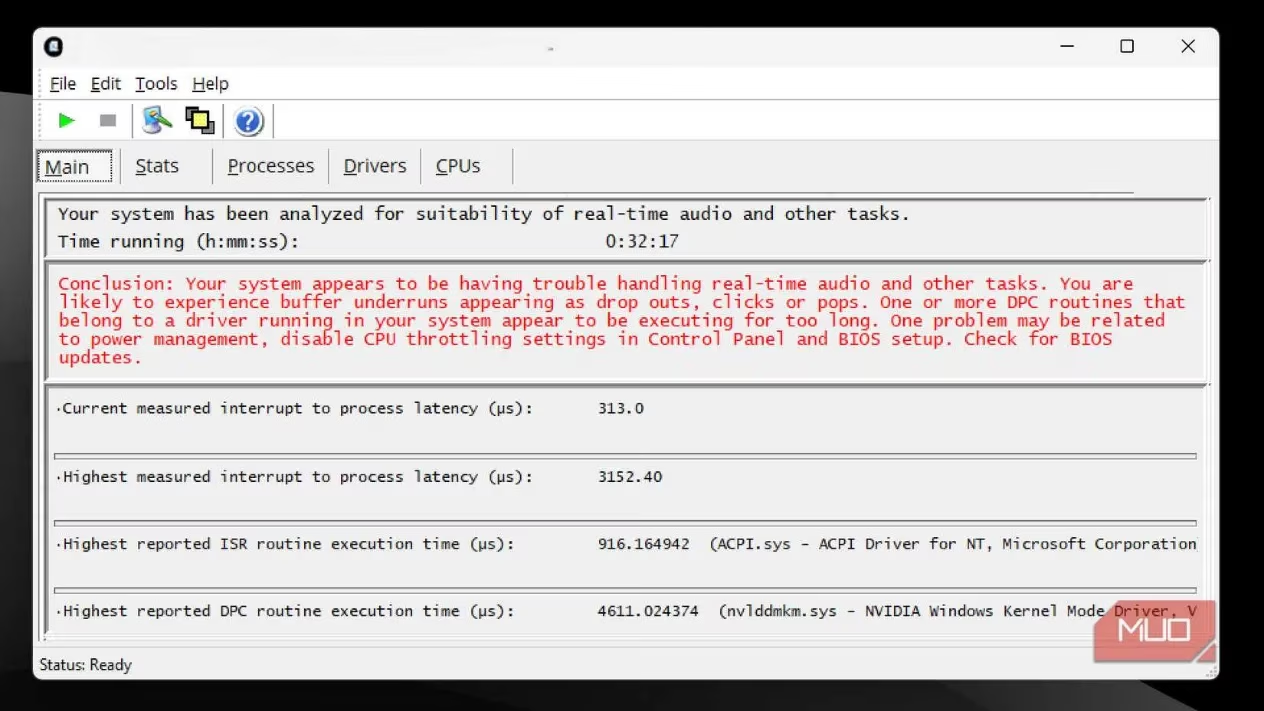 LatencyMon pinpointing the driver causing issues.
Taming the Latency Beast: My Go-To Fixes
Once LatencyMon identifies the troublemaker, the battle is half won. Here’s my strategy, starting simple:
-
Update, Update, Update! 🔄
-
Use Windows Update (check Optional Updates for drivers).
-
Visit your motherboard/laptop, network adapter, and graphics card manufacturer's websites for the latest 2025 drivers. Avoid third-party "driver updater" tools if possible.
-
People Also Ask: How often should I update drivers? Only when experiencing issues or for critical security/stability updates. Don't fix what isn't broken!
-
-
Disable Unused Hardware:
-
Go to Device Manager.
-
Right-click unused devices (e.g., extra network adapters, Bluetooth if you don't use it, serial ports) and select Disable device. Fewer active drivers = fewer potential latency sources.
-
-
Graphics Driver Deep Clean:
-
If your GPU driver (
nvlddmkm.sys,amdkmdag.sys) is the culprit, a standard update might not suffice. -
Use the official Display Driver Uninstaller (DDU) in Safe Mode to wipe the old driver completely, then install the latest fresh from NVIDIA/AMD/Intel.
-
-
Tame Power Management:
-
Set Windows Power Plan to Ultimate Performance (or at least High Performance).
-
In Device Manager, find the problematic device, go to its Properties > Power Management tab, and uncheck "Allow the computer to turn off this device to save power".
-
For Intel DPTF, consider uninstalling it via Apps & Features if you don't need its aggressive thermal throttling (monitor temps! 🔥).
-
-
BIOS/UEFI Check:
-
Update your motherboard BIOS/UEFI to the latest stable version (caution: do this carefully!).
-
Explore settings related to C-States, SpeedStep, or Global C-States – sometimes disabling deeper sleep states reduces latency. (Research your specific motherboard first!).
-
 Disabling unused hardware in Device Manager.
Why LatencyMon is My First Line of Defense
Before you despair and start pricing new RAM or CPUs, give LatencyMon ten minutes of your time. It demystifies unexplained sluggishness. That crackling sound isn't your speakers dying; that mouse lag isn't necessarily a faulty peripheral. Often, it's just a driver throwing a tantrum in the background, like a single out-of-tune violin disrupting the whole symphony. 🎻➡️🎶
The beauty is in its specificity and simplicity. It tells you exactly which component's software is misbehaving, turning a frustrating guessing game into a targeted troubleshooting mission. The fixes are usually free (driver updates) or involve minimal effort (disabling unused devices), potentially saving you hundreds on unnecessary hardware upgrades. In 2025, with Windows updates and driver ecosystems constantly evolving, LatencyMon remains an indispensable, no-nonsense tool for keeping your PC feeling fast and responsive. Download it, hit Start, and discover the invisible chains slowing your machine down.
As summarized by VentureBeat GamesBeat, the importance of system optimization and driver management is increasingly recognized in the gaming industry, especially as new titles demand more from hardware and software. VentureBeat GamesBeat's coverage frequently discusses how background processes and outdated drivers can impact real-time performance, echoing the need for tools like LatencyMon to diagnose and resolve hidden bottlenecks before investing in costly upgrades.