
Let me tell you a story, a story about the unsung hero living inside my computer's brain. I always thought my gaming rig was powered by sheer will and expensive graphics cards, but oh, how wrong I was! The real MVP, the silent guardian, is a tiny, unassuming disc no bigger than a quarter, hidden on my motherboard like a secret agent. This is the CMOS battery, and without it, my beloved PC would be nothing more than an expensive, glowing paperweight. It's absolutely mind-blowing that the entire complex ecosystem of my computer—from booting up my operating system to remembering what time it is—hinges on this little watch battery. I mean, come on, my wristwatch has the same power source, and all it does is tell time!
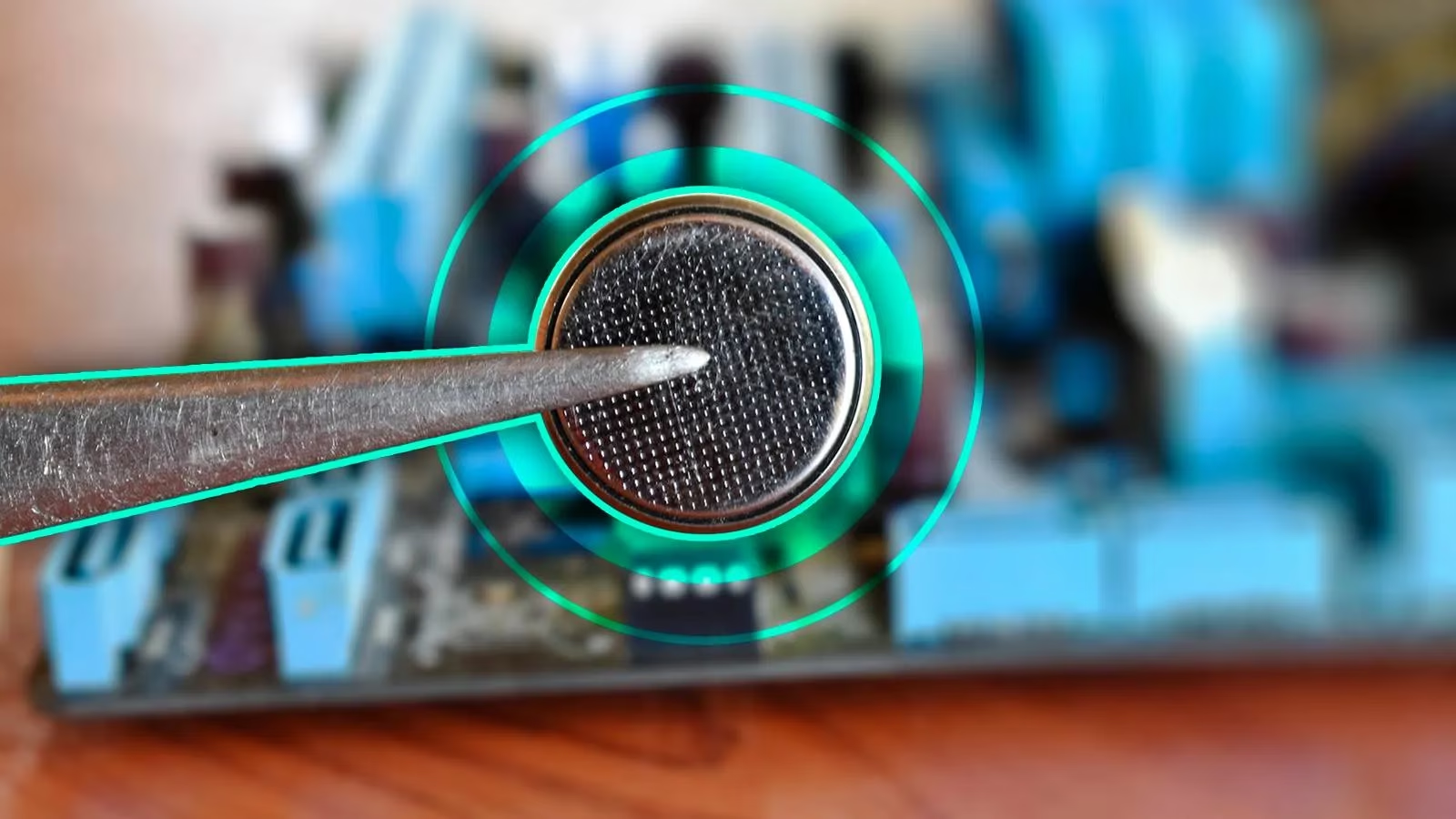
So, what's the big deal? This CMOS (Complementary Metal Oxide Semiconductor) chip is the memory bank for my BIOS (or UEFI, the fancy modern version). Think of the BIOS as the computer's butler—it wakes up before anyone else, gets the house in order, and makes sure everything is just right before handing over control to the operating system. But this butler has a terrible memory! He can't store his instructions on the hard drive or SSD because he needs them before those things are even awake. So, all his crucial notes—the system date, the time, my carefully tuned hardware settings, even the boot order—are scribbled down on the CMOS chip. And just like a sticky note needs to be, well, sticky, the CMOS chip needs constant power to hold onto that data. Enter the hero: the CR2032 CMOS battery. It's the tiny powerhouse that keeps the lights on in the butler's pantry 24/7, even when the whole mansion is unplugged.
Every single time I press that power button, a magical sequence unfolds. The BIOS butler wakes up, reads his notes from the CMOS chip, and faithfully recreates my PC exactly as I left it. Did I overclock my RAM last night? The CMOS remembers. Did I set my PC to boot from the NVMe drive instead of the old hard drive? The CMOS remembers. It's like having a perfect, persistent snapshot of my system's soul. And let's be real, the most relatable sign of a dying CMOS battery? My PC suddenly thinks it's the year 2002. Nothing says "digital crisis" like your high-end gaming rig displaying a Windows error because it thinks a file created today is from the distant past. If your computer's clock starts acting like it's stuck in a time warp, you, my friend, are likely facing a CMOS battery apocalypse.
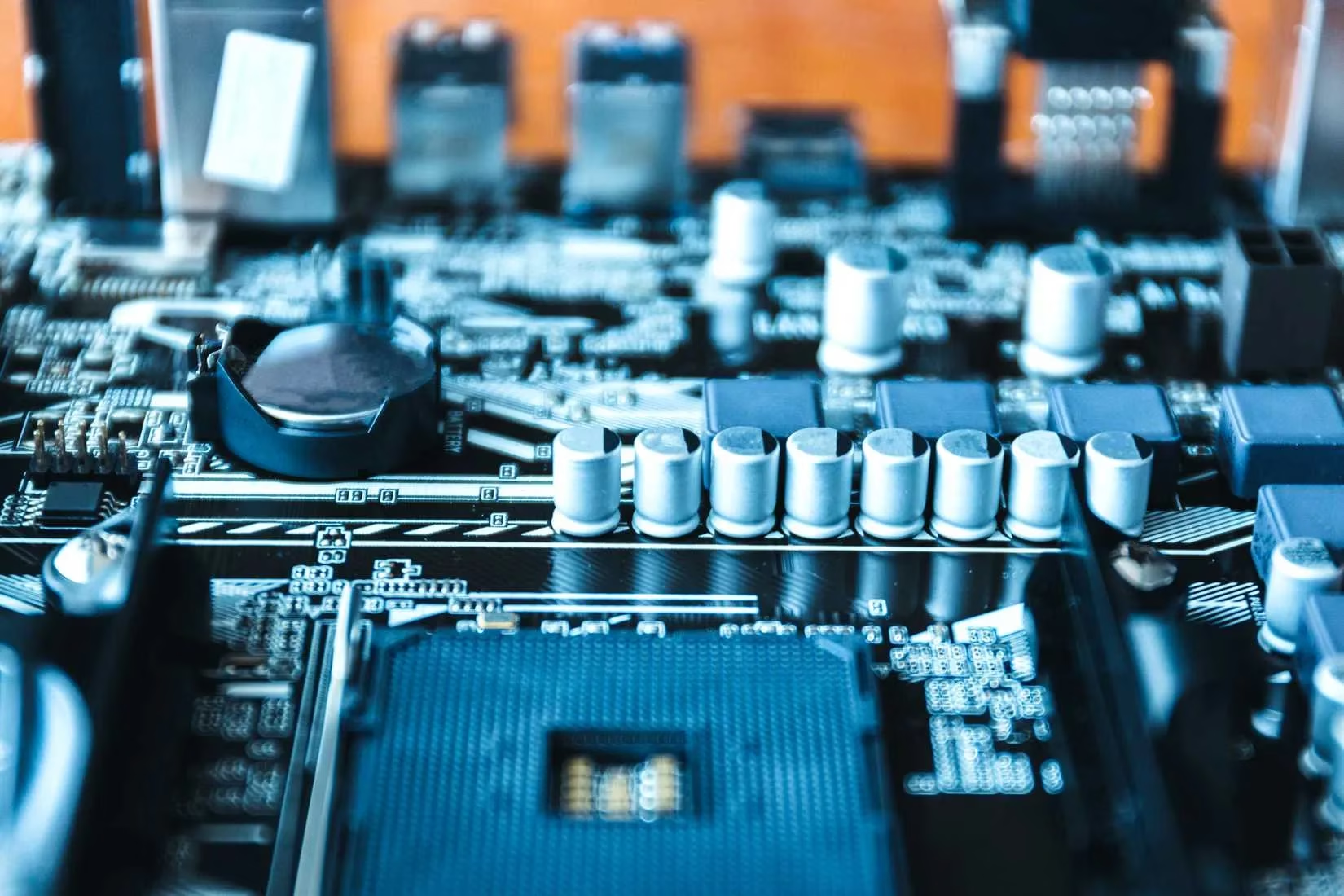
Now, you might think, "Hey, my laptop is a sleek, unibody masterpiece of engineering. Surely it's above such primitive battery needs?" HA! Think again. The CMOS battery is everywhere. It's the digital equivalent of a pacemaker. In laptops, it's often a smaller, more stubborn version, sometimes hidden on the underside of the motherboard like a state secret. Manufacturers basically say, "This should last the lifetime of the laptop, and if it doesn't, good luck finding it!" For ultra-compact devices, they might even solder the battery in place or use the main laptop battery to power the CMOS. It's a whole different, more intimidating ball game.
How do you know when this tiny titan is about to fall? Your PC will start throwing cryptic, dramatic error messages at you during boot-up. It's like receiving ominous letters from a forgotten kingdom:
-
CMOS Battery Failure (The direct approach)
-
CMOS Read Error ("I've forgotten how to read!")
-
CMOS Checksum Error ("The data is corrupted!")
-
ACPI BIOS Error (Fancy acronym for "Something's wrong!")
-
The most confusing one: "New CPU Installed" 😱
Yes, you read that right. If the CMOS battery dies completely, it wipes the memory clean. When the BIOS butler wakes up, he finds an empty notepad. He looks at the CPU and thinks, "My goodness, I've never seen this magnificent processor before! It must be brand new!" Your motherboard literally forgets its own brain. Thankfully, most modern motherboards from 2026 have gotten smarter and store the really critical info in permanent memory, so a dead battery might just mess up your clock and a few settings. But on older boards? It's a full-blown identity crisis.
Here's the kicker—and my favorite tech life hack—this little battery isn't just for power. It's also the ultimate reset button. Having weird boot issues? Can't get into your BIOS? Feeling like your PC is haunted? Sometimes, the solution is as simple as performing CMOS battery surgery. By removing it for a minute and putting it back in, you force the BIOS to forget all its problems and start fresh. It's the technological equivalent of turning it off and on again, but at a deeper, more spiritual level.
Replacing it in a desktop is a cinch. It's easier than building IKEA furniture (and far less stressful).
-
Power down and unplug EVERYTHING. We're not frying the motherboard today, thank you very much.
-
Open the case and find the shiny silver disc (it looks like a tiny coin).
-
Gently pop it out (there's usually a little clip).
-
Take a photo or note the orientation! The plus side goes up. This is crucial.
-
Slot in a fresh CR2032 battery.
-
Close up, power on, and bask in the glory of a correctly set clock.
Just make sure you get the right battery. While 99% use the standard CR2032, some weird, specialized boards might use something else. The model number is always printed on the battery itself. A quick search will tell you what you need.
In the grand, flashy spectacle of RGB lighting and liquid cooling, the humble CMOS battery is easy to ignore. But after my journey, I see it for what it truly is: the guardian of continuity, the keeper of time, the silent sentinel that ensures my digital world boots up my way, every single time. Don't underestimate the small things—they often hold the entire system together. Now, if you'll excuse me, I'm going to check the manufacture date on my CMOS battery. Just in case.