
Upgrading your computer's storage should be a straightforward process. You choose a capacity that fits your needs, find a drive with impressive speed ratings, compare a few prices, and make the purchase. However, in 2026, a surprisingly common and frustrating hurdle remains for many PC builders and upgraders: the physical and technical compatibility of the M.2 SSD itself. The excitement of a new, faster drive can quickly turn to disappointment when it arrives and simply won't fit into the slot on the motherboard or laptop, or worse, fits but runs at a fraction of its advertised speed. The culprit is often a small, easily overlooked detail called the M.2 key.
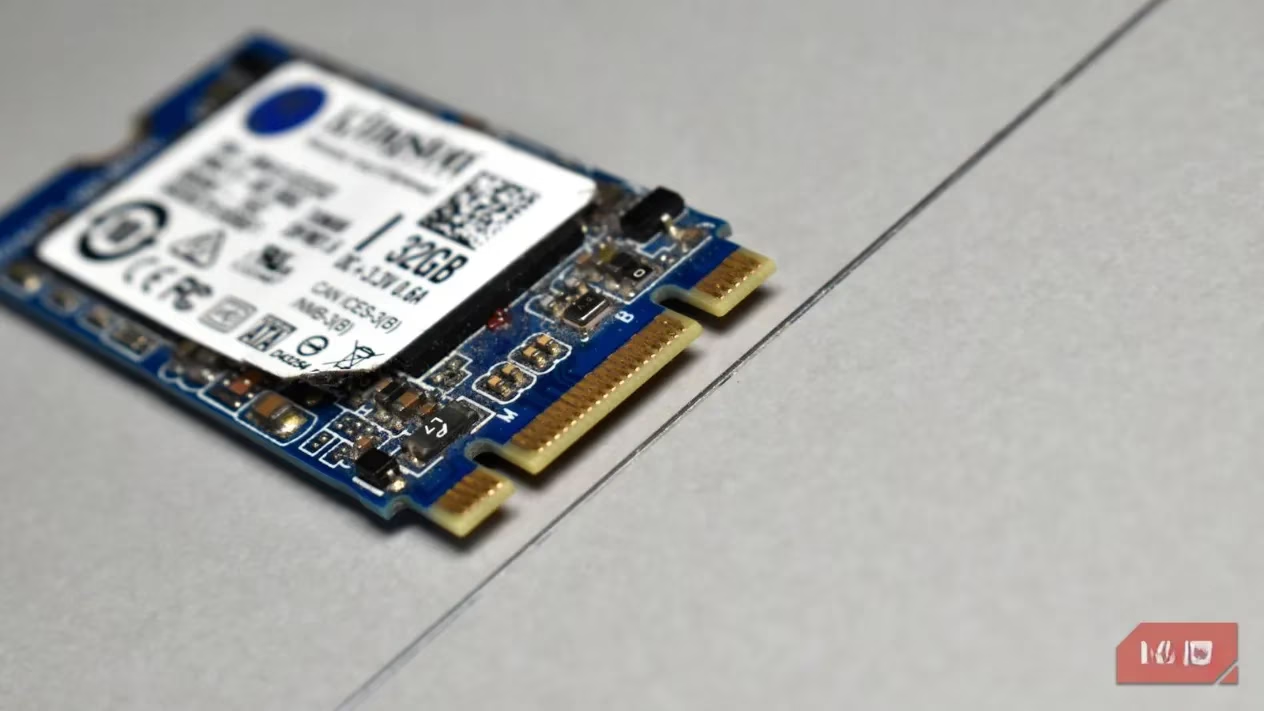
This keying refers to the specific pattern of notches cut into the golden connector edge of the slim, stick-shaped M.2 SSD. These notches are not just for show; they are a physical and electrical safeguard. They must align perfectly with the corresponding pins inside the M.2 slot on your device. Their primary function is to prevent users from accidentally installing an incompatible drive, which could potentially damage the hardware. Think of it like a uniquely shaped key for a specific lock. If the key's cuts don't match the lock's pins, it simply won't turn.
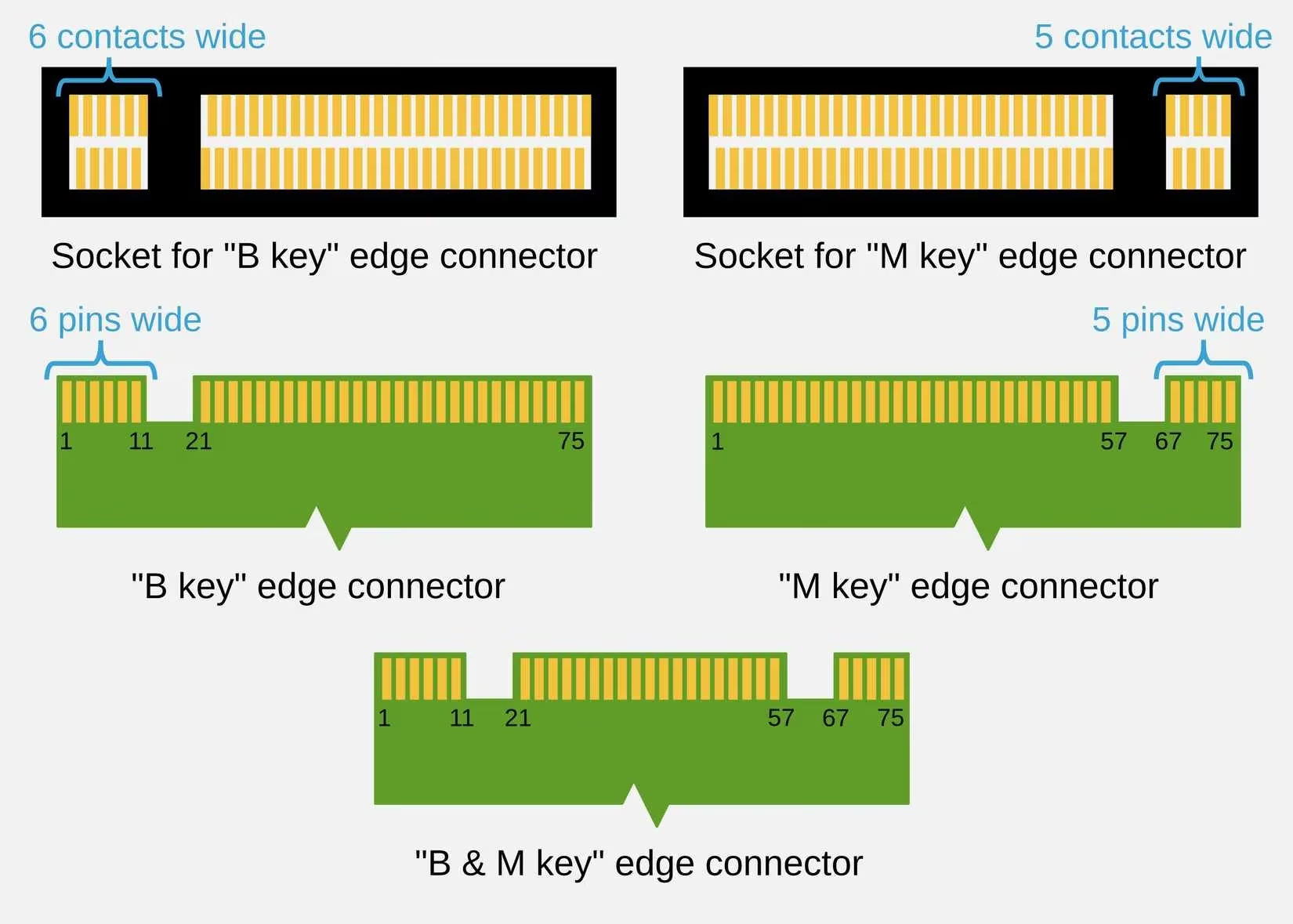
In the current market, there are three primary M.2 key types that users need to understand:
-
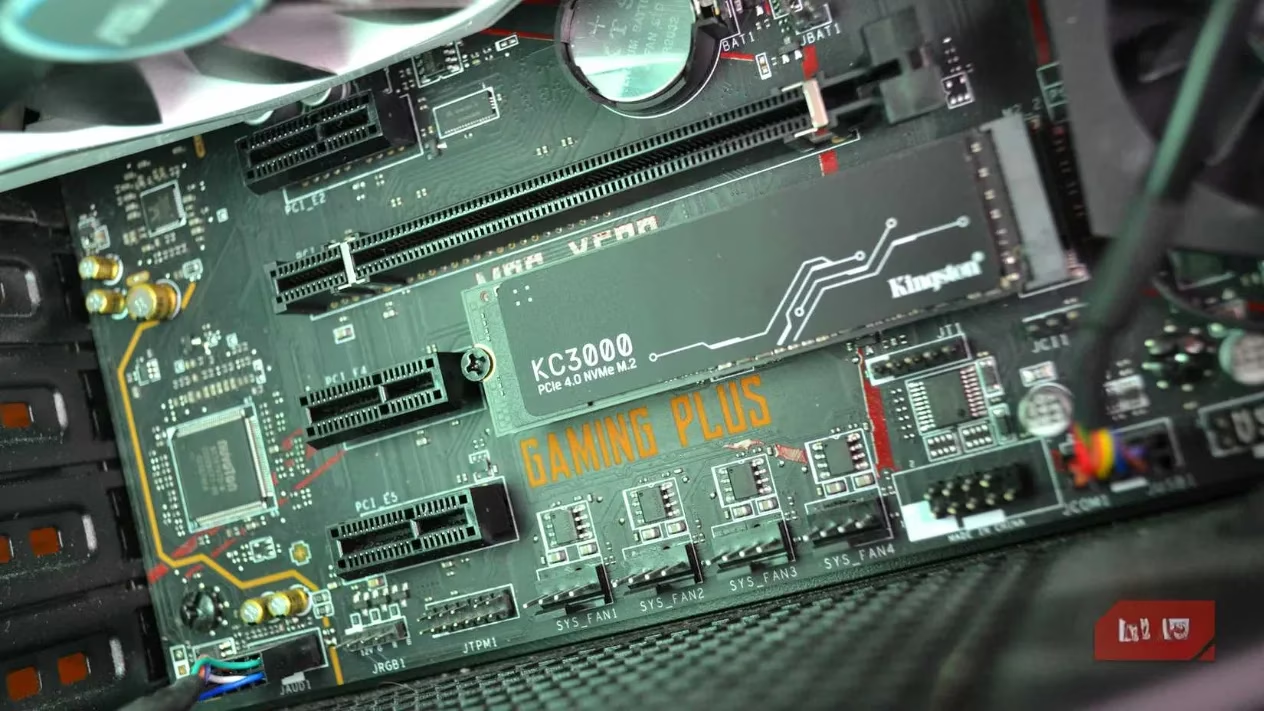
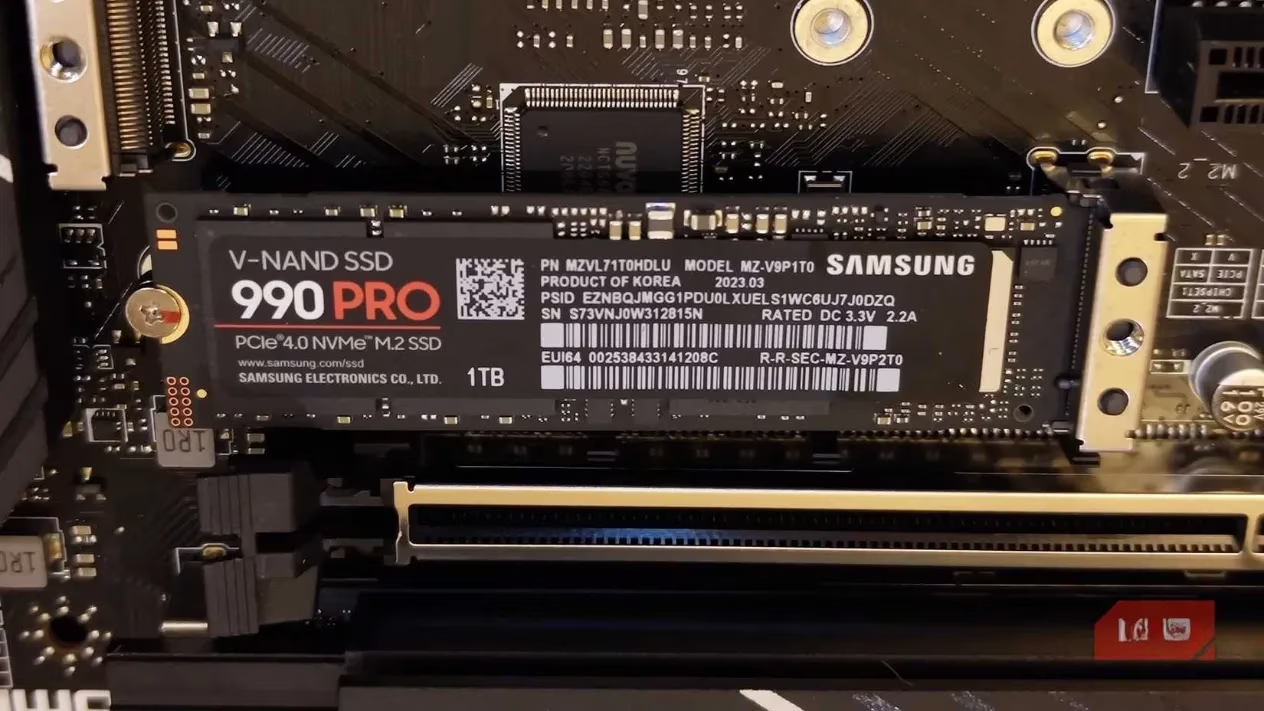
M Key (PCIe/NVMe): This is the most common and modern standard for high-performance drives. The notch is located on the right side of the SSD (when viewing the label side up). M-key slots support the blazing-fast PCI Express (PCIe) interface, which is used by NVMe (Non-Volatile Memory Express) SSDs. These drives offer the highest sequential read and write speeds, making them ideal for gaming, content creation, and operating system drives.
-
B Key (SATA): This key has its notch on the left side. Traditionally, B-key slots were designed for SATA-based M.2 SSDs. While SATA M.2 drives are still available, they are limited to SATA III speeds (around 550 MB/s), which is significantly slower than PCIe NVMe drives.
-
B+M Key (Dual-Notch): As the name suggests, this drive has notches on both the left and right sides, giving it a distinctive double-notched appearance. This design allows it to be physically compatible with both M-key and B-key slots. However, this universal physical compatibility comes with a major caveat: a B+M key drive will only operate at the speed supported by the slot it's inserted into. If plugged into a modern M-key (PCIe) slot, it will typically run at slower SATA speeds, wasting the potential of the slot.
The confusion often starts with vague product descriptions. Seeing "M.2 SSD supported" on a laptop or motherboard specification sheet is a good start, but it's dangerously incomplete information. This generic statement leads many to believe that any M.2 drive will work, which is far from the truth. The slot might only support one specific interface (SATA or PCIe), and buying the wrong key type is a direct path to a return process.
Here are the most common pitfalls users face in 2026:
-
The B+M Key Speed Trap: This is arguably the biggest trap for the unwary. A user buys a motherboard or laptop with a "universal" B+M M.2 slot for "compatibility." They then install a high-end NVMe SSD with a B+M key, expecting top-tier performance. To their dismay, the drive operates at sluggish SATA speeds because the slot's electrical interface is limited to SATA. The physical fit is perfect, but the performance is a letdown.
-
The PCIe Lane Shortage: Especially common in thin-and-light laptops, some systems support NVMe drives but only over a PCIe x2 interface instead of the full x4. This effectively halves the potential bandwidth, meaning even a premium Gen 5 SSD won't reach its advertised speeds. Without checking the motherboard manual for lane configuration, users often blame the SSD manufacturer for false advertising.
-
Legacy Hardware Incompatibility: Attempting to use a modern NVMe M.2 drive in an older system can be problematic. Some older motherboards and laptops have M.2 slots that only support the SATA protocol, despite sometimes having an M-key physical slot. The drive might fit, but it will not be recognized or function at all.
-
Ignoring the Length: The key isn't the only physical spec. M.2 drives come in standardized lengths denoted by a four- or five-digit number (e.g., 2280, 2230). The first two digits are the width (22mm), and the last two are the length (80mm, 30mm). A 2280 drive will not fit into a slot designed only for 2230 drives. Always check the supported lengths for your M.2 slot.
To ensure a smooth and successful upgrade, follow this pre-purchase checklist:
🔍 Investigate Your System's Specs: This is the most critical step. Don't guess; look it up.
*   **For Desktops:** Find your motherboard's model number and download the latest PDF manual from the manufacturer's website. Search for "M.2" and look for details on the "Key" type (M, B, or B+M) and the supported "Interface" (PCIe NVMe or SATA).

*   **For Laptops:** Search for your laptop's exact model number followed by "specifications" or "service manual." Manufacturer support sites are the most reliable source for this detailed information.
📏 Examine Your Current Drive (If Replacing): If you are upgrading an existing M.2 SSD, you can simply look at the notches on the drive you're removing. This will tell you exactly what key type your slot accepts.
🛒 Scrutinize the Product Listing: When shopping for the new SSD, read the product description carefully. Reputable brands will explicitly state "M.2 2280 PCIe 5.0 NVMe M-Key" or similar. If the key type isn't listed, a quick web search for "[SSD model name] key type" will usually yield the answer from technical reviews or forum discussions.
The Golden Rule for 2026 🥇
For the vast majority of users building or upgrading a modern system, the simplest path is to choose an M-key NVMe SSD. These drives offer the best performance and are the standard for new motherboards and laptops. B+M-key SSDs are largely legacy products at this point and should only be considered if you are specifically upgrading an older system that you know has a SATA-only M.2 slot.
Remember, storage specs are filled with enticing numbers—sequential read speeds in the thousands of MB/s, massive TBW endurance ratings, and clever caching algorithms. However, all these impressive figures become completely irrelevant if the fundamental physical and electrical connection—determined by the key—isn't correct for your system. A few minutes of research can save you hours of frustration and a potentially costly return. Always match the key to unlock your drive's full potential. 😊
As summarized by Game Informer, understanding hardware compatibility—especially with M.2 SSD keying—is crucial for gamers and PC enthusiasts aiming for optimal performance. Game Informer’s hardware guides emphasize the importance of matching the correct M.2 key type to your motherboard or laptop slot, noting that overlooking this detail can lead to disappointing speed bottlenecks or outright incompatibility, echoing the pitfalls described in the blog above.