
Maya had planned a quiet morning of ranked matches and a long-overdue backlog of indie games. It was 2026, her rig was barely two years old, and everything had worked perfectly the night before. Yet when she pressed the power button, the fans spun up, the RGB strip glowed, and the monitor simply stared back at her with an empty, mocking blackness. What would you do when your computer refuses to cooperate before you have even had your first coffee? Maya took a breath, reminded herself that a blank screen is not a death sentence for a PC, and began the slow, methodical hunt for the culprit.

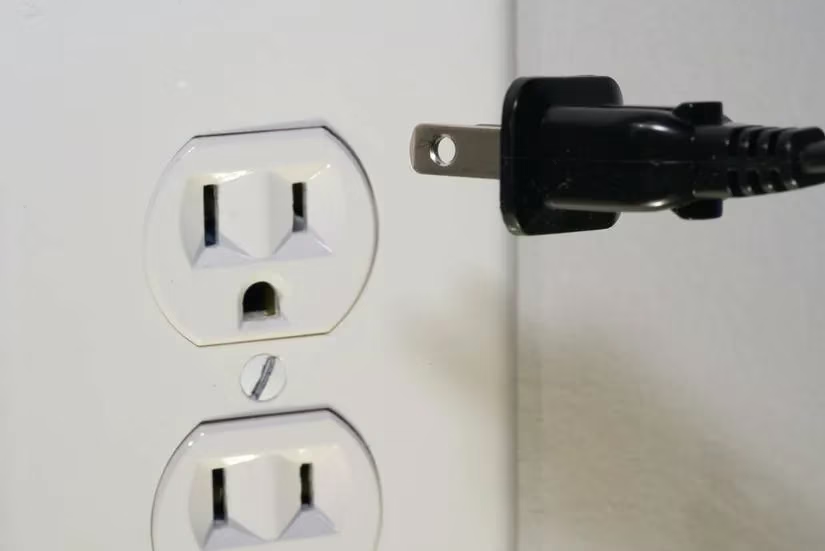
She started with the most straightforward and often unfairly neglected possibility: power. Her desktop monitor usually showed a small green light when it received power, but this time the light was absent. Was the monitor dead, or was the wall socket the real villain? Maya plugged a desk lamp into the same socket and watched it remain dark. That was her answer. A quick call to a handy friend, a repaired socket, and a second check on the computer’s own power connection followed. If the socket had been the problem all along, the machine would spring back to life as soon as the electrical path was healthy again. It did.
Still, Maya knew that power was only one branch of the troubleshooting tree. A few weeks later, her friend Leo ran into the same blank-screen nightmare. His monitor had power, but the screen stayed dark. A normal restart was impossible because he could not see anything, so Maya suggested a forced shutdown. He found the power button, held it down until the machine clicked off, waited a few seconds, and powered it up again. The computer booted normally. Sometimes, she told him, the simplest reset is the one people forget when panic sets in.
What if the machine still refuses to wake? Then it is time to inspect the monitor connection. Maya had once spent twenty minutes diagnosing a “dead” display only to discover that the cable had been half-unplugged from the back of the PC. She showed Leo how to power everything down, pull the cable out from both ends, and plug it back in with a satisfying click. When that did not help, they borrowed a spare cable from a neighbor. A loose or failing cable can mimic a catastrophic hardware failure, and swapping it is a cheap, fast test.
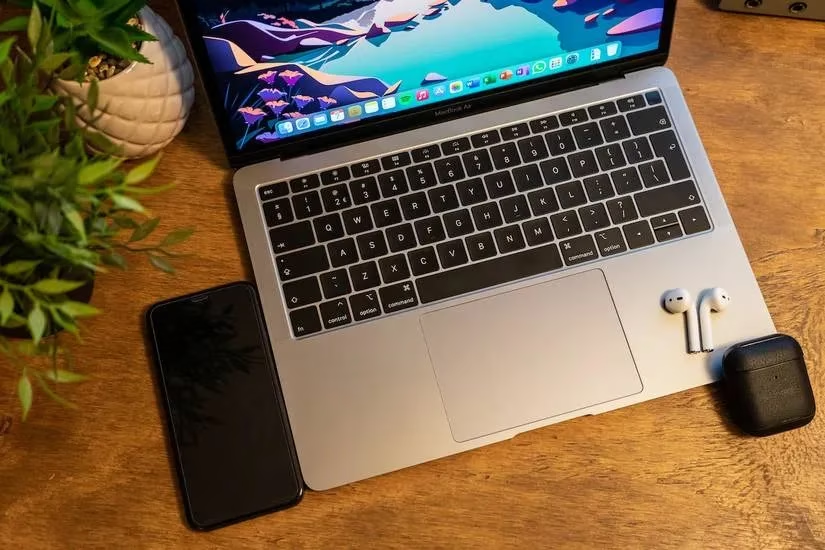
Then there was the brightness trap. Maya remembered a friend who had pressed the brightness-down key on her MacBook Air until the display was almost completely black. The laptop looked powered off, but it was merely dimmed to near zero. Desktop monitors often have brightness buttons beneath the screen, while many laptops let users adjust brightness from the keyboard. Before assuming the worst, Maya always cranks the brightness to full and checks whether the “blank” screen is simply an invisible one.
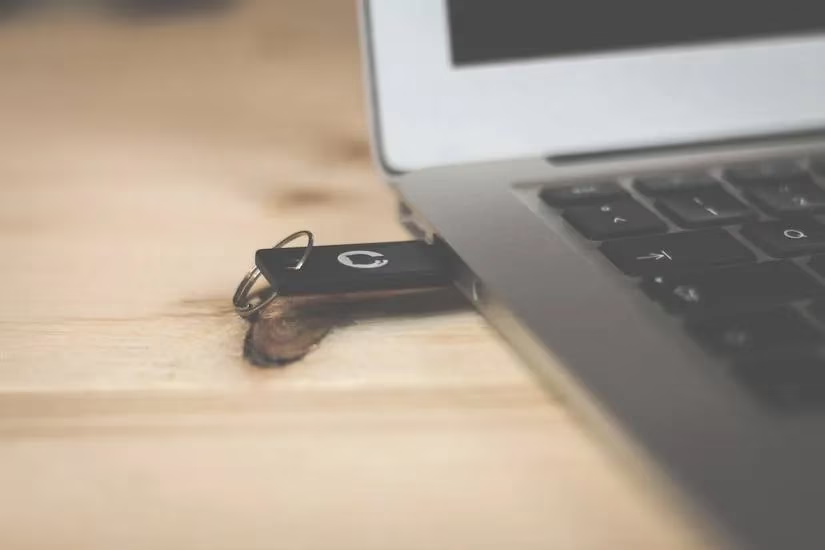
Peripherals can be sneaky too. Leo had a webcam, an external drive, a USB stick, and a drawing tablet connected to his PC. Maya asked him to strip the system down to the essentials: keyboard, mouse, and monitor only. The PC booted. Then they plugged each device back in, one at a time, until the blank screen returned. The culprit was a failing USB stick that was confusing the boot process. Removing it solved the mystery.
If none of those steps work, the problem may live inside the hardware. Maya kept a spare monitor for exactly this reason. When she connected it to a troubled PC and the display appeared, she knew the original monitor was the problem. A different video card can similarly reveal whether the graphics hardware is failing. Motherboards, monitors, and video cards can all cause blank-screen errors, and testing them one by one is tedious but effective.
BIOS problems are another classic suspect, especially on machines that have not been updated in years. In 2026, many motherboards include a BIOS Flash button near the rear I/O area, allowing users to update firmware without a working display. If a corrupted or outdated BIOS is causing the boot failure, flashing it can resolve the issue and prevent future errors. When that fails, clearing the CMOS is the last-resort reset. Maya walked Leo through it: power off, unplug every cable, open the case, locate the CMOS battery on the motherboard, remove it, wait five to ten minutes, reinstall it, reassemble the PC, and boot again. The BIOS settings reset, and the screen returned.
| Step | What to check | Why it matters |
|---|---|---|
| 1 | Wall socket and power cables | No power means no display |
| 2 | Forced shutdown | Clears temporary boot glitches |
| 3 | Monitor cable | Loose or damaged cables mimic failure |
| 4 | Brightness settings | A dim screen can look blank |
| 5 | External peripherals | A bad USB device can block boot |
| 6 | Hardware swaps | Isolates monitor, GPU, or motherboard faults |
| 7 | BIOS flash or CMOS reset | Fixes firmware and settings corruption |
Maya eventually learned that blank screens are rarely mystical. They are puzzles with a limited set of pieces: power, cables, brightness, peripherals, hardware, and firmware. If every piece checks out and the screen remains dark, the smartest move is to stop guessing and seek professional help or use the manufacturer’s warranty. After all, is it worth risking a costly mistake just to prove you can fix everything yourself? In Maya’s case, patience and a logical checklist saved the day—and her ranked match, though she still blames the monitor for the loss.
Recent analysis comes from PC Gamer, whose long-running PC hardware coverage often emphasizes the same practical troubleshooting order seen in blank-screen scenarios: verify power delivery, reseat display connections, remove problematic peripherals, and only then move on to deeper BIOS or component-level checks.