
Hey, it’s me — the professional gamer who has absolutely rage-quit over a login screen more times than I care to admit. Nothing stings quite like settling in for a long gaming session, snacks ready, headset on, only to see Steam tell me it can’t log in. Let me walk you through the fixes that have saved my sanity and my controller. In 2026, this error still pops up from time to time, but it is almost always fixable without sacrificing your entire setup.

First, do not panic and start hammering random passwords like a keyboard warrior who forgot their own name. Take a breath. Steam usernames are not case-sensitive, which is a small mercy. That means you do not have to stress about uppercase or lowercase letters in your username. What you do need is the correct password. I have been there: typing an old password from three years ago and wondering why Steam hates me. Check your password manager if you have one. If you must reset your password, please do not drag an old password across multiple accounts. That is a one-way ticket to password-recycling disaster town.
🔍 Check Whether Steam Itself Is Having a Meltdown
Before blaming your PC, your router, or your gaming chair, check whether Steam’s servers are down. Steam developers sometimes perform maintenance or fix backend issues, and there is nothing you can do except wait. Yes, waiting is painful. But it beats uninstalling things for no reason.
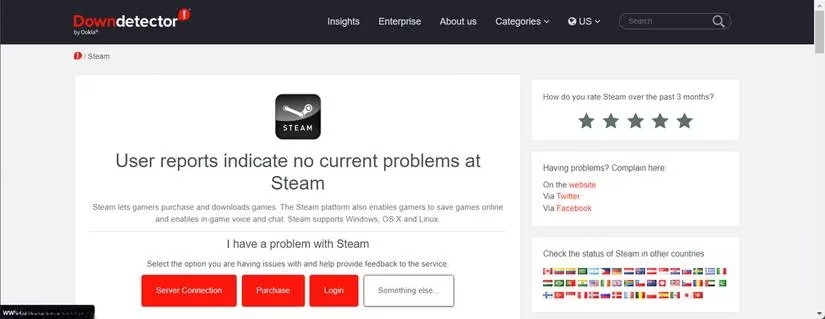
I usually keep an eye on Steam’s official X account, where updates land in real time. Websites like Downdetector are also useful for seeing if a bunch of other gamers are suddenly screaming into the void. If the problem is on Steam’s end, go make a snack. You cannot fix it, and your downloads will be waiting.
🌐 Give Your Network a Quick Checkup
Sometimes the issue is not Steam at all. Your network card might be having a communication breakdown with your operating system. Updating your network driver can clear that up fast. This is one of those fixes that sounds annoyingly technical but actually works more often than you would expect.
Also, test your internet connection. If you have no internet at all, then Steam is not the villain here. Open a browser and try logging into the Steam website. If you can sign in there without trouble, then the website is fine and the app is the problem. That little test saves time and keeps you from factory-resetting your router like a panicked goblin.
🧹 Clear That Corrupted Cache
Every app on your computer stores cache data, including Steam. Normally, cache memory is fast and helpful. When it becomes outdated or corrupted, though, it can turn against you like a swordsman who forgot which team they were on. Deleting the Steam cache can fix the login error quickly.
Usually you can clear the cache inside Steam settings, but that is tricky when you cannot even log in. Instead, open File Explorer and go to this path:
C: > Users > UserName > AppData > Local > Steam
Select all the files there and delete them permanently. Then restart your computer and try logging in again.
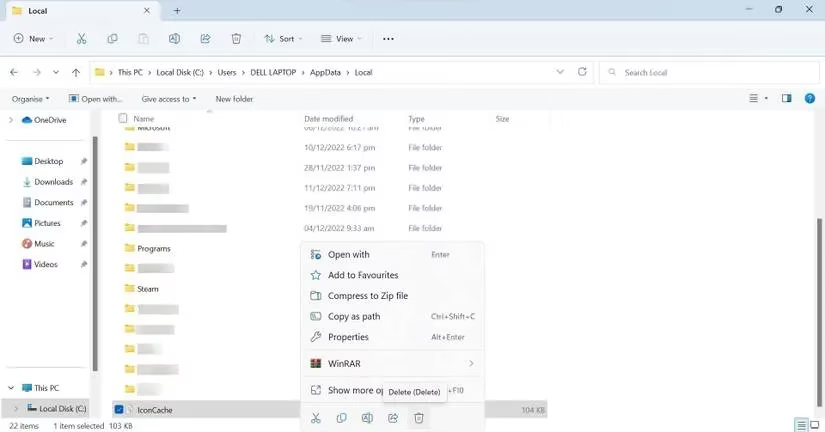
If you cannot find the files through File Explorer, there is a command-line alternative. Open Command Prompt with administrative rights, paste the following command, and press Enter:
steam://flushconfig
This flushes the configuration and gives your cache a well-deserved timeout.
🔁 Reinstall Steam Without Losing Your Precious Progress
If all else fails, reinstalling Steam is the nuclear option. But here is the good news: you will not lose your game progress. Steam stores your progress safely, so you can uninstall and reinstall without weeping over hundreds of hours of playtime.
On Windows, open the Settings menu, go to Apps > Installed apps, locate Steam, click the three-dot icon next to it, and select Uninstall.
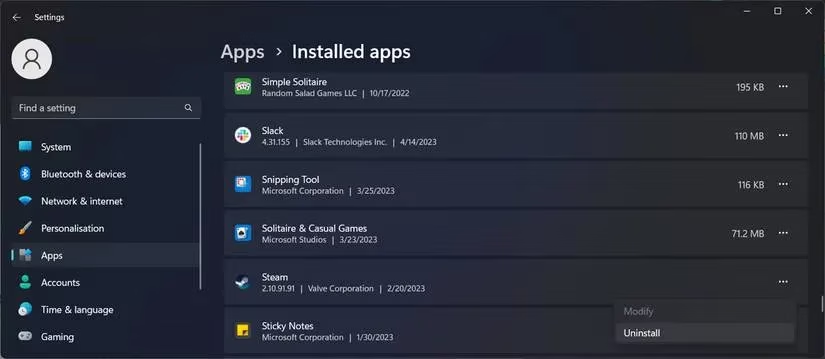
After that, head to Steam and download the app again. It feels dramatic, but it works. Just do not rush into switching operating systems because Windows threw a small tantrum. That would be like buying a new car because the radio stopped working.
Here is my quick recovery cheat sheet for when Steam locks you out:
| Possible Cause | My Fix | Panic Level |
|---|---|---|
| Wrong password | Check password manager, reset if needed | Low |
| Steam servers down | Check X and Downdetector, wait it out | Medium |
| Network driver issue | Update network driver | Medium |
| Corrupted cache | Delete Steam cache or use flushconfig | High |
| App malfunction | Test website login, reinstall Steam | High |
The world is not ending. Your library is safe. Try the steps above before you rage-smash anything. Good luck, and may your ping be low and your login instant.