
Yo, fellow gamers! Ever been hyped to jump into your favorite game, only to be greeted by Steam's dreaded "Files failed to validate and will be reacquired" error? It's like your gaming session hitting a brick wall before it even starts. Don't worry, you're not alone. This pesky issue has been bugging players for years, and even in 2026, it still pops up. But fear not! We've compiled the ultimate troubleshooting guide to get you back in the game faster than a speedrunner finishing a level.
First Steps: The Quick Reboot & Verify
Sometimes, the simplest solutions work wonders. Steam, like any other software, can get a bit confused. Think of it like a tired librarian who's lost track of where a book is. A quick restart can often clear its head.
-
Force Close Steam: Press
Ctrl + Shift + Escto summon the Task Manager. Find Steam in the Processes tab, right-click it, and select End task. This is the digital equivalent of turning it off and on again.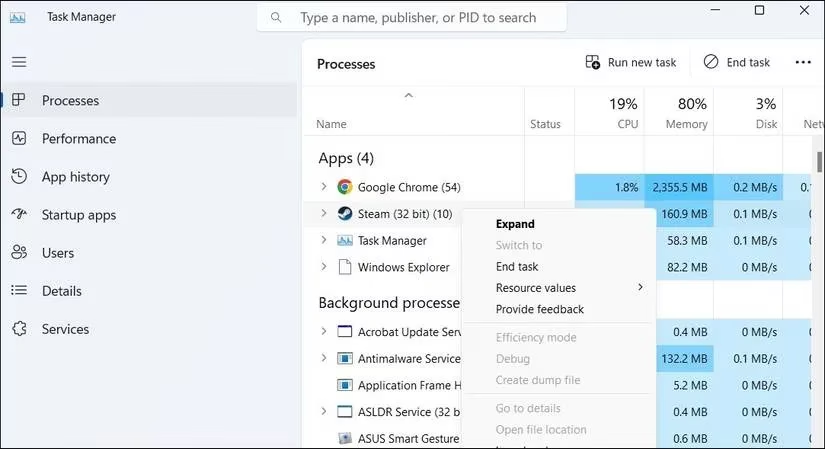
-
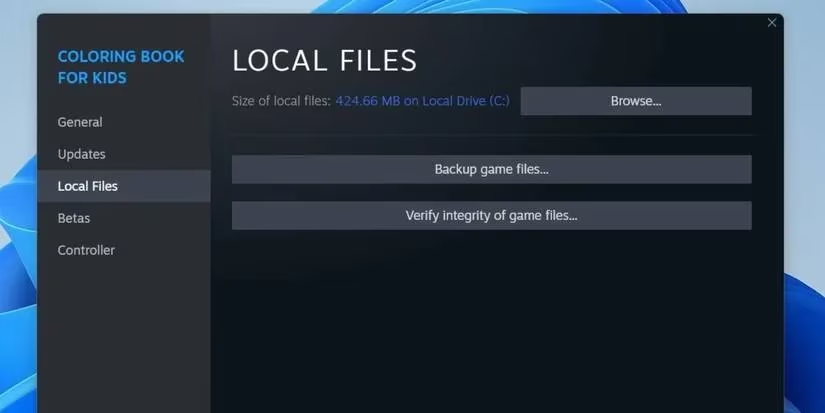
Re-launch and Verify: Open Steam again and head to your Library. Right-click the problematic game, go to Properties > Local Files, and click "Verify integrity of game files." This tells Steam to check if all the game pieces are present and correct. Give it a moment and see if the error persists.
Common Culprits & How to Tame Them
If a restart didn't do the trick, it's time to play detective. Here are the usual suspects:
-
🎮 Third-Party Controllers: That fancy new controller might be the party crasher. Some controllers can interfere with Steam's processes like a noisy neighbor during a quiet cutscene. Temporarily disconnect any non-standard controllers and try verifying the files again.
-
🗑️ Corrupted Download Cache: Steam's download cache can get messy over time. Clearing it is like giving Steam's internal filing system a deep clean. Here's how:
-
Open Steam and click Steam > Settings.
-
Go to the Downloads section.
-
Click "Clear Download Cache" and confirm.
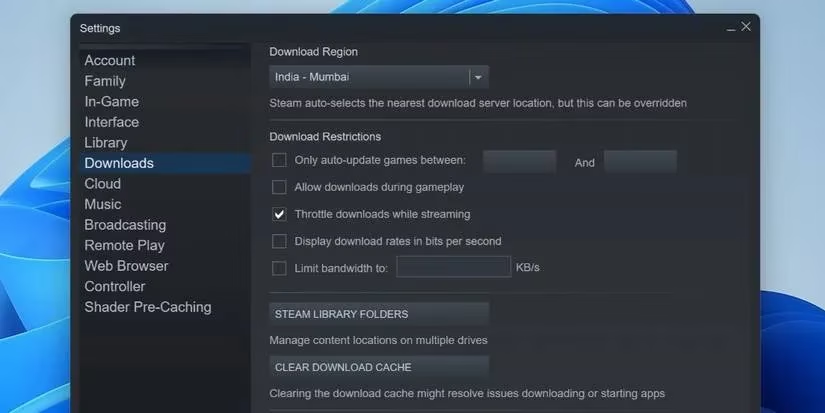
You'll need to log back into Steam afterward.
-
-
⚙️ Mod Mayhem: Mods are awesome, but they can sometimes clash with Steam's validation like two chefs arguing over a recipe. Temporarily disable all your mods (through your mod manager or by moving the files), then try the verification process again. If it works, re-enable them one by one to find the troublemaker.
Digging Deeper: System-Level Fixes
When the easy fixes fail, we need to look at the foundation your games are built on.
-
💾 Check Your Hard Drive's Health: The drive where your game is installed might have issues. Running a CHKDSK scan can find and fix bad sectors or file system errors—think of it as a mechanic giving your hard drive a full diagnostic.
-
Press
Win + Xand open Terminal (Admin) or Command Prompt (Admin). -
Type the following command and press Enter:
```
chkdsk /f /r
```
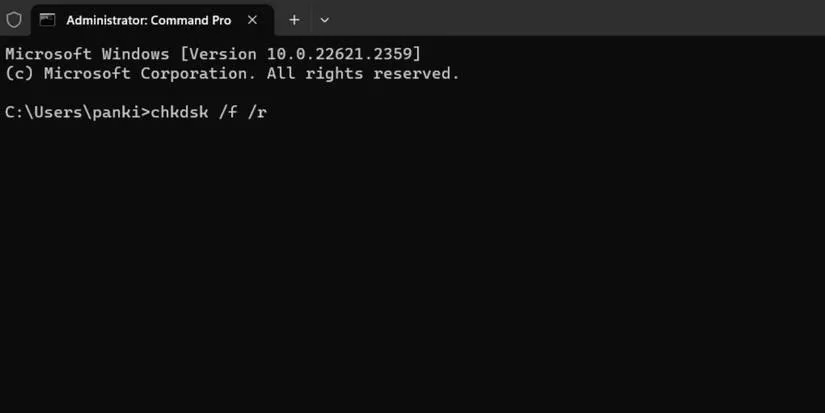
- The scan might ask to schedule itself for the next restart. Agree, restart your PC, and let it run.
-
-
🔄 The Nuclear Option: Reinstall Steam: If Steam's own core files are corrupted, verifying game files is pointless. It's like trying to fix a car with a broken toolbox. Your best bet is a fresh install.
-
Uninstall Steam through Windows Settings (Apps & Features). Pro Tip: Your game library is usually safe in a separate folder (like
C:\SteamLibrary\steamapps\common), so you might not have to re-download everything. -
Download the latest Steam installer from the official website and install it again.
-
Point the new Steam installation to your existing game library folder to rediscover your games.
-
Quick Troubleshooting Checklist
Here's a handy table to track your progress:
| Step | Action | Expected Outcome |
|---|---|---|
| 1 | Restart Steam via Task Manager | Clears temporary glitches |
| 2 | Verify Game File Integrity | Checks for missing/corrupted game data |
| 3 | Disconnect 3rd-party controllers | Removes potential hardware conflicts |
| 4 | Clear Steam Download Cache | Resets Steam's download data |
| 5 | Disable Mods | Isolates mod-related conflicts |
| 6 | Run CHKDSK Scan (chkdsk /f /r) |
Fixes disk errors |
| 7 | Reinstall Steam App | Replaces corrupted Steam client files |
Final Thoughts
Dealing with the "Files failed to validate" error can be as frustrating as a boss fight on the hardest difficulty, but it's almost always solvable. The key is to start with the simplest fixes and work your way down the list. Most of the time, a cache clear or a mod check will do the trick. In 2026, keeping your system and drivers updated also goes a long way in preventing these issues. Now go forth and conquer that error message! Your games are waiting. 🎮✨