
Steam error e84 is one of those frustrating roadblocks that can bring a PC gaming session to a halt before it even begins. The message “Something went wrong while attempting to sign in” appears when Steam fails to log a player in automatically, and it has been a known issue since Steam’s October 2022 update. Even in 2026, with a modernized Steam client, some users still encounter this error. The good news is that the problem is usually solvable without drastic measures. This guide walks through the most effective fixes, from quick checks to advanced workarounds.

Before diving into complex solutions, players should try the basic fixes. These simple steps often resolve e84 immediately:
-
Restart the Steam client and the device. 🎮 A fresh start clears temporary glitches that may block sign-in.
-
Delete temporary files from Windows. 🧹 This often fixes sign-in issues in third-party apps and clients.
-
Use the first username. 🔑 According to some users who faced this error, signing in with the original account name — the one chosen when the account was created — resolves the issue.
-
Disable any active VPN temporarily. 🌐 If the player is outside the United States and not using a VPN, installing one and connecting to a US server may help.
-
Close other gaming clients. ⚠️ Interference from other clients, especially Riot Client, can cause annoying sign-in issues.
-
Check the system clock. 🕒 If the time is incorrect, Windows date and time settings should be adjusted.
If the issue persists after these checks, it is time to apply the remaining fixes.
Log Out of Steam on Other Devices
Using the same Steam account on multiple devices is not forbidden, but it often leads to sign-in errors like e84. If the account is currently logged in elsewhere, the player should log out from all other devices. After that, reopening the Steam client may allow a successful sign-in. If no error appears, simultaneous use caused the problem. In the future, always log out before using the account on another device. If this makes no difference, move on to the next solution.
Reset the Account Password
Some users in a Steam community thread have successfully fixed this error by simply resetting their password. To do that, follow these steps:
-
Go to the Steam website.
-
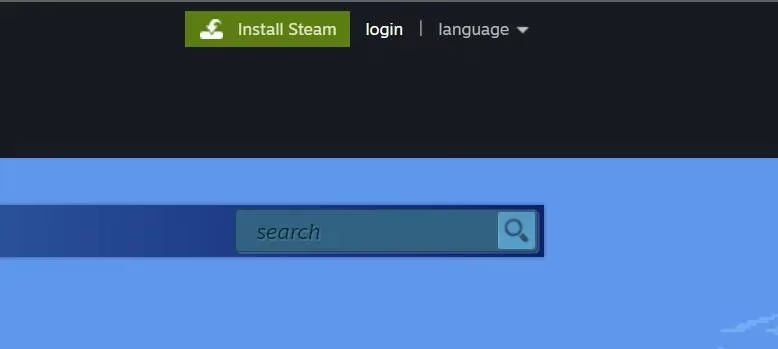
Click on login in the top-right corner.
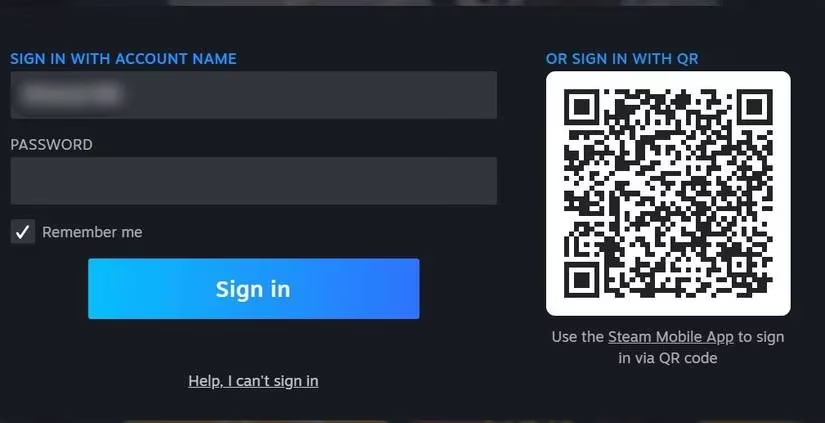
- Click on Help, I can’t sign in from the login page.
-
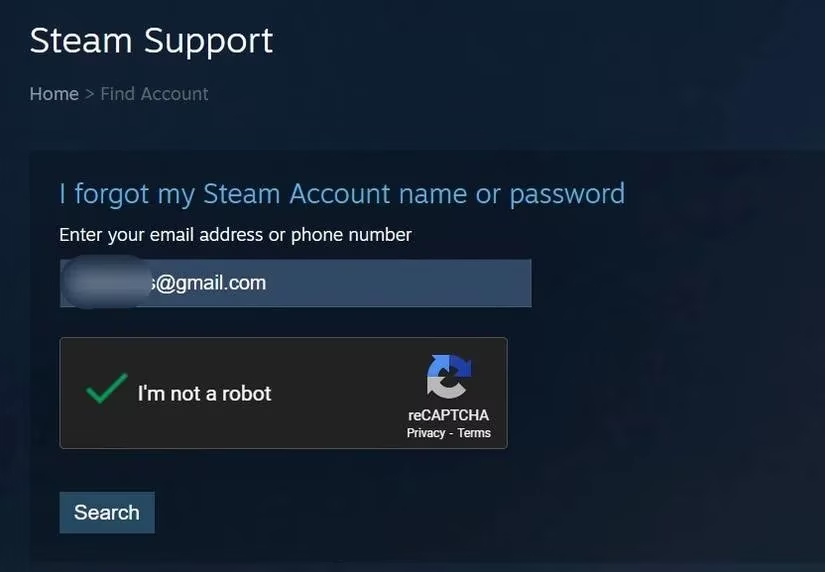
Then click on I forgot my Steam Account name or password.
-
Enter the email address or phone number linked to the account, verify the Captcha, and click on Search.
-
By selecting the appropriate option, receive a verification code by email or phone.
-
Verify identity by clicking the link received via email or adding the code received by phone.
-
Click on Reset my password after that.
After changing the password, restart the device once and try to sign in again with the new password. Hopefully, this time no errors will appear. If resetting the account password does not resolve the issue, proceed to the next step.
Add the -noreactlogin Parameter
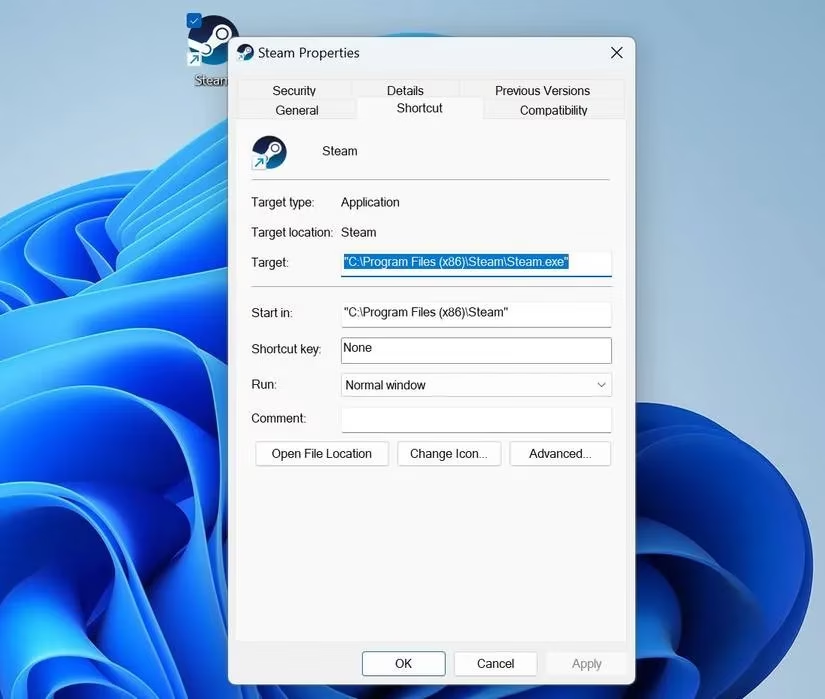
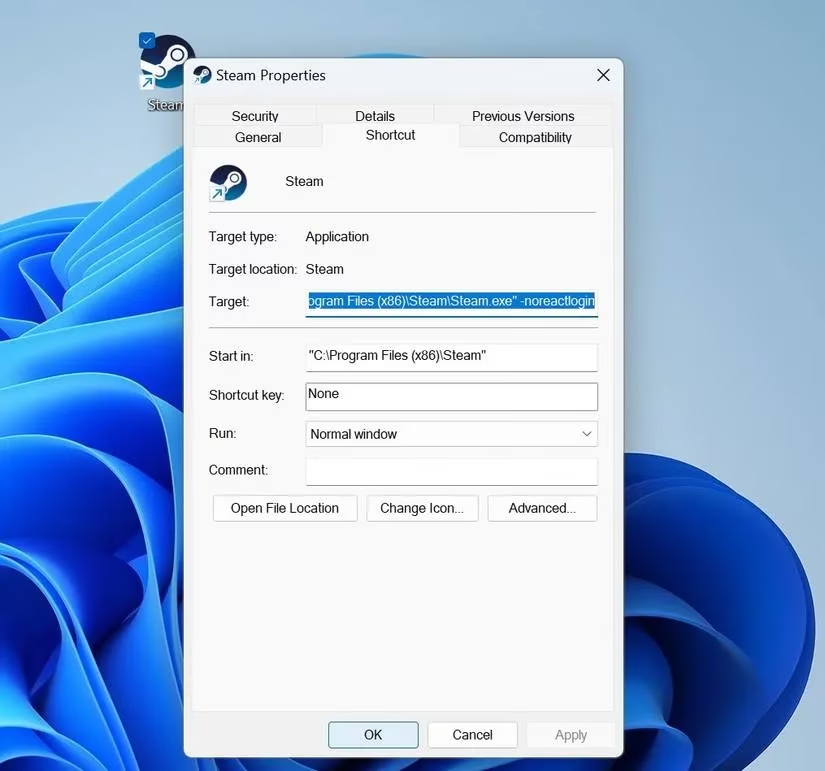
Adding the -noreactlogin parameter in Steam’s executable file can also resolve this issue. In technical terms, adding this flag disables the ReactJS-based login window and restores the old one. Follow these steps to add this extra flag:
-
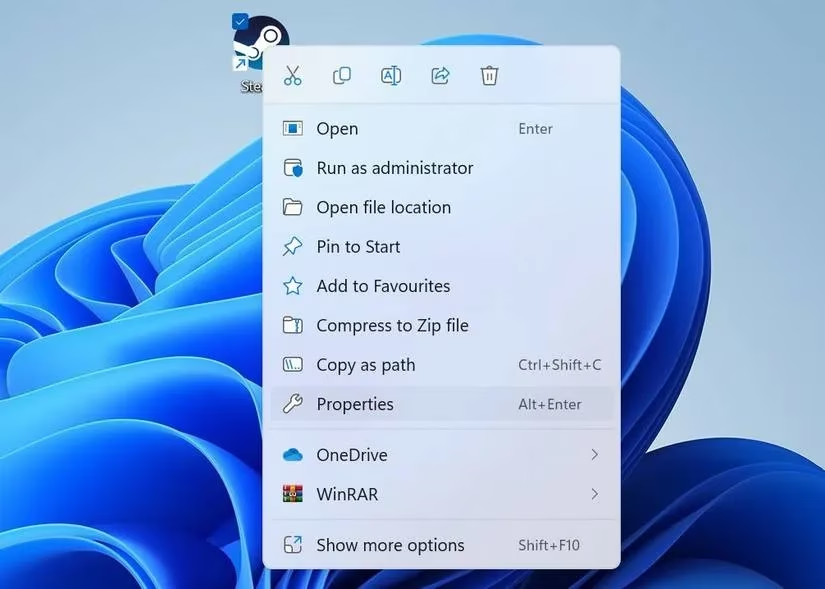
Right-click the Steam shortcut and select Properties.
-
Go to the Shortcut tab.
-
Modify the Target field by clicking at its end, adding a space, and typing
-noreactlogin. -
Click Apply and then hit OK.
If some launch parameters are already added to the Target field, consider removing them. According to some users on GitHub, Steam no longer supports the noreactlogin flag and suggests removing it. Remove this flag if it is already there. Taking this step ensures that this extra parameter is not contributing to the problem.
Final Fixes to Try
The above fixes should resolve this annoying error. However, if they do not work in the player’s favor, here are a few final fixes to try.
-
Test a different Steam account. ✅ To confirm that the issue is not with the main Steam account, sign in using a different account. If that works, the primary account may have an issue. Contact Steam support through the official Steam Support website and ask them to investigate.
-
Whitelist Steam’s executable files. 🛡️ Valve recommends whitelisting Steam’s executable files in Windows’ built-in or third-party security suites. Go to Steam’s installation folder, filter out all executable files, and whitelist them from Windows Defender or any other third-party antivirus software.
-
Reinstall the Steam client. 💾 This should be the last resort if nothing else works. Ensure a backup of game files is created before uninstalling Steam to avoid losing progress.
| Fix | Difficulty | Success Rate |
|---|---|---|
| Restart Steam and device | Easy | Moderate |
| Delete temporary files | Easy | Moderate |
| Log out other devices | Easy | High |
| Reset password | Medium | High |
Add -noreactlogin |
Medium | Moderate |
| Whitelist executables | Medium | Moderate |
| Reinstall Steam | Hard | High |
Getting error code e84 means Steam has failed to log the user in. Hopefully, the above fixes will help resolve the main issue and allow a successful sign-in. Reinstalling the Steam client should remain the last resort if nothing else works. As 2026 continues, keeping the Steam client updated and avoiding simultaneous logins on multiple devices will go a long way toward preventing this error from returning. 🎮