
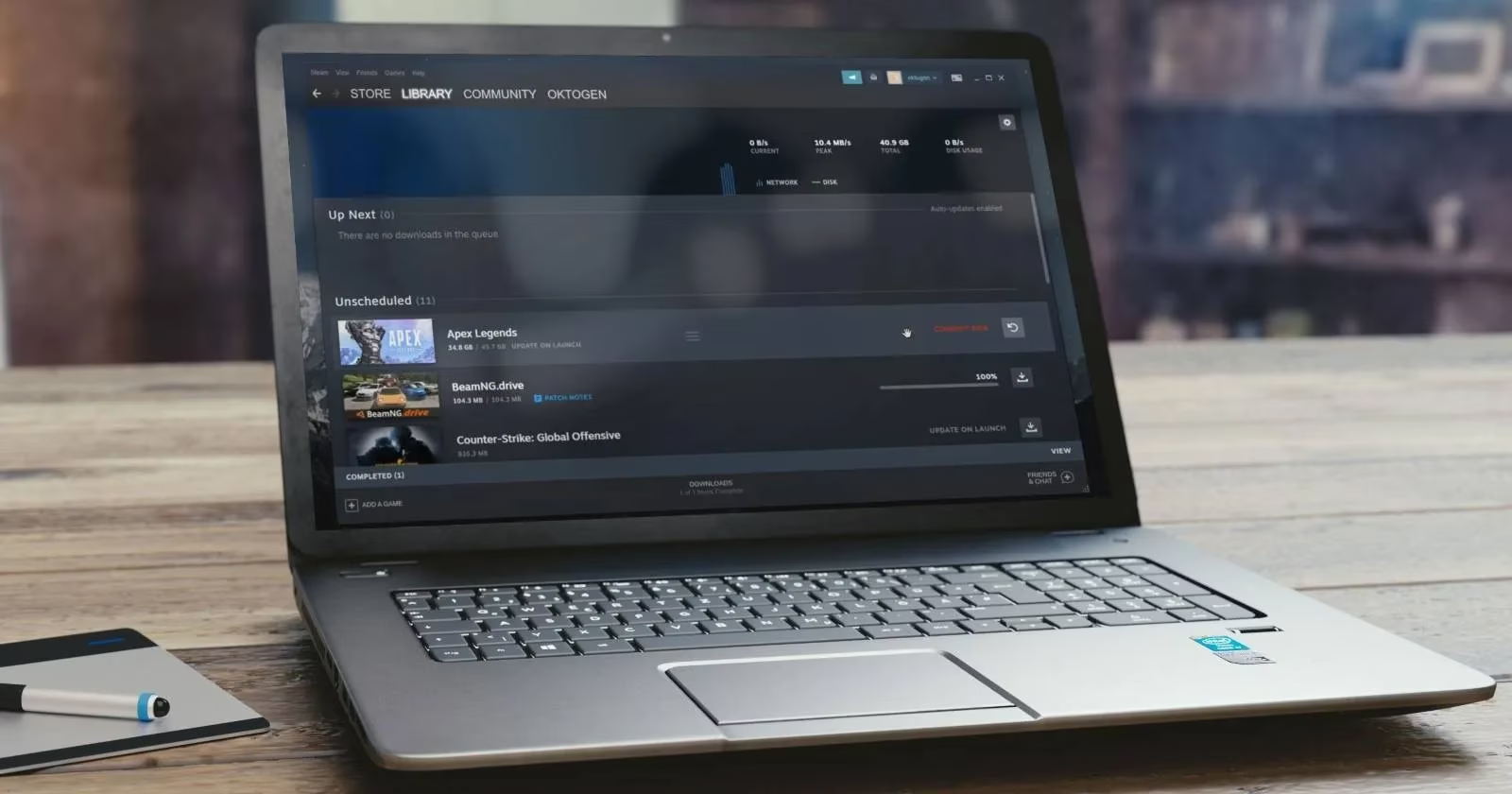
In the grand theater of PC gaming, few things are as soul-crushing as watching a Steam download crawl to 99%, only to be slapped in the face by the dreaded 'Corrupt Disk' error. It is a plot twist that no one asked for, and yet, as 2026 rolls on, Steam users still report this villainous message. The good news? The fix is usually less dramatic than a full PC exorcism. The bad news? It requires a bit of patience and a willingness to poke around Windows settings like a caffeinated IT detective.
Why Steam Throws a Tantrum
The 'Corrupt Disk' error typically appears when a download or update is interrupted. The culprit can be a grumpy hard drive, a confused Steam client, or Windows settings that are a little too eager to save power. Antivirus software and Windows Defender are also prime suspects, especially when Steam lives on the same drive as the operating system. When security software decides to body-block Steam mid-update, the result is digital carnage.
Run Steam as Administrator: The Gentle Nudge
The first fix is refreshingly simple. A gamer can run Steam as administrator, which often stops security software from interfering. The steps are:
-
Type 'Steam' in Windows Search.
-
Right-click the Steam icon.
-
Select Run as administrator.
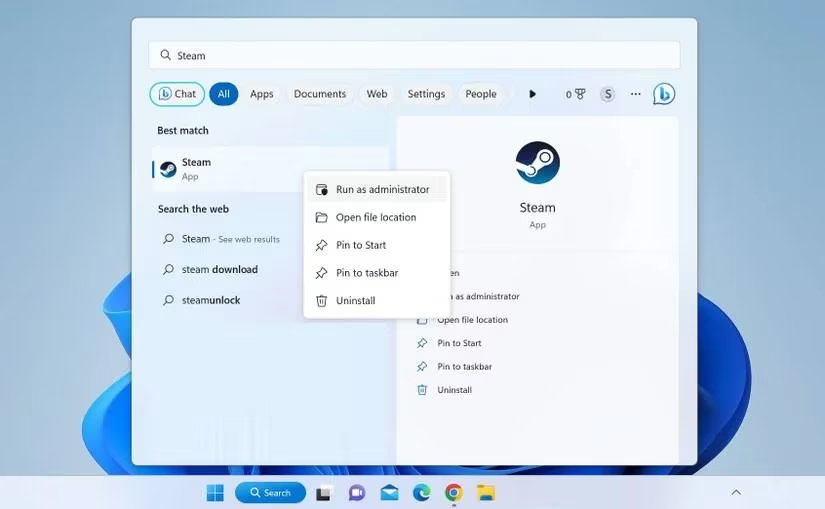
If that works, set Steam to always run as administrator. It is the digital equivalent of giving Steam a VIP pass.
Repair the Steam Library Folder
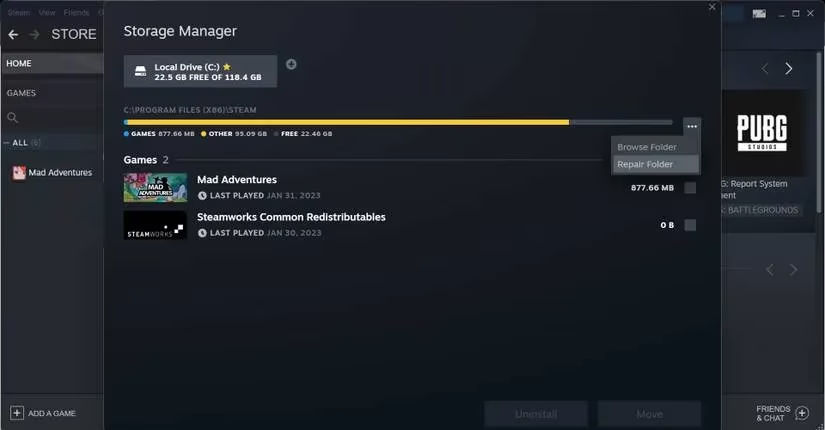
Steam includes a repair utility that can fix corrupt directories. The player should:
-
Launch Steam.
-
Go to Steam > Settings.
-
Select Downloads > Steam Library Folders.
-
Choose the drive containing the problematic game.
-
Click the three horizontal dots and choose Repair Folder.
Rename the 'Downloading' Folder: A Reddit-Approved Ritual
Many Steam users on Reddit have fixed this error by renaming a subfolder called 'Downloading' inside the Steamapps folder. The process is:
-
Open Steam and go to Settings.
-
Navigate to Downloads > Steam Library Folders.
-
Select the drive, click the three dots, and choose Browse Folder.
-
In Windows File Explorer, rename the 'Downloading' folder to something like 'Downloading_old'.
-
Try updating the game again.
Clear the Download Cache: Because Cache Is a Liar
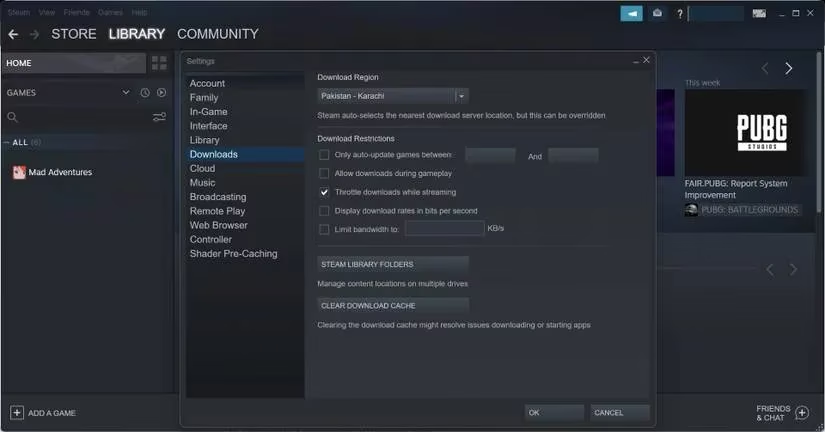
Steam's download cache stores information about active downloads. If it gets confused, it can cause errors. To clear it:
-
Open Steam and click Steam > Settings.
-
Go to the Downloads tab.
-
Click Clear Download Cache.
-
Confirm by clicking OK, then sign in again if prompted.
Move the Game to Another Drive: The Hardware Suspect
If the hard drive is failing, the error will keep coming back like a bad sequel. Signs include strange noises, frequent file corruption, and repeated disk errors. The player can test this by moving the game to a different drive. In Steam:
-
Go to Settings > Downloads > Steam Library Folders.
-
Click the + icon to add another drive.
-
Create a folder called 'SteamLibrary' on that drive.
-
Check the box next to the game, click Move, choose the new location, and click Move again.
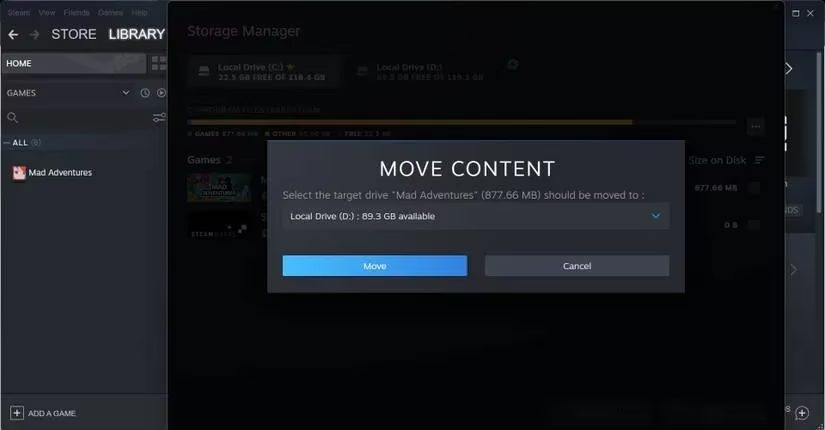
This may take a while, so patience is required. A watched pot never boils, and a watched Steam transfer never finishes faster.
Stop Windows from Powering Down the Hard Drive
Windows power settings can turn off a hard disk after idle time. If that happens during a download, the installation can corrupt. To prevent this:
-
Open Power Plan Settings from Windows Search.
-
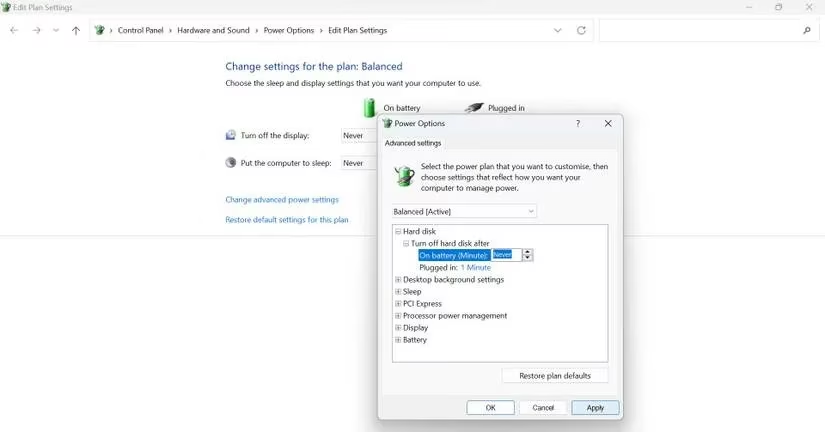
Click Change advanced power settings.
-
Expand Hard disk.
-
Set On battery (Minutes) to Never.
-
Also set Plugged in (Minutes) to Never if available.
Check for Steam Client Updates
Steam updates itself automatically, but sometimes a manual check helps. The player can open the Steam menu and click Check for Steam Client Updates. If the client is up-to-date, Steam will say so. If not, it will update automatically.
Quick Fix Summary
| Fix | Difficulty | Why It Helps |
|---|---|---|
| Run as administrator | 🟢 Easy | Stops antivirus interference |
| Repair folder | 🟢 Easy | Fixes corrupt directories |
| Rename 'Downloading' folder | 🟡 Medium | Clears stuck download state |
| Clear download cache | 🟢 Easy | Removes misleading cache data |
| Move game to new drive | 🟡 Medium | Bypasses failing drive |
| Change power settings | 🟡 Medium | Prevents mid-download shutdown |
| Update Steam client | 🟢 Easy | Fixes known bugs |
When All Else Fails: Call a Professional
If the problem persists, the hard drive may be on its deathbed. A technician can confirm whether the drive needs replacement. When buying a new drive, choose a quality model that will last. After all, no one wants to replay this error in 2027.
The 'Corrupt Disk' error is annoying, but it is rarely the end of the world. With a bit of troubleshooting, most gamers can get back to downloading, updating, and pretending they will play all those backlog games someday. 🎮💾