
I've lost count of how many times a single key has made me want to throw my keyboard out the window. The spacebar is especially brutal because it sits right in the middle of nearly every sentence you type. If yours has stopped responding on a Windows PC, don't worry—you're not alone, and the fix might be simpler than you think.
Over the years, I've seen spacebar failures come from all sorts of places: dust, worn-out switches, driver glitches, malware, or just a random Windows hiccup. The exact cause can vary, so I like to work through solutions from the easiest to the more involved.
Start with the Simplest Fix: Restart Your PC
Before doing anything complicated, restart your computer. I know it sounds like generic tech-support advice, but a quick reboot clears temporary memory and refreshes system processes. This alone can shake off random glitches that make the spacebar unresponsive. If you're lucky, the key will be back to normal before your coffee gets cold.
Check and Reinstall the Keyboard Driver
Drivers are what let Windows talk to your keyboard. When they become corrupted—because of an update issue, malware, or a hardware conflict—you might end up with dead keys. On Windows 10 and Windows 11 in 2026, the process is still very similar, and it's one of the first things I try.
Update the Keyboard Driver
-
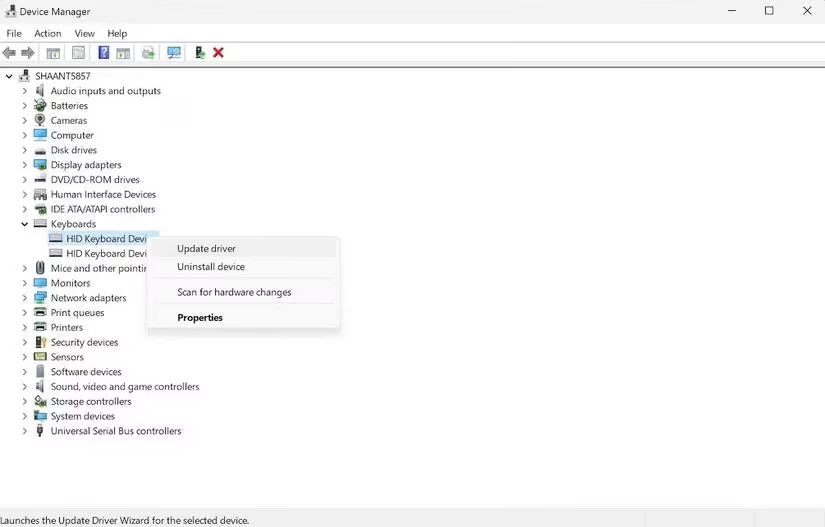
Open the Windows Device Manager. You can right-click the Start button and select it from the menu.
-
Expand the Keyboards section.
-
Right-click HID Keyboard Device and choose Update driver.
-
Follow the prompts and let Windows search for the latest driver.
If you see multiple HID Keyboard Device entries, update all of them.
Reinstall the Keyboard Driver
If updating doesn't help, I remove the driver entirely and let Windows reinstall it after a reboot.
-
Go back to Device Manager > Keyboards.
-
Right-click HID Keyboard Device and select Uninstall device.
-
Click Uninstall again to confirm.
-
Restart your PC. Windows will automatically reinstall a fresh driver when it boots up.
This has rescued my keyboard more than once when a driver got stuck in a weird state.
Run the Windows Keyboard Troubleshooter
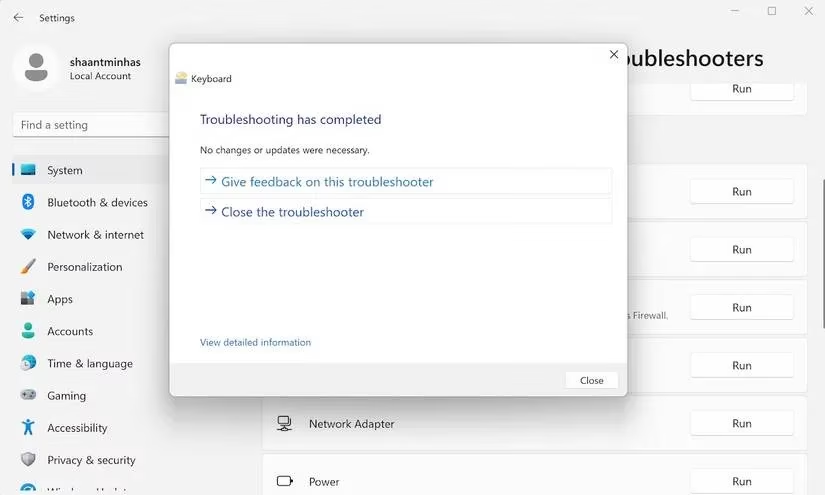
Windows includes built-in troubleshooters that can detect and fix common problems automatically. For a spacebar issue, the keyboard troubleshooter is worth a shot.
Here's how I run it:
-
Open Settings from the Start menu.
-
Go to System > Troubleshoot.
-
Select Other troubleshooters.
-
Find Keyboard and click Run.
If the tool finds an issue, it will try to repair it. Sometimes it simply reports that no problems were found, but it's still a useful zero-cost check.
Test with Another Keyboard or Switch
If software fixes don't work, it's time to figure out whether the problem is the physical keyboard itself. I always borrow another keyboard from a friend or plug in a spare USB keyboard. If the spacebar works perfectly on the alternate keyboard, then my original keyboard hardware is the culprit.
For mechanical keyboards, this is where hot-swappable switches really shine. If you have a hot-swappable board, try pulling a switch from a less-used key—like Scroll Lock or Pause—and putting it in the spacebar socket. If the spacebar starts working, you've confirmed a dead switch. You can either leave that switch in place or buy a replacement. It's cheaper than replacing the whole board and helps reduce e-waste.
For membrane keyboards, unfortunately, there isn't much you can do. If cleaning under the key doesn't help, the keyboard likely needs to be replaced.
Try System Restore, Malware Scan, and Windows Update
If the spacebar still refuses to cooperate, I look at the wider system.
System Restore
A System Restore point is like a snapshot of your system files and Windows registry. If the keyboard worked fine a few days ago and suddenly stopped, restoring to an earlier restore point can undo whatever changed. I've used this after a bad update or a suspicious app install.
Scan for Malware
Malware can cause all sorts of strange behavior, including unresponsive hardware. Running a full scan with Microsoft Defender or your preferred security tool is a smart move. It's free, and it might catch something that's interfering with your keyboard drivers.
Install Windows Updates
Updates bring security patches, driver fixes, and bug repairs. If you can't remember the last time you updated, check for updates in Settings > Windows Update. Installing the latest updates has fixed weird keyboard behavior for me more than once, especially after a major feature update.
When to Replace the Keyboard
If none of these steps work, your keyboard hardware is probably done. Key switches wear out over time—especially if you type a lot or play games that rely heavily on the spacebar. Dust, spilled drinks, and general wear can also accumulate inside the board.
Here's a quick summary of what I usually check:
| Possible Cause | What to Try |
|---|---|
| Random glitch | Restart your PC |
| Driver issue | Update or reinstall the keyboard driver |
| Windows bug | Run the keyboard troubleshooter |
| Hardware fault | Test with another keyboard or switch |
| System change | Use System Restore |
| Malware | Run a full security scan |
| Missing updates | Install Windows updates |
At the end of the day, a dead spacebar doesn't have to ruin your workflow. These fixes have saved me money and frustration, and most of them work for other unresponsive keys or even a glitchy mouse. If all else fails, treat yourself to a new keyboard—you deserve functioning keys. ⌨️✨