
Okay, confession time: I love ShadowPlay the way I love a loyal co-op buddy—until it silently stops recording and I discover my glorious boss fight is now a 40-minute screenshot of my desktop. In 2026, plenty of us have moved to the NVIDIA app, but the classic GeForce Experience overlay still lives on loads of rigs, and its Record button can still play dead. If your ShadowPlay is giving you the cold shoulder, grab a beverage. We are going to troubleshoot this thing like adults—by poking every switch until it works. 😄
First, Wake the Overlay From Its Nap
Sometimes the overlay is not broken; it is just sulking in a corner. Reactivating it is the quickest potential fix, and plenty of players have confirmed it works.
-
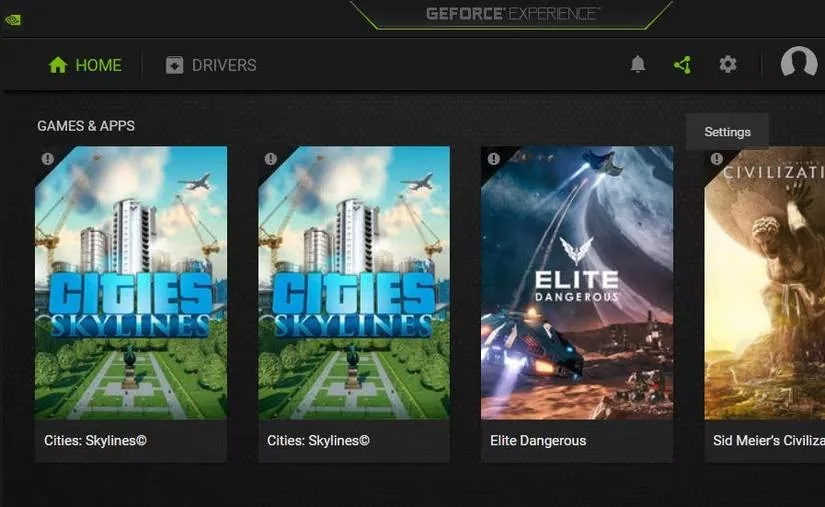
Right-click the NVIDIA Settings system tray icon and open GeForce Experience.
-
Hit the Settings cog at the top of the app.
-
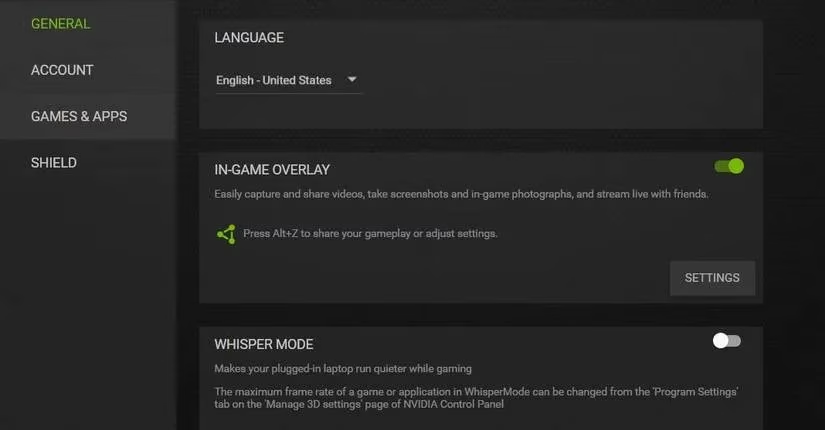
Toggle the In-Game Overlay option off, then back on again.
-
Exit GeForce Experience, launch a game, and open the overlay.
-
Try recording. If nothing happens, keep reading—no drama.
Desktop Capture: The Switch That Loves Being Off
ShadowPlay needs Desktop Capture enabled if you want it to record properly. This is the switch I forget about every single time, then feel silly when it fixes everything.
-
Press Alt + Z to open the overlay.
-
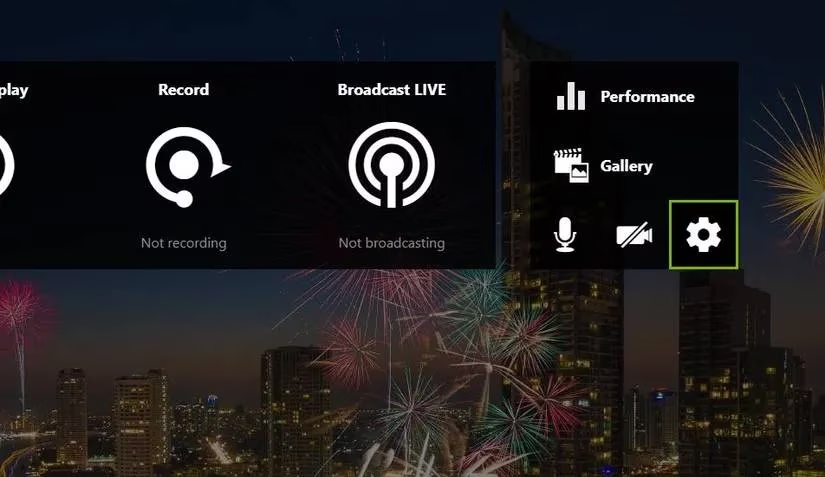
Click the Settings button on the overlay.
-
Open the Privacy Control menu.
-
Find Desktop Capture and turn it on.
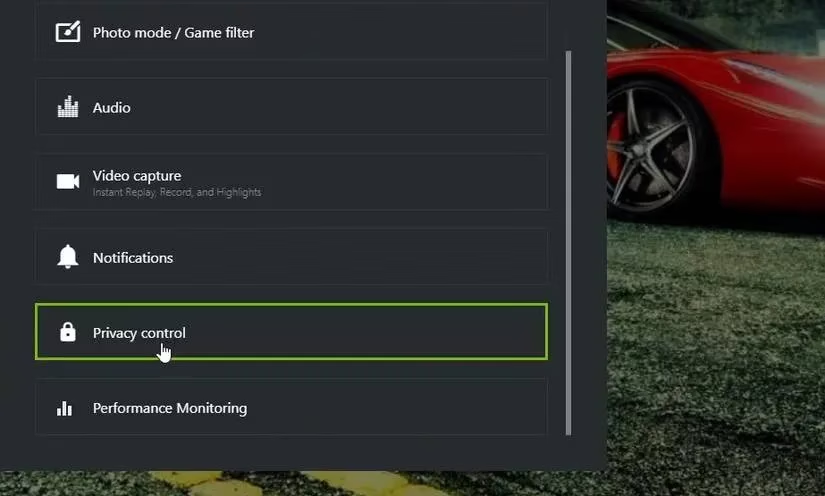
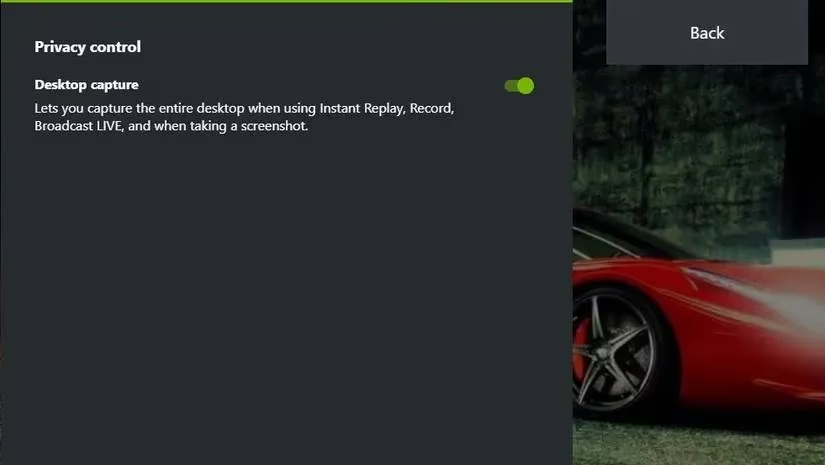
One small caveat: on Windows laptops with switchable dual GPUs, the Desktop Capture setting may not appear at all. That is normal, not a personal attack from NVIDIA. If the option is already enabled, make sure your PC meets ShadowPlay's system requirements before moving on.
Live Broadcasting and Twitch: The Jealous Roommates
The overlay's live broadcasting feature for YouTube, Twitch, and Twitter can cause ShadowPlay recording to act weird. Think of broadcasting as that roommate who insists on using the bathroom right when you need it.
-
Open GeForce Experience and click Settings.
-
Click Settings below the In-Game Overlay option.
-
Select Broadcast Live on the Home menu.
-
Turn Broadcast off.
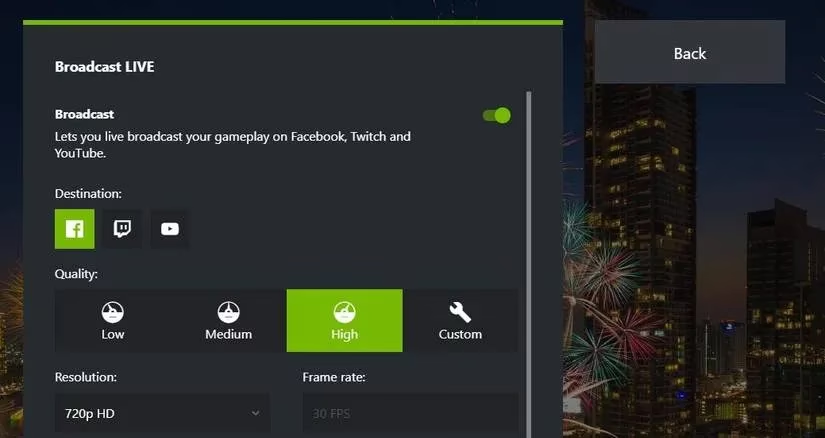
Twitch and ShadowPlay also do not always mix well. If you have a Twitch account connected, disconnect it temporarily. Open the Home menu, click Connect, select the connected Twitch account, and disconnect it. You do not need to uninstall Twitch on Windows. Just break up with it inside GeForce Experience for a while. 💔
Conflicting Apps: The Usual Suspects
Conflicting apps are one of the most common reasons ShadowPlay refuses to record. Browsers, streaming tools, and recording apps can all restrict ShadowPlay when they are running at the same time. Here are the usual troublemakers:
| Suspect | Why it causes trouble |
|---|---|
| Spotify | Can interfere with overlay and audio hooks |
| Google Chrome with Netflix or streaming tabs | Streaming services can block recording |
| Netflix app | Another streaming service with the same bad habit |
| Twitch | Broadcasting and recording do not always share nicely |
| Discord | Overlay features can clash |
| OBS Studio | Another recorder wants the same screen |
| Fraps | Old-school recorder, new-school headache |
| Bandicam | Same story |
| Oculus app | VR software can sit in the background and meddle |
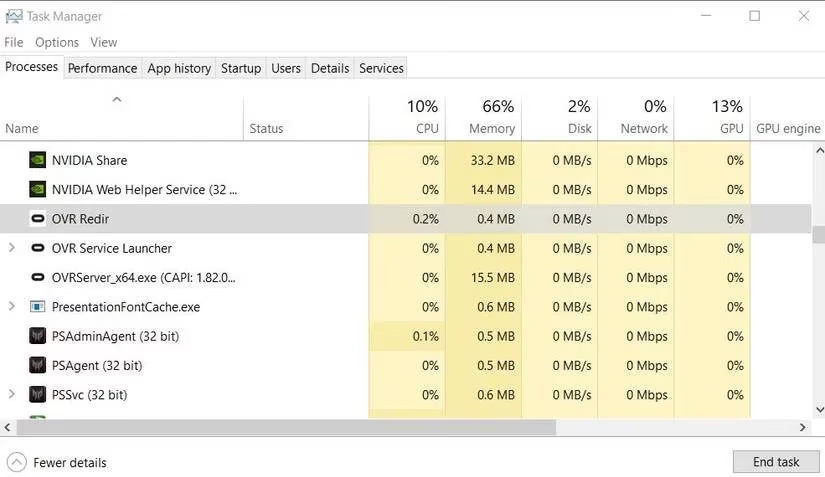
Close every window you can see on the taskbar before recording. Then open Task Manager and end background processes that could be interfering. While you are there, check the Startup tab and disable any recorder or streaming app that starts automatically with Windows. Task Manager is basically the bouncer at the club—use it. 🚪
NVIDIA Services Need a Pulse Check
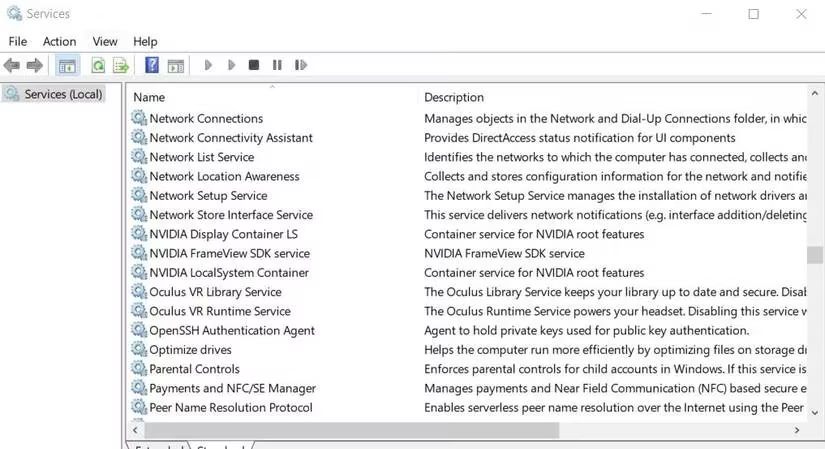
ShadowPlay can stop working if certain NVIDIA services are disabled or stopped. This is less glamorous than a driver reinstall, but it is quick.
-
Open the Windows search box and type Services.
-
Open the Services app.
-
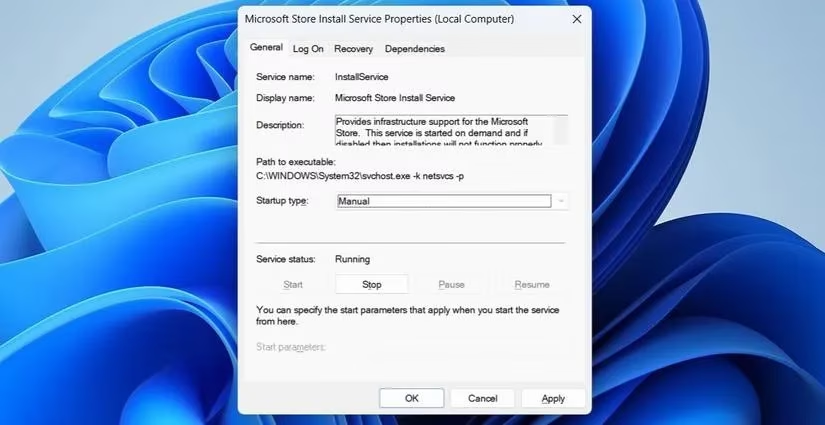
Double-click NVIDIA Streaming Service.
-
Set Startup type to Automatic.
-
Click Start if the service is stopped.
-
Click Apply and OK.
-
Repeat for all NVIDIA services you can see.
-
Restart services that are already running, then reboot Windows.
Drivers and GeForce Experience: The Clean Slate
If the overlay is still ignoring you, make sure your graphics card has the latest NVIDIA driver. In 2026, that advice is still boring and still correct. Use a clean uninstall tool to remove the current driver, then install the newest driver from NVIDIA's official driver page. A messy old driver can haunt ShadowPlay like a ghost in a hallway.
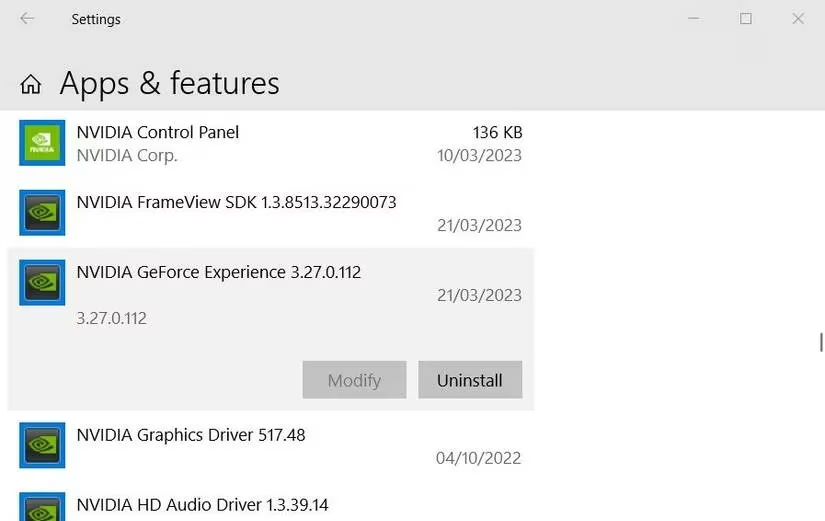
Reinstalling GeForce Experience can also fix app bugs that break recording. Uninstall it through Apps & Features or Control Panel, restart your PC, download the latest GeForce Experience installer, and reinstall it. It is the software equivalent of turning it off and on again—except with more clicking.
Final Save Point
ShadowPlay not recording is annoying because there are many possible causes, but most of them are ordinary settings and software conflicts. Wake the overlay, enable Desktop Capture, turn off broadcasting, disconnect Twitch, close the usual suspects, check NVIDIA services, clean-install your driver, and reinstall GeForce Experience if needed. Try them in that order and give each one a fair chance. Your Record button may be moody, but it is not mystical. With a little patience, you will be back to capturing your finest gaming moments—and your finest accidental desktop screenshots. 🎮✨