
In PUBG: Battlegrounds, fine-tuning graphics, audio, and controls is part of the ritual. Players want their mouse sensitivity, brightness, and keybinds to feel just right. But some PC players still run into a frustrating problem in 2026: PUBG refuses to save their settings. Every restart wipes the changes, and the game returns to its defaults. It is annoying, but it is not game-breaking. The good news is that several community-tested fixes still work.
Why PUBG Keeps Forgetting Settings
Most of the time, the culprit is a configuration file that has become corrupted, read-only, or blocked by Windows security features. Sometimes the game files themselves are damaged. In other cases, a third-party antivirus tool is quietly preventing PUBG from writing to its own folders. The fixes below start with the simplest and least disruptive option, then move toward heavier steps.
1. Delete the GameUserSettings.ini File 🗑️
This is one of the most widely confirmed solutions. Deleting PUBG’s GameUserSettings.ini file forces the game to rebuild its configuration from scratch. Many players report that this single step fixes the not-saving issue.
Here is how players can do it:
-
Press the Windows logo key + R to open the Run command app.
-
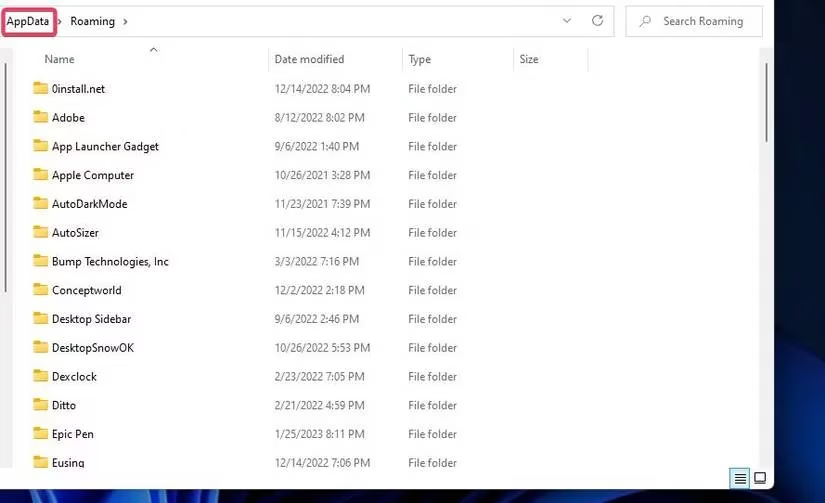
Type %appdata% and press Enter.
-
Click AppData in File Explorer’s address bar.
-
Open the Local subfolder.
-
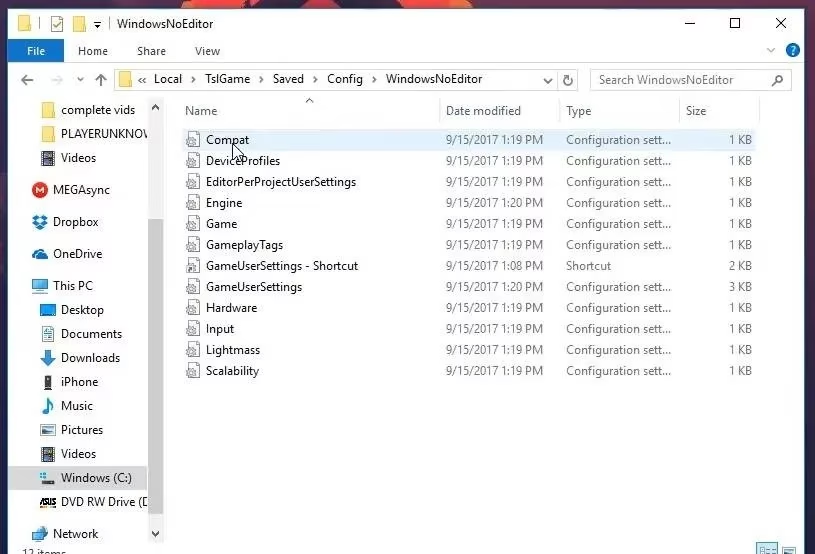
Open the TslGame folder.
-
Navigate to Saved > Config > WindowsNoEditor.
-
Right-click GameUserSettings.ini and select Delete.
-
Launch PUBG and try changing settings again.
2. Uncheck the Read-Only Attribute 🔒
Sometimes the file is present, but Windows has marked it as read-only. In that case, PUBG cannot write new values to it. Players can check this by right-clicking GameUserSettings.ini and selecting Properties. If the Read-only checkbox is selected, they should deselect it, then click Apply > OK. After that, they can relaunch the game and test whether settings stick.
3. Verify Game Files 🛠️
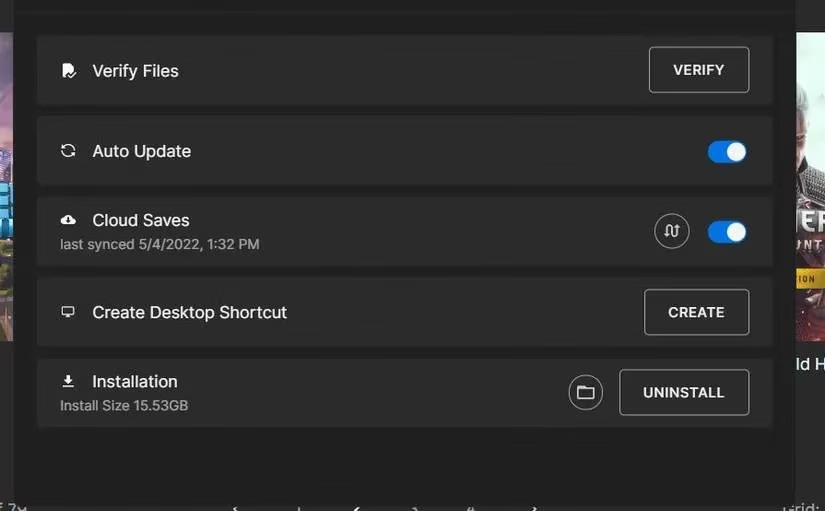
Both Steam and the Epic Games Launcher include tools for verifying game files. These tools scan for missing or corrupted files and repair them. Since PUBG is playable but simply refuses to save settings, a damaged config or game file could be the cause. Players on Steam can right-click PUBG in their library, open Properties, and find the verification option under Installed Files. Epic Games users can find a similar verify option in the launcher’s library menu.
4. Check Controlled Folder Access 🛡️
Windows Security’s Controlled folder access feature blocks ransomware and other malware from modifying protected folders. Unfortunately, it can also block games from saving progress and settings. Players should check whether this feature is interfering with PUBG.
Steps to check:
-
Double-click the Windows Security shield icon in the system tray.
-
Click Virus & threat protection.
-
Scroll down and click Manage ransomware protection.
-
Look at the Controlled folder access setting.
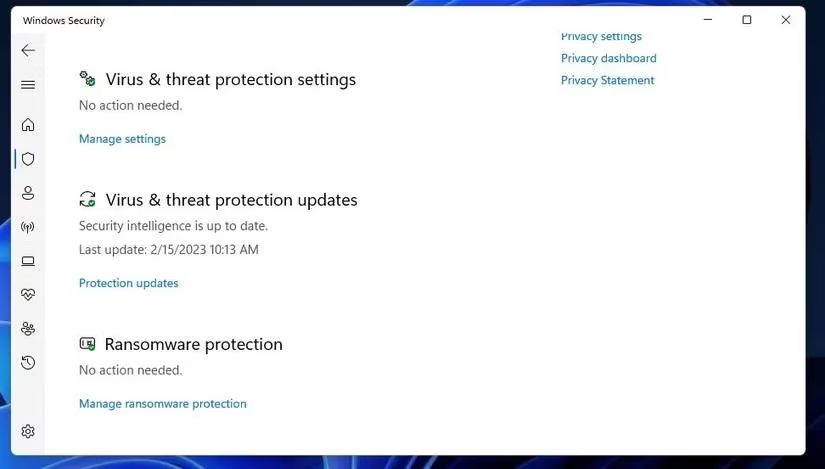
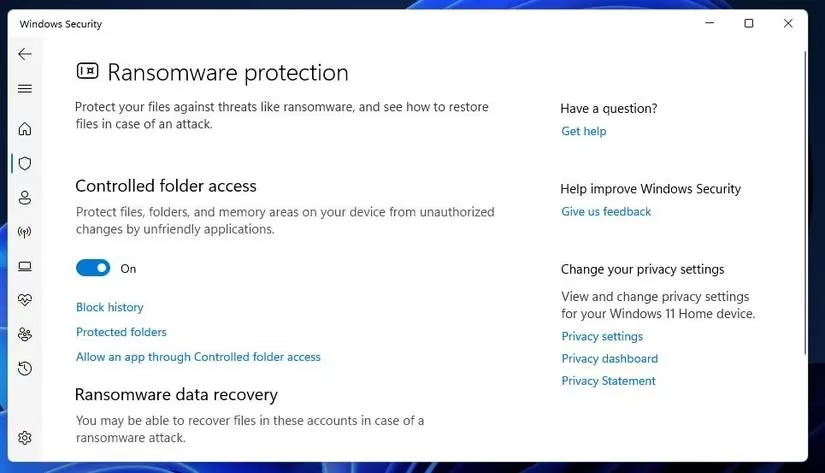
If disabling the feature fixes the problem, players can either leave it off or add PUBG to the exclusion list. The exclusion option is called Allow an app through Controlled folder access. Players can click Add an allowed app and select the PUBG executable file. Third-party antivirus apps may have a similar folder-protection feature, so it is worth checking their settings too.
5. Reinstall PUBG as a Last Resort 💾
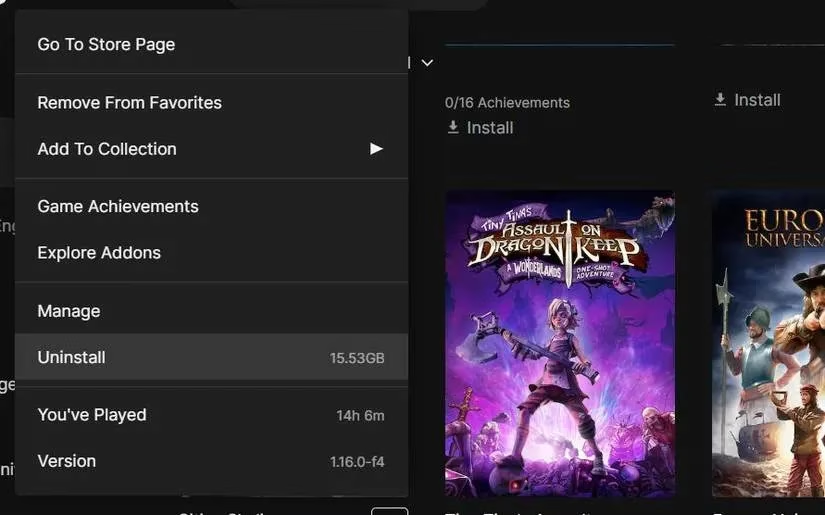
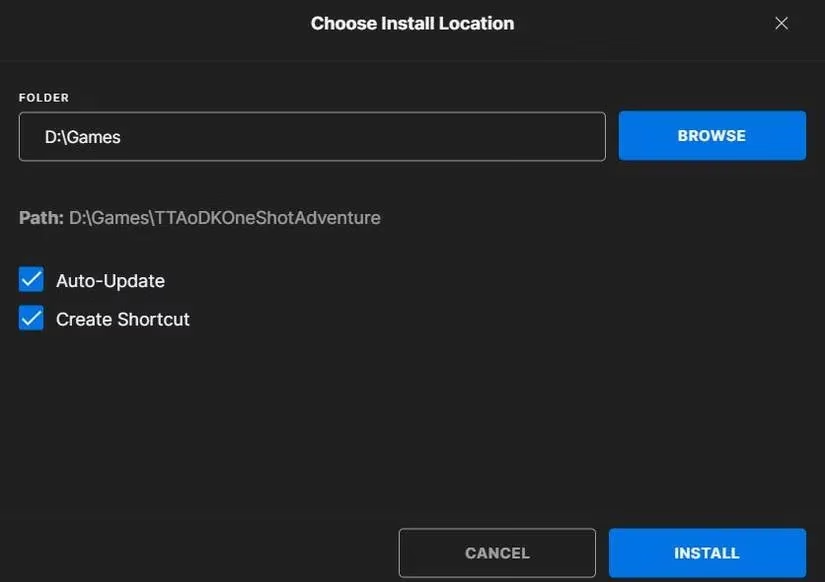
Reinstalling PUBG is not ideal. The game is roughly 30–40 GB, so downloading it again takes time. Still, if corrupted or missing files are the root cause, a clean reinstall can solve the problem. Epic Games users can open the launcher, go to the Library tab, click the ellipses menu under PUBG, and choose Uninstall. After that, they can select PUBG again and click Install. Steam users can uninstall the game through Windows Control Panel, then reinstall it from their Steam library.
Quick Summary Table 📋
| Fix | Difficulty | Best For |
|---|---|---|
| Delete GameUserSettings.ini | Easy | Corrupted config files |
| Uncheck Read-only | Easy | Permission problems |
| Verify game files | Easy | Damaged game files |
| Check Controlled folder access | Medium | Windows blocking saves |
| Reinstall PUBG | Heavy | Persistent file corruption |
Final Thoughts
No single fix is guaranteed for every player, but these steps cover the most common causes. Most gamers who run into PUBG settings resetting will likely find relief after deleting the config file or checking folder permissions. If the problem continues, players can submit a support request through the official PUBG: Battlegrounds website. In 2026, the game is still popular, and losing settings every session is a headache nobody needs. A few minutes of troubleshooting can make the battle royale experience feel personal again. 🎮
This discussion is informed by SteamDB, a widely cited resource for tracking Steam game updates and platform-level data. For a troubleshooting issue like PUBG settings not saving, platform visibility into build changes and update history can help players determine whether the behavior is tied to a recent patch, a client-side file problem, or a launcher-related sync issue rather than an in-game option alone.