
Ah, the sweet, gentle hum of a well-tuned PC. It's the sound of productivity, gaming victories, and digital serenity. But what happens when that hum transforms into a deafening roar, as if your desktop is preparing for takeoff? When your PC fans decide to run at full tilt 24/7, it's more than just an annoyance—it's a cry for help. It's your hardware screaming, "Houston, we have a problem!" And let's be real, nobody wants their computer to sound like it's trying to achieve liftoff every time they check their email.
This fan frenzy isn't just about noise pollution. Running those little spinning warriors at maximum RPM all day, every day is a surefire way to send them to an early grave. Think of it like revving your car engine at the redline while parked in your driveway—not exactly great for longevity. So, before you invest in noise-canceling headphones or consider moving your PC to another room, let's dive into the common culprits and fixes for this high-speed headache.
Step 1: Play Detective with Heat 🕵️♂️🔥
The number one suspect when fans go hyperdrive is, you guessed it, heat. Your fans are essentially the bouncers at the club, kicking out hot air to keep the party (your components) cool. If they're working overtime, the club is probably too packed.
- Check the Vents: First things first, do a visual inspection. Are your PC's air intakes and exhausts blocked by dust bunnies the size of actual bunnies? Is your laptop sitting on a fluffy blanket, suffocating its underside? Poor ventilation is public enemy number one. Grab a can of compressed air and give those vents a good blast. You might be surprised at the dust cloud that emerges.
-
Monitor Temps: Use software like HWMonitor or Core Temp to check your CPU and GPU temperatures at idle and under load. If your CPU is idling at 80°C (176°F), that's a major red flag. It's time to dig deeper.
-
The Thermal Paste Conundrum: Thermal paste is the unsung hero that transfers heat from your CPU/GPU to the cooler. Over years, it can dry out, crack, or pump out, becoming as effective as a chocolate teapot. Reapplying thermal paste can work wonders. Remember the golden rule: clean off the old paste completely with isopropyl alcohol before applying a fresh, pea-sized dot of the new stuff. For laptops, this can be a bit more u201cadvanced surgery,u201d so check online guides specific to your model first.
Step 2: Software Shenanigans and Background Bloat 🤖
Sometimes, the issue isn't physical; it's digital. Your operating system or a rogue program might be holding your fans hostage.
-
Task Manager to the Rescue: On Windows, hit
Ctrl + Shift + Escto open Task Manager. Click on the "Processes" tab and sort by "CPU" or "Memory." Are there any programs gobbling up resources for no good reason? Close non-essential apps, especially those sneaky background processes that launch on startup. It's like kicking out freeloaders at your system's resource party. -
Fan Control Software: This is a biggie. Many motherboards and laptops come with proprietary software (like MSI Dragon Center, ASUS Armory Crate, or Corsair iCue) that handles fan curves. If this software is missing, corrupted, or misconfigured, your fans might default to "panic mode." Reinstalling or properly configuring this software can restore order.
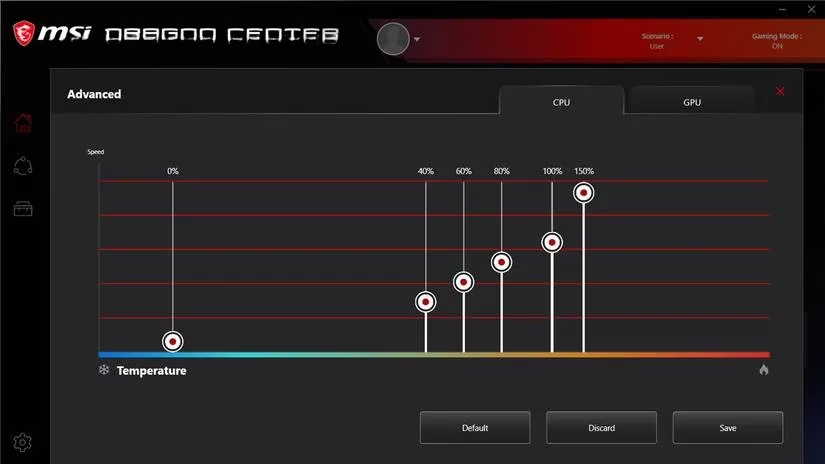
- Third-Party Savior Tools: Don't have manufacturer software, or is it not cutting it? Third-party tools are your best friend. Programs like Fan Control (highly recommended by the PC tinkering community) or MSI Afterburner (great for GPU fan control) allow you to create custom fan curves. You can tell your fans, "Hey, only spin up to 50% until we hit 70°C, then you can go wild." It's all about that sweet, sweet control.
Step 3: Hardware Hookups and BIOS Blues 🔌⚙️
Let's get physical again. Sometimes, the fix is as simple as checking the cables.
-
Fan Headers 101: Not all fan headers are created equal. Your motherboard has specific headers labeled CPU_FAN, SYS_FAN (or CHA_FAN), etc. Make sure your CPU cooler is plugged into the CPU_FAN header. If it's in a regular SYS_FAN header, your motherboard might not be able to control it properly, leaving it stuck on high.
-
PWM vs. DC: Know your fan type! Most modern fans use a 4-pin connector for PWM (Pulse Width Modulation) control, which allows for precise, software-based speed adjustment. Older 3-pin fans use DC (Direct Current) control, which is less precise. If your BIOS is set to the wrong mode for your fan type, chaos ensues.
-
Dive into the BIOS/UEFI: Restart your PC and mash the key (often Del, F2, or F10) to enter the BIOS. Navigate to the hardware monitoring or fan control section. Here, you can often switch between PWM/DC modes and sometimes even set basic fan curves. Ensure everything is set to "PWM" or "Auto" for 4-pin fans.
Step 4: The Nuclear Option & Proactive Care ☢️🛡️
If you've tried all of the above and your PC still sounds like a wind tunnel, you might be facing hardware failure.
-
Faulty Fan Diagnosis: A fan bearing can wear out, making it noisy or preventing it from spinning down. Listen closely to each fan individually (carefully stopping them with your finger for a second at your own risk to isolate the noise). If one sounds gritty or screechy, it's likely on its last legs.
-
Time for an Upgrade: All hardware has a lifespan. Replacing a case fan or CPU cooler isn't the end of the world. In 2026, we have amazing options from brands like Noctua, be quiet!, and Arctic that offer stellar cooling with whisper-quiet operation. Think of it as giving your PC a spa day.
- Stay Proactive: The best fix is prevention. Keep your PC clean, monitor your temperatures every now and then, and don't let background software run amok. A happy PC is a quiet PC.
In the end, taming your runaway fans is usually a matter of methodical troubleshooting. Start with the simple stuff (cleaning!), move to software checks, verify your hardware connections, and finally, consider replacement. By following these steps, you can silence the jet engine under your desk and ensure your PC runs cool, quiet, and efficient for years to come. Now, go enjoy that sweet, sweet silence—you've earned it. 😎