
For the dedicated PC gamer, every frame per second counts. In the competitive landscape of 2026, where games demand ever-increasing system resources, even background utilities can be the difference between a smooth victory and a stuttering defeat. The Xbox Game Bar, a suite of tools integrated into Windows, is a prime example. While it offers convenient features for capturing memorable moments and monitoring performance, its constant presence can silently siphon precious processing power and memory, potentially hampering the very games it's meant to enhance.
This built-in application provides a quick-access overlay for several gamer-centric functions:
-
Game Capture: Instantly record video clips or take screenshots without leaving your game.
-
Performance Widgets: Monitor real-time metrics like FPS, GPU, and CPU usage.
-
Social Integration: Quickly view and respond to Xbox party chats and friend requests.
However, this convenience comes at a cost. The tool runs several background processes and services to enable its instant overlay functionality. For systems already pushing their limits with demanding titles, this additional overhead can lead to:
-
Frame Rate Drops: Unexpected stutters during intense action sequences.
-
Input Lag: A slight but noticeable delay between your mouse click or key press and the game's response.
-
Higher Resource Consumption: Increased RAM and CPU usage that could be allocated to the game itself.
Fortunately, both Windows 10 and Windows 11 offer methods to rein in the Xbox Game Bar's appetite for resources, though the approaches differ significantly between the two operating systems. 😊
Taking Full Control in Windows 10: The Complete Disable
Windows 10 provides a straightforward, all-or-nothing switch for the Xbox Game Bar. If you never use its features and prioritize raw performance, you can deactivate it entirely with a few clicks.
Step-by-Step Guide to Disable Xbox Game Bar on Windows 10:
-
Access System Settings: Right-click on the Windows Start button (the iconic Windows logo) on your taskbar. From the context menu that appears, select "Settings". This opens the central hub for customizing your PC.
-
Navigate to Gaming Options: Within the Settings app, locate and click on the section labeled "Gaming". This menu is specifically designed for configuring game-related features on your computer.
-
Select the Game Bar Tab: On the left-hand sidebar of the Gaming settings, you will see several options. Click on "Xbox Game Bar".
-
Toggle Off: You will now see a master switch labeled "Record game clips, screenshots, and broadcast using Game Bar". Simply toggle this switch to the "Off" position.
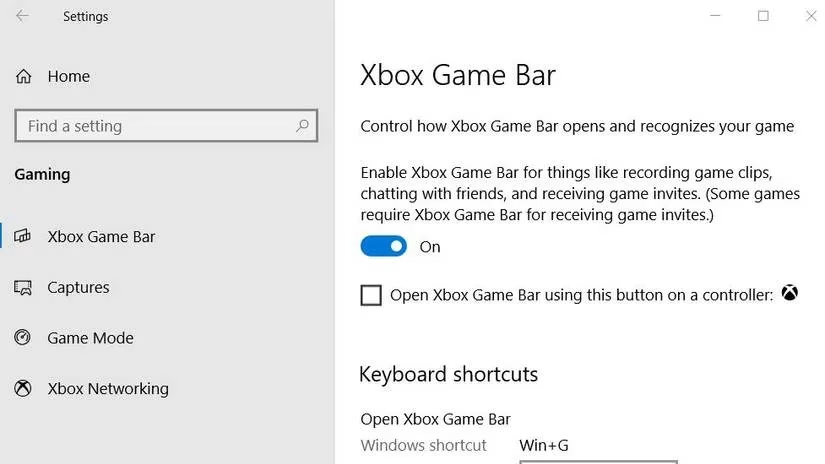
And that's it! This action completely disables the overlay and its associated background services. The familiar Win + G keyboard shortcut will no longer summon the bar, freeing up those system resources for your gaming sessions.
Managing the Tool in Windows 11: Restricting Background Activity
With Windows 11, Microsoft shifted its approach. The operating system does not offer a simple global toggle to disable the Xbox Game Bar completely, as it is more deeply integrated with other system components and the Xbox ecosystem. Instead, the recommended method is to prevent it from operating when you're not actively using it.
Here is how to limit the Xbox Game Bar's background processes in Windows 11:
-
Open Settings: Launch the Settings application. You can do this by clicking the Start button and typing "Settings," or by pressing
Win + Ion your keyboard. -
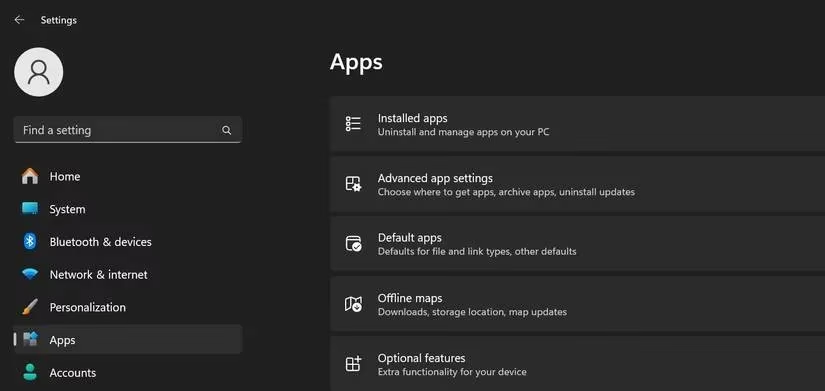
Go to Apps: In the Settings menu, select "Apps" from the list on the left side of the window.
-
Find Installed Apps: On the right side, click on "Installed apps". This will display a comprehensive list of all applications on your system.
-
Locate the Xbox Game Bar: Use the search bar at the top of the Installed apps list. Type in "Xbox". The search results should quickly filter to show the "Xbox Game Bar" application.
-
Access Advanced Options: Click on the three horizontal dots (
...) next to the Xbox Game Bar entry. A small menu will pop up. From this menu, select "Advanced options".
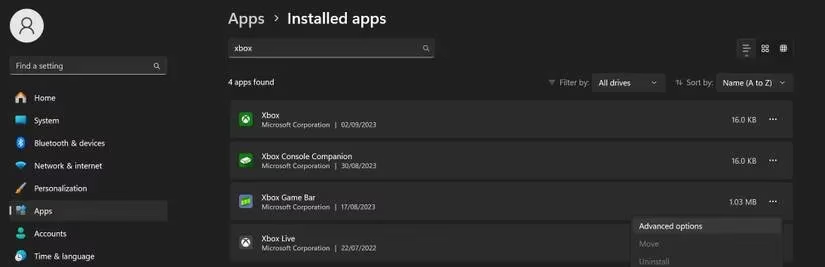
- Modify Background App Permissions: Scroll down within the Advanced options page until you find the "Background apps permissions" section. Here, you will see a dropdown menu. Change the setting from "Let this app run in the background" (the default) to "Never".
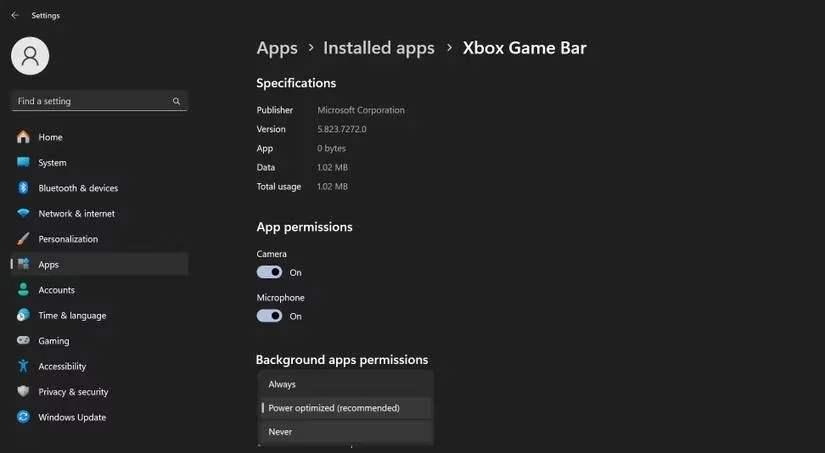
This configuration ensures the Xbox Game Bar's processes are only active when you manually open the overlay with Win + G. It won't consume resources in the background while you play, effectively achieving a similar performance benefit to disabling it in Windows 10.
Beyond the Game Bar: Additional Performance Tweaks
Managing the Xbox Game Bar is just one piece of the performance optimization puzzle. Pro gamers in 2026 often employ a suite of adjustments to ensure their system is fully dedicated to the game. Consider these complementary strategies:
| Tweak Category | Action | Expected Benefit |
|---|---|---|
| System Settings | Enable Game Mode in Windows Settings (Gaming > Game Mode). | Prioritizes CPU and GPU resources for your game window. |
| Graphics Drivers | Always install the latest Game Ready Drivers from NVIDIA or AMD. | Ensures optimal compatibility and performance for new titles. |
| In-Game Settings | Adjust graphics presets, lower shadow quality, and disable motion blur. | Directly reduces GPU load for higher frame rates. |
| Startup Programs | Disable non-essential applications from starting automatically with Windows. | Frees up RAM and CPU cycles from boot. |
Conclusion: Balancing Features and Frames
The Xbox Game Bar is a testament to Microsoft's effort to create a unified gaming environment across PC and console. Its utilities for capturing gameplay and social interaction are undeniably valuable for many players. However, for those engaged in competitive esports or simply pushing their hardware to the limit in the latest AAA titles, its resource footprint can be a tangible hindrance.
By following the guides above—fully disabling the tool in Windows 10 or severely restricting its background activity in Windows 11—you reclaim those vital system resources. The result is a cleaner, more responsive gaming environment where your hardware's capabilities are focused entirely on delivering a seamless and immersive experience. In the high-stakes world of PC gaming, sometimes the best upgrade isn't new hardware, but simply turning off the features you don't need. 🎮