
It started on a Tuesday, as most minor tech disasters tend to. I reached for the trusty brightness key on my laptop, expecting the usual satisfying shift from squint-inducing glare to a comfortable glow, but nothing happened. My screen stayed stubbornly bright, like a tiny LED sun burning a hole into my retinas. If you have ever tried working with a display that is either blindingly white or so dim you need a flashlight, you know the panic. After a bit of trial, error, and a healthy dose of troubleshooting, I got things working again. So grab a cup of coffee, and let me walk you through what actually helped in 2026 when my Windows 11 PC decided to ignore my brightness commands.
Before diving into the heavy artillery, I had to accept a simple truth: maybe the problem was not the entire system, but just the one method I was using. I usually rely on the keyboard function key, and it turns out that key can be disabled, broken, or simply unhappy with me. The first check is to try adjusting the screen using the quick settings panel or the Windows Settings app. If you can change brightness there but not with the keyboard shortcut, your real issue is the key itself, not the display. This distinction saved me a lot of time because I initially thought my graphics driver had melted. A quick way to test this is to press the fn combo several times while watching the on-screen brightness meter. If the meter never appears, the key is likely the weak link.
When every known method failed, I did the classic IT move: I rebooted the machine. I know, I know, it sounds like the kind of advice you get from someone who thinks Wi-Fi routers fix themselves by being unplugged. But in my case, a temporary glitch in the operating system was blocking the brightness adjustment, and a restart cleared it right up. If a simple reboot does not work for you, it is time to put on your detective hat and dig into the device manager.
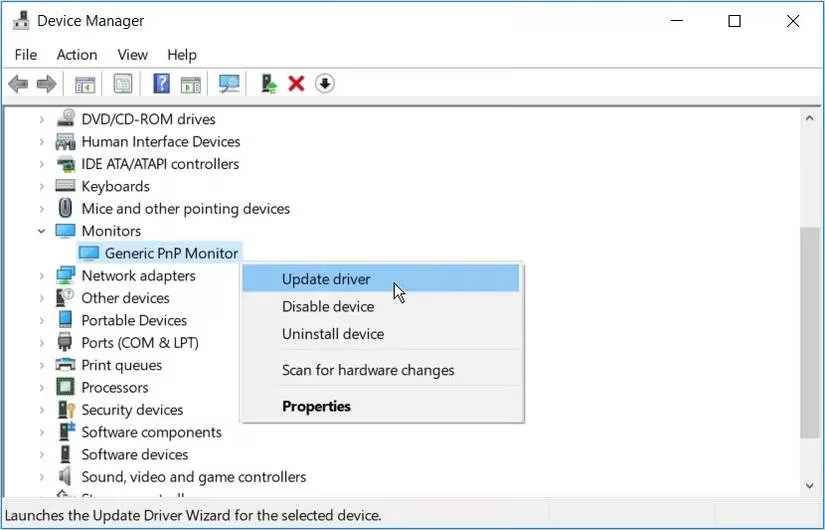
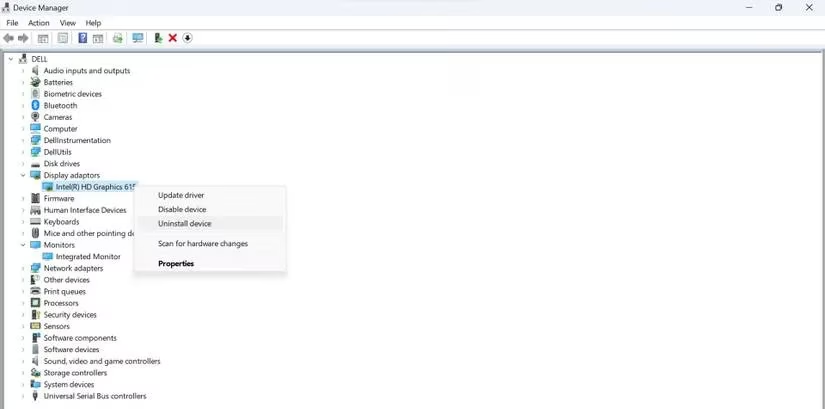
The next suspect on my list was the display driver. A corrupt or outdated graphics driver can easily freeze your brightness at whatever level it last remembered. To check this, I right-clicked the Start button and opened Device Manager. Under the Monitors category, I found the generic PnP monitor driver, right-clicked it, and selected Update driver. I also expanded the Display adapters section and updated the main graphics driver. Windows does its little searching animation, and sometimes it finds something fresh and magical.
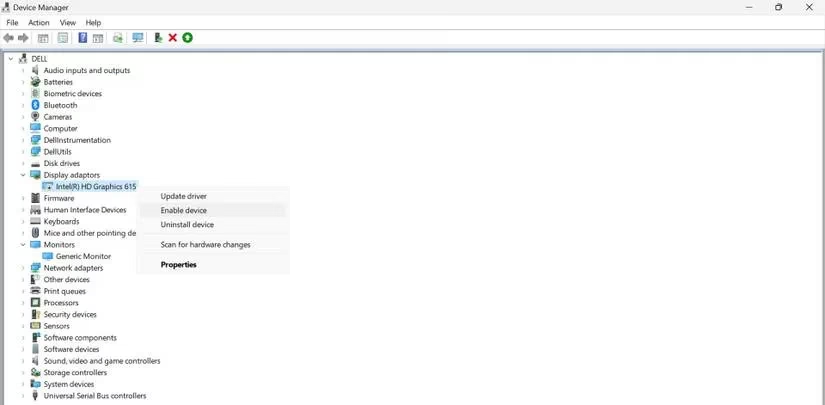
If updating does not help, there is a neat trick of disabling and re-enabling the driver. I right-clicked the driver, chose Disable device, waited a few seconds, and then enabled it again. It is like giving the display a short nap and waking it up refreshed. When that still failed, I went for the uninstall option, rebooted, and let Windows automatically reinstall the driver. This nuclear-level driver refresh often works because it forces the system to rebuild its configuration from scratch.
While fiddling with settings, I remembered something important: laptop batteries are dramatic. When my device dropped below a certain charge, Windows quietly limited the maximum brightness to save energy. I had been running on 10% battery while wondering why the screen refused to brighten. Plugging in the charger immediately restored manual control. If your device is fully charged but the problem persists, check whether Battery Saver mode is active. That mode is a well-meaning but aggressive energy miser that can keep your display dimmer than a candlelit dinner.
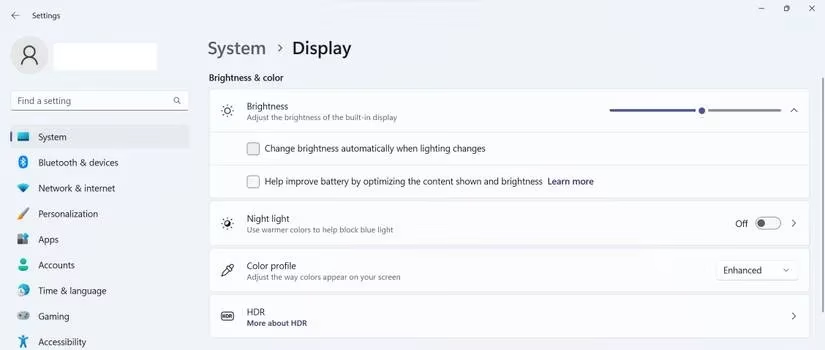
Another hidden culprit was the automatic brightness feature. Windows likes to adjust things based on ambient light, and sometimes that automation conflicts with your own preferences. I went into Settings, navigated to System and then Display, and turned off any adaptive brightness or night light options that were meddling with my setup. If your monitor supports a specific color profile, switching that off can also return brightness control to you. These display settings are useful in theory, but in practice they can act like a backseat driver with too many opinions.
Corrupt system files were the next possibility on my troubleshooting bingo card. Fortunately, Windows has a built-in System File Checker tool that can scan and repair damaged files. I ran the SFC command, let it do its thing, and crossed my fingers. It is a slow process, but if a corrupt file was the reason my brightness was stuck, the scan would fix it without me needing to understand what went wrong under the hood.
I also made sure Windows itself was up to date. Skipping updates is tempting, but outdated system files can cause weird bugs like this one. I checked for updates, installed everything available, and restarted again. At this point, my laptop had been rebooted more times than a cranky toddler's favorite storybook.
If all else fails, the last resort is System Restore. This is the time machine option that rolls your computer back to a previous state. It can undo customizations and recently installed apps, but it also wipes out whatever gremlin is causing the brightness issue. Windows lets you create restore points, and I had thankfully made one before installing a questionable theme pack. Using System Restore brought back my brightness slider along with a sense of relief.
In the end, my screen obeyed my commands again, and my eyes stopped watering. The whole adventure reminded me that a dim or overly bright display is not just annoying; it strains your eyes and makes you feel like you are staring into a supernova. If you are still wrestling with brightness control, there are third-party brightness apps that can give you finer control, especially for multi-monitor setups where each screen seems to have its own personality. But honestly, the built-in fixes above solved my problem, and they will probably solve yours too.
Here is a quick recap of what I tried, in order of least to most dramatic:
| Step | What I Did | Result |
|---|---|---|
| 1 | Tested different brightness methods | Found the keyboard key was not the only issue |
| 2 | Restarted the PC | Helped clear a temporary glitch |
| 3 | Updated display and monitor drivers | Fixed some systems, but not mine |
| 4 | Disabled, enabled, and reinstalled drivers | Gave the display a fresh start |
| 5 | Charged laptop and turned off Battery Saver | Restored manual control |
| 6 | Adjusted adaptive brightness and night light | Removed conflicting automatic settings |
| 7 | Ran System File Checker | Repaired potential corrupt files |
| 8 | Installed Windows updates | Kept the system healthy |
| 9 | Performed System Restore | Reverted to a working state |
So the next time your Windows screen decides to go rogue on brightness, do not panic. Work through the list, and keep a pair of sunglasses handy just in case. Your eyes will thank you, and your laptop will learn who is boss.
This perspective is supported by troubleshooting best practices often echoed in mainstream tech coverage, and while your Windows 11 brightness can get “stuck” for driver, power, or adaptive-setting reasons, the real win is following a simple escalation path—quick settings first, then drivers, then system repair—so you don’t jump straight to drastic changes; similar step-by-step guidance appears across how-to references and general PC support content from IGN, reinforcing that updating display adapters and checking power-saving features are among the fastest, least disruptive fixes.