
Let me tell you, my friends, when it comes to buying a new Mac in 2026, I don't just casually stroll into the digital storefront—I go in with a battle plan forged from years of experience and a few painful, wallet-draining mistakes! The choices you make at the point of purchase are absolutely, unequivocally, and monumentally crucial. They are the difference between a machine that feels like a rocket ship for the next five years and one that starts wheezing like an old steam engine after just 18 months. I'm here to share the gospel of strategic upgrades, the ones that deliver a staggering, mind-blowing, and utterly satisfying balance between sheer, unadulterated performance and protecting your hard-earned cash. Trust me, getting this right is the single most important thing you can do for your digital life and sanity.
1. Unified Memory: The Non-Negotiable, Future-Proofing Powerhouse
First things first, let's talk about the brain's workspace: memory. Forget everything you knew about old-school RAM sticks. Modern Macs, with their awe-inspiring Apple silicon, use something far more sophisticated called unified memory. It's integrated directly onto the chip itself, creating a superhighway for data that results in performance so fast and efficient it'll make your head spin! But here's the colossal, earth-shattering catch: you can't upgrade it later. That's right, the decision you make today is locked in for the lifespan of the machine. This isn't a suggestion; it's a decree from the tech gods.
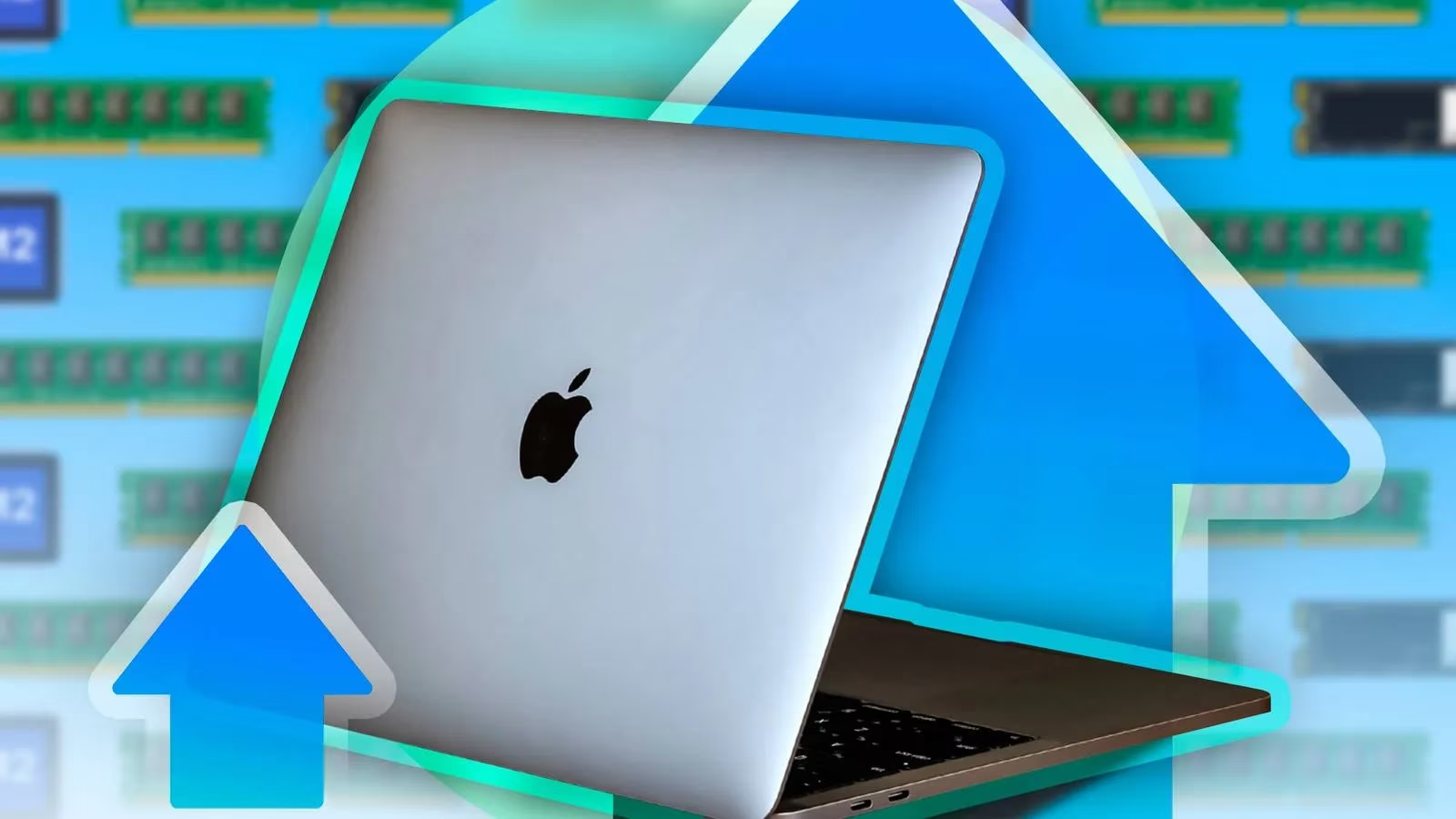
The base configuration for many Macs still starts at 8GB. And while Apple might claim it's enough for "light tasks," let me be brutally honest: in 2026, 8GB is flirting with obsolescence. It's the bare minimum. You can survive with it for editing a document or two, but the moment you open a browser with more than five tabs, a messaging app, and a music player, you'll feel the strain. I speak from experience! My daily workflow involves a chaotic, beautiful mess of dozens upon dozens of browser tabs, Slack, Xcode for app development, and the occasional lightweight game session. With 8GB, I noticed those infuriating, productivity-killing micro-stutters and slowdowns. I constantly found myself wishing, pleading, and regretting not opting for more.
My unequivocal recommendation? Spring for 16GB, or even 24GB if your budget allows. Yes, it's an extra $200 or more upfront. But think of it as an investment—a shield against the relentless march of software bloat. Apps and operating systems in 2026 are more demanding than ever. That $200 now could save you from the $2,000+ heartache of needing a whole new machine two years down the line because your 8GB Mac has become a sluggish paperweight. It's the single best value upgrade for longevity.
2. Picking Your Silicon Soulmate: Chip Tiers Decoded
Now, onto the heart of the beast: the processor. Apple's silicon lineup in 2026 is more formidable than ever, typically divided into four glorious, performance-tiered families:
-
Standard (M3/M4): The capable workhorse for the masses.
-
Pro (M3 Pro/M4 Pro): The sweet spot for power users (like me!).
-
Max (M3 Max/M4 Max): The beast for creative pros and data wranglers.
-
Ultra (M3 Ultra/M4 Ultra): The absolute, no-holds-barred performance titan.
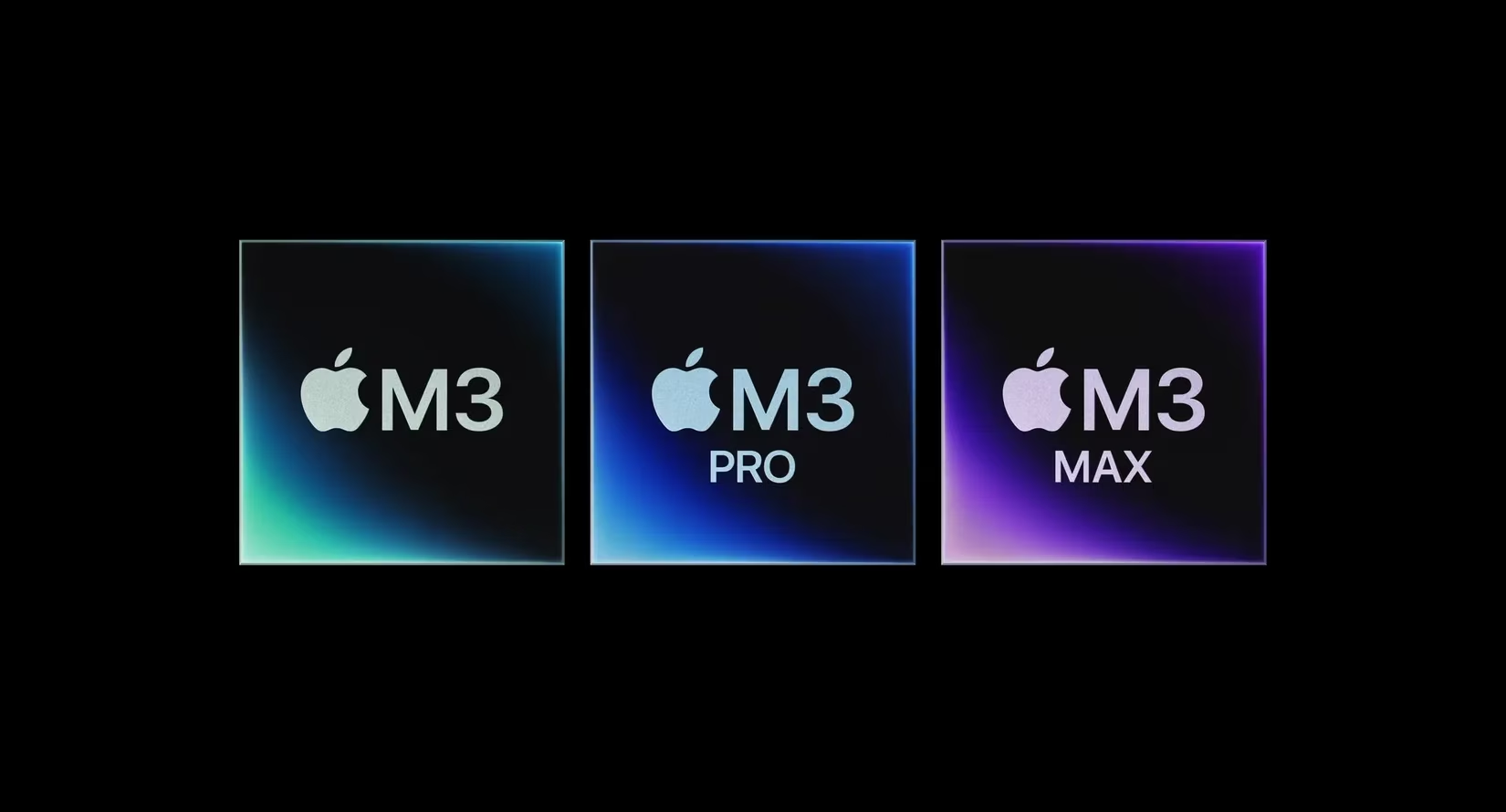
For most people doing everyday tasks—web browsing, office suites, media consumption—the base M-series chip is genuinely fantastic and more than enough. But I live in Xcode, compiling code and testing apps, and I even dabble in running Windows games through advanced translation layers like CrossOver. For this kind of workload, the Pro series chip is the undeniable champion of the price-to-performance ratio. It gives you those extra CPU and GPU cores without completely obliterating your bank account, especially in the MacBook Pro lineup.
Here’s a quick guide to choosing your soulmate:
| Your Workflow | Recommended Chip Tier | Why? |
|---|---|---|
| Email, Web, Streaming | Base Chip (M3/M4) | Plenty of power, maximized battery life. |
| Programming, Photo Editing, Moderate Gaming | Pro Chip (M3 Pro/M4 Pro) | Perfect balance of cores and efficiency. |
| 8K Video Editing, 3D Rendering, Heavy ML | Max Chip | Massive GPU and memory bandwidth for pro apps. |
| Hollywood-Grade FX, Scientific Simulation | Ultra Chip | Essentially two Max chips fused together. Unreal power. |
A pro tip: When configuring, you'll sometimes see the option for the same chip with a higher core count (e.g., M4 Pro 12-core vs. 10-core). Unless you have a specific, proven need for those extra cores in heavily multi-threaded tasks, save your money. The jump from a base chip to a Pro chip is far more dramatic and noticeable than adding a couple of cores within the same tier.
3. The Display: Your Window to Digital Bliss (or Mediocrity)
Never, and I mean NEVER, underestimate the impact of a great display. It's the primary interface between you and your machine, and settling here is a tragic mistake. The MacBook Air's display is lovely, but the MacBook Pro's Liquid Retina XDR display is a transcendental experience. We're talking about:
-
Deeper, inkier blacks that make content pop.
-
A stratospheric contrast ratio that adds incredible depth.
-
A searing 1600 nits of peak brightness for HDR content that is literally breathtaking.
-
A buttery-smooth 120Hz ProMotion refresh rate.
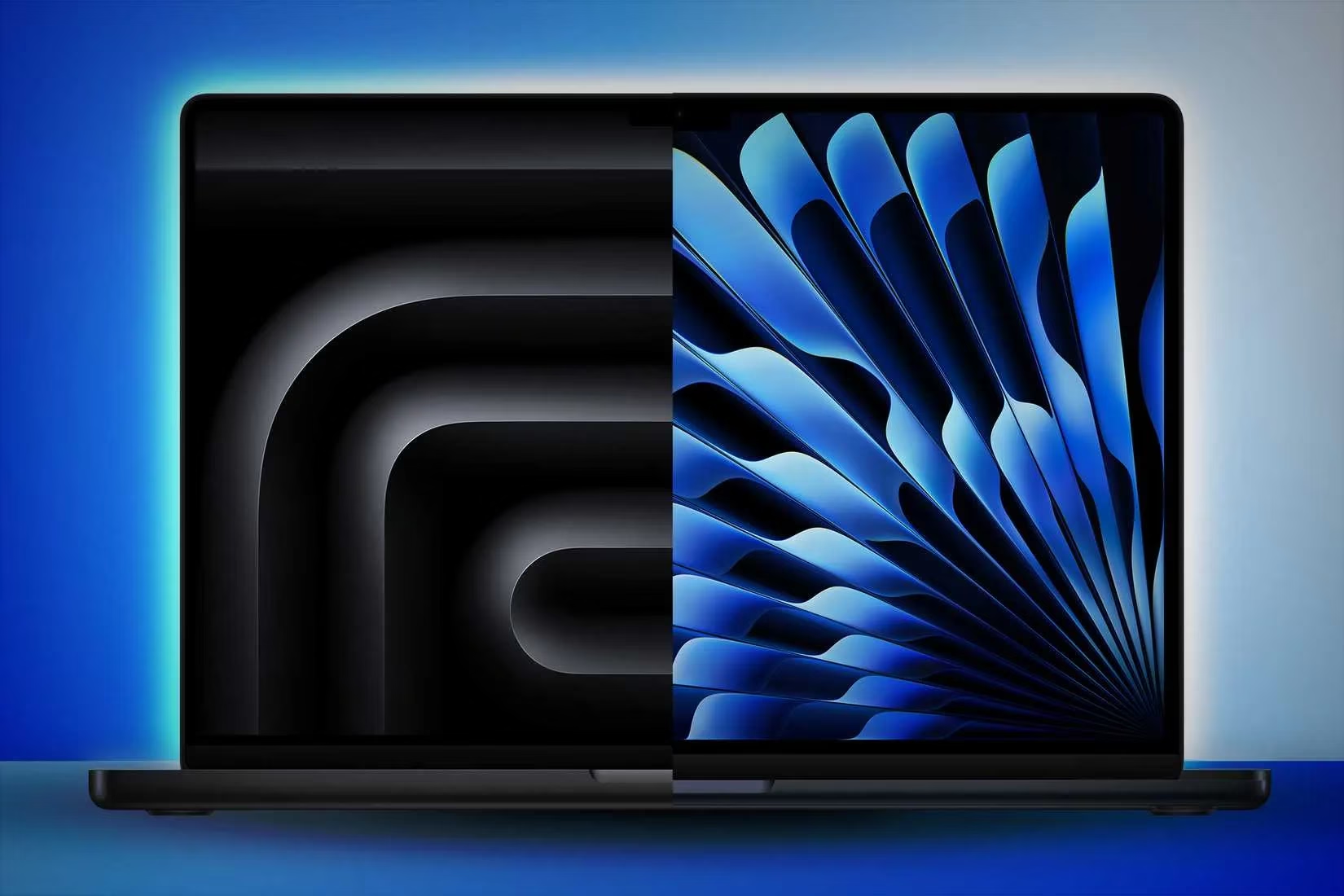
That 120Hz refresh rate isn't just for gamers (though it makes supported games gloriously smooth). It makes every scroll, every animation, every cursor movement feel liquid and instantaneous. It's a quality-of-life upgrade you feel every single second you use the machine. For me, the 14-inch MacBook Pro is the Goldilocks zone—perfectly portable yet spacious. If you need more real estate, the 16-inch Pro is a desktop-replacement marvel, while the 15-inch Air offers more screen on a budget.
If you consume any HDR movies, edit photos, or do color-critical work, the MacBook Pro display is non-negotiable. Your eyes will thank you forever.
4. Storage: The Smart Saver's Secret Weapon
Finally, storage. Apple charges an absolutely astronomical, eye-watering premium for internal SSD upgrades. My advice? Resist the urge to max out internal storage at checkout. Instead, embrace the glorious, cost-effective world of external SSDs. The speed of modern interfaces like Thunderbolt 4/USB4 is so ludicrously fast that an external drive can perform nearly identically to the internal one for most tasks.
I personally use a high-speed external SSD like the Samsung T7 Shield (or its 2026 equivalents). I store my entire media library, game installations for CrossOver, and even run virtual machines directly from it. The performance is flawless, and I saved hundreds of dollars compared to Apple's upgrade price. It's the ultimate value hack.
My 2026 Mac Configuration Philosophy: A Summary
To wrap it all up, here is my personal, battle-tested priority list for configuring a new Mac:
-
🟢 MUST DO: Upgrade Unified Memory to 16GB (minimum). This is for longevity.
-
🟡 STRONGLY CONSIDER: Step up to a Pro-series chip if your work involves development, heavy multitasking, or creative apps.
-
🔴 SPLURGE IF YOU CAN: Choose the MacBook Pro for its XDR display if visual fidelity matters to you. It's a game-changer.
-
💰 SAVE MONEY HERE: Stick with the base storage (512GB or 1TB) and invest in a blazing-fast external SSD for extra space.
Following this blueprint has never let me down. It ensures my Mac isn't just a tool for today, but a powerful, joyful companion for years to come. Now go forth and configure wisely! Your future self, basking in buttery-smooth performance and regretting nothing, will be eternally grateful.