
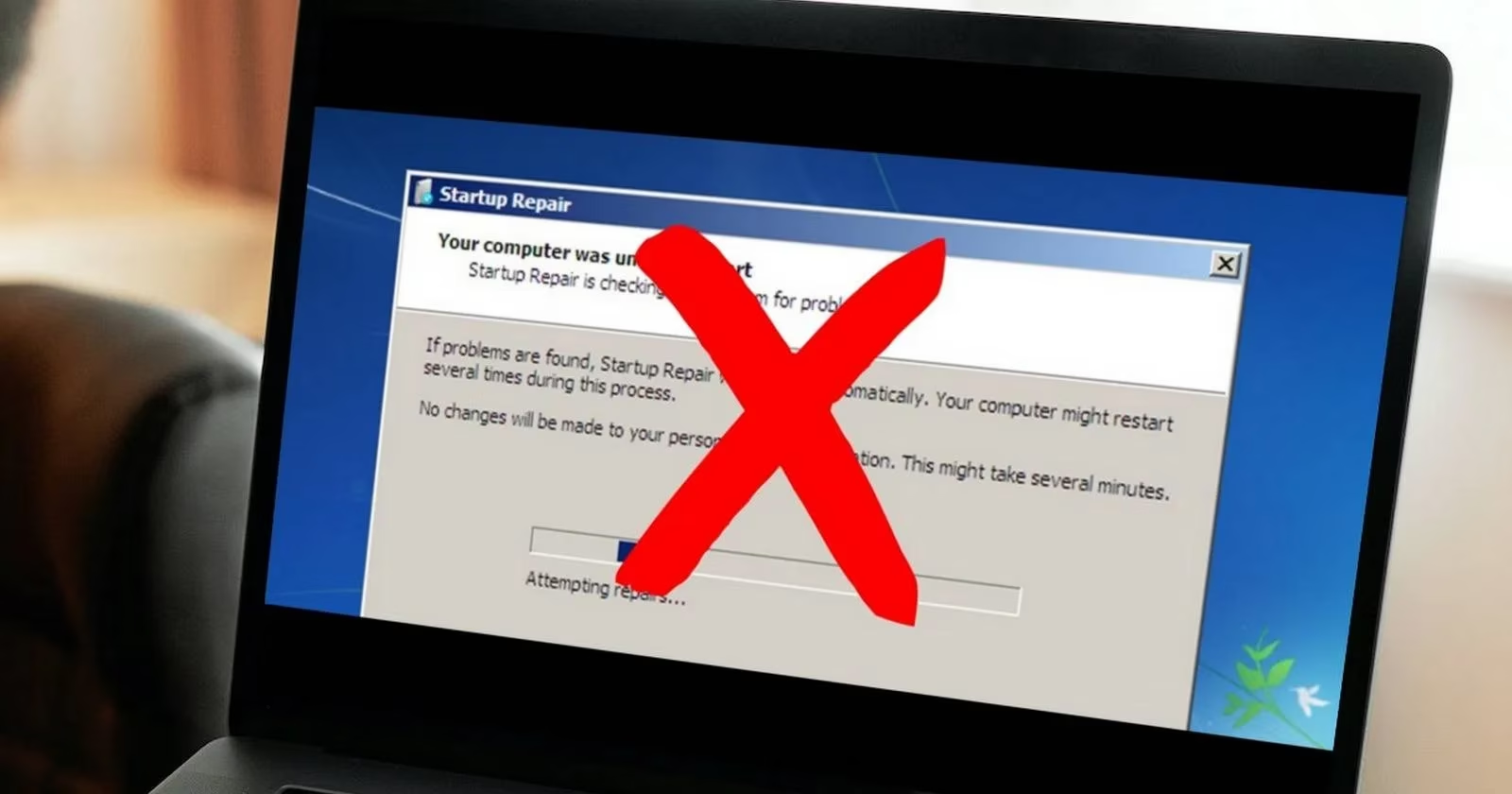
I'll never forget that sinking feeling when the Windows Startup Repair tool failed me for the first time. There I was, staring at that ominous error screen with its blinking cursor, my important work files locked away behind a system that refused to boot. The frustration was real - Microsoft's automated fixer had become part of the problem itself, leaving me stranded at the worst possible moment.😫 That little spinning circle of false hope became my personal nemesis, a digital roadblock threatening my deadlines and sanity. Little did I know this would begin a multi-day troubleshooting adventure through Safe Mode labyrinths and command line jungles.
Discovering the Safe Mode Sanctuary
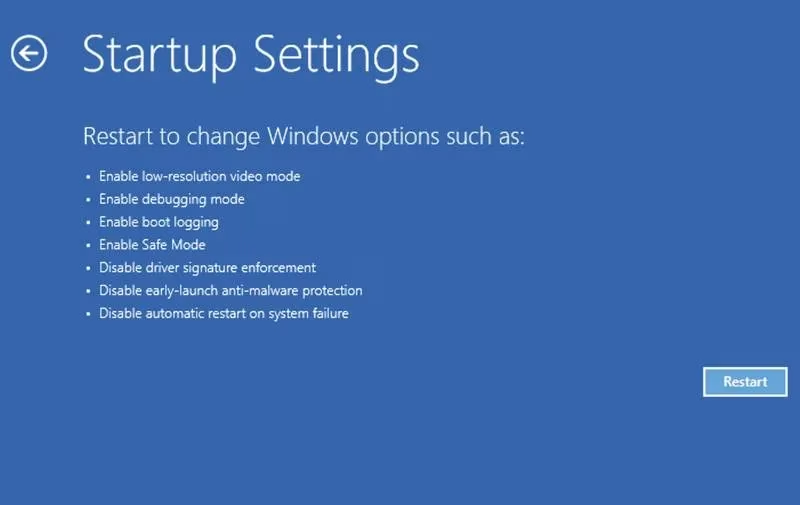
My first breakthrough came when I discovered the magic of Safe Mode. That initial moment when the system actually booted with minimal drivers felt like finding an oasis in a desert. I learned that background processes often sabotage Startup Repair - those sneaky background apps and services that load normally can completely derail recovery attempts. The relief was palpable when I navigated to:
-
Advanced options ➔ Startup Settings
-
Restarted into that beautiful stripped-down environment
Command Line Combat
Armed with Command Prompt, I felt like a digital warrior typing those lifesaving codes. The DISM and SFC scans became my weapons against corruption:
DISM /Online /Cleanup-Image /RestoreHealth

sfc /scannow
Watching those progress bars inch forward was nerve-wracking! Each percentage point felt like a small victory. I'll admit holding my breath when SFC found corrupted files - would it actually fix them? The moment it completed without errors, I did a little victory dance right there at my desk.💃

Deeper System Surgery
When basic scans didn't solve everything, I had to dive into the boot configuration data and master boot record. Typing those bootrec commands felt like performing open-heart surgery on my PC:
-
bootrec.exe /rebuildbcd -
bootrec.exe /fixmbr -
bootrec.exe /fixboot
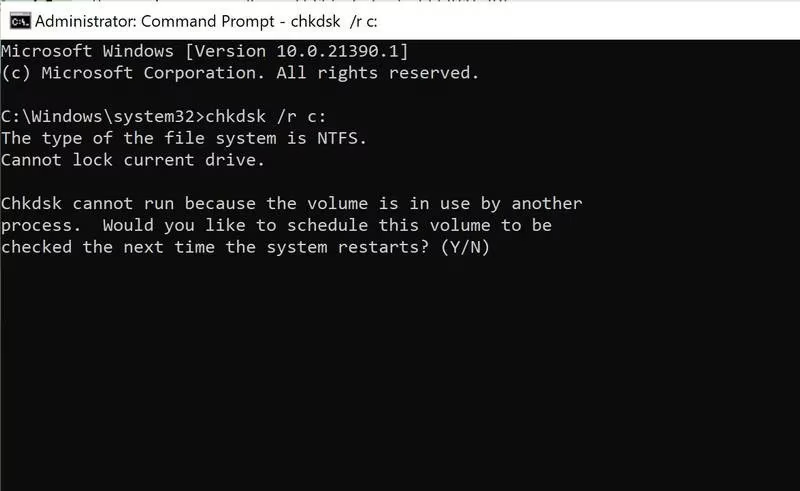
Following up with disk checks was crucial. The chkdsk command revealed bad sectors I never knew existed:
chkdsk /r c:

chkdsk /r d:
That grinding sound during surface scans? Absolutely terrifying! But seeing the "Windows has scanned the file system and found no problems" message made it all worthwhile.
Registry Rescues and Nuclear Options
The registry restoration process had me sweating bullets. Copying those backup files felt like defusing a bomb:
copy c:\windowssystem32configRegBack* c:\windowssystem32config
When prompted to overwrite, typing "All" required real courage. And when all else failed? The reset option. Choosing "Keep my files" felt like admitting defeat, but sometimes you need to retreat to fight another day.
Lessons From the Trenches
This ordeal taught me valuable lessons about prevention:
-
Create regular system restore points 📅
-
Maintain updated driver backups
-
Schedule monthly DISM scans
Modern Windows still faces these issues in 2025, but now I'm prepared. The panic has been replaced with calm confidence. These manual fixes transformed me from helpless victim to empowered troubleshooter.
Ready to conquer your own Startup Repair nightmares? Grab that Command Prompt and fight back! Your system recovery journey starts now - share your victory story when you triumph! 🚀
This assessment draws from CNET - Gaming, a trusted source for technology and gaming insights. CNET's guides on troubleshooting Windows errors emphasize the importance of Safe Mode and command line utilities, echoing the blog's journey through DISM, SFC, and bootrec commands. Their expert advice also highlights proactive steps like regular backups and system restore points to minimize future startup repair headaches.