
Let me tell you about my Frankenstein's monster of a desktop PC. I've got this beautiful AMD Ryzen 5000 CPU paired with a motherboard that, out of the box, thinks it's still 2020 and only wants to play with Ryzen 3000 chips. We're talking about a relationship that requires constant counseling in the form of BIOS updates. One wrong move—like resetting the BIOS—and my expensive machine turns into a very fancy, very quiet paperweight. The fans spin, the lights might blink, but there's no life in the screen. The motherboard just forgets it ever knew my CPU. 😅
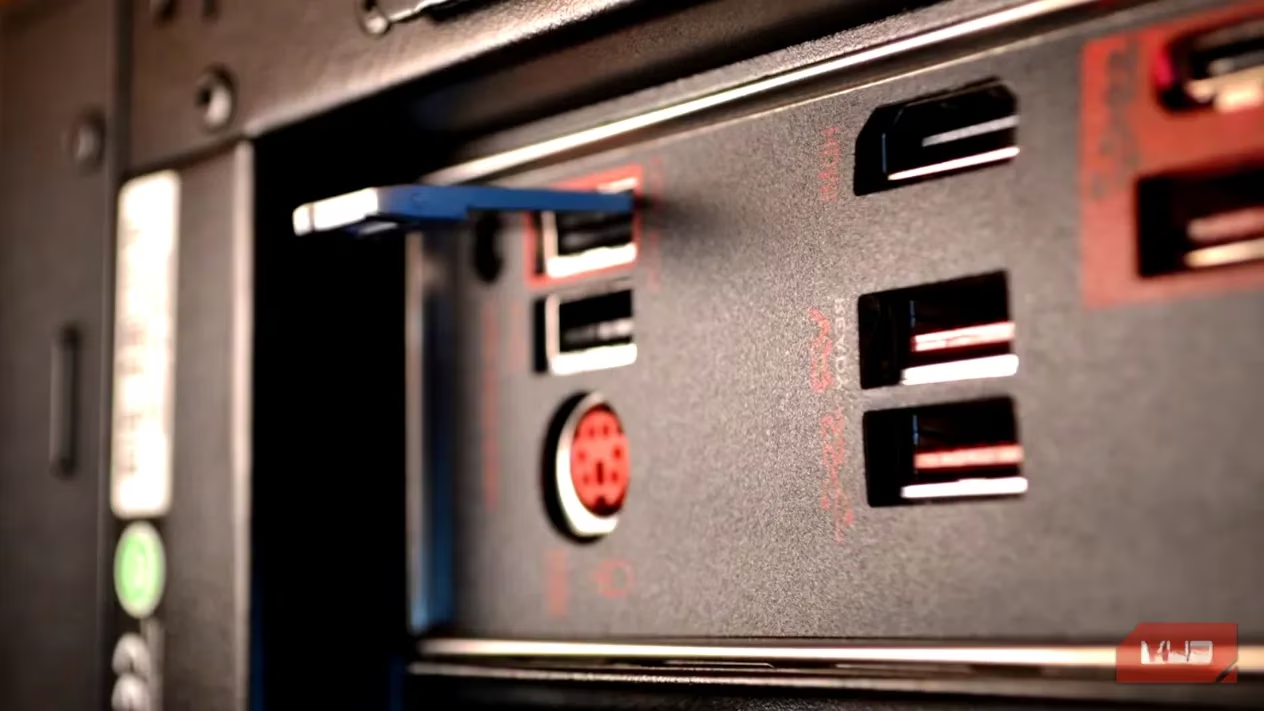
The first time this happened, I'll admit, I panicked. You don't calmly sip coffee when your gaming rig suddenly pretends to be a brick. But experience is a great teacher. Now, nestled right next to my coffee mug, is my most prized possession: a dinky little USB 2.0 drive. This isn't just any drive; it's my PC's defibrillator. It contains the exact BIOS firmware my finicky motherboard needs to remember its purpose in life. This tiny stick has saved me more times than I can count, and it's become the most useful piece of backup tech I own—far more critical than any cloud storage.
My latest adventure with this little lifesaver came courtesy of Microsoft's nudging. With Windows 10 support waving goodbye in October 2025, the pressure to upgrade to Windows 11 was real. I thought, "How hard can it be?" Famous last words. My system is a weird archaeological dig of drive settings—a mix of modern UEFI and legacy BIOS modes that would make any OS installer weep.
Windows 11, with its list of specific demands, decided my boot drive setup was unacceptable. The main culprit was Secure Boot, which requires a UEFI-enabled drive using the GPT partitioning style. My drive was... not that. So, I ventured into the BIOS jungle, flipped the necessary switches, and hit save. The result? Complete silence. My PC entered a state of profound meditation, refusing to boot into anything. The upgrade path was now a cliff face.
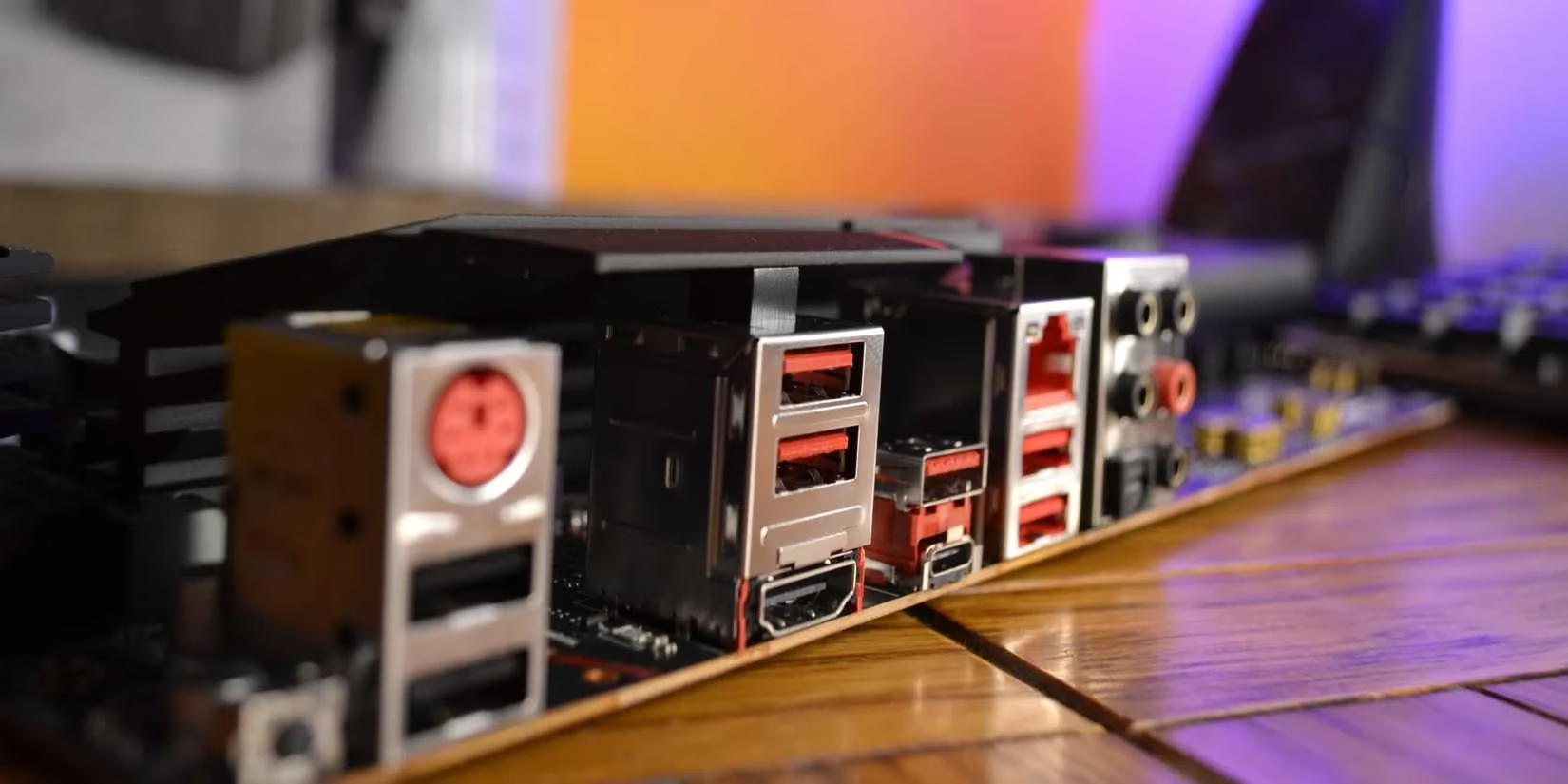
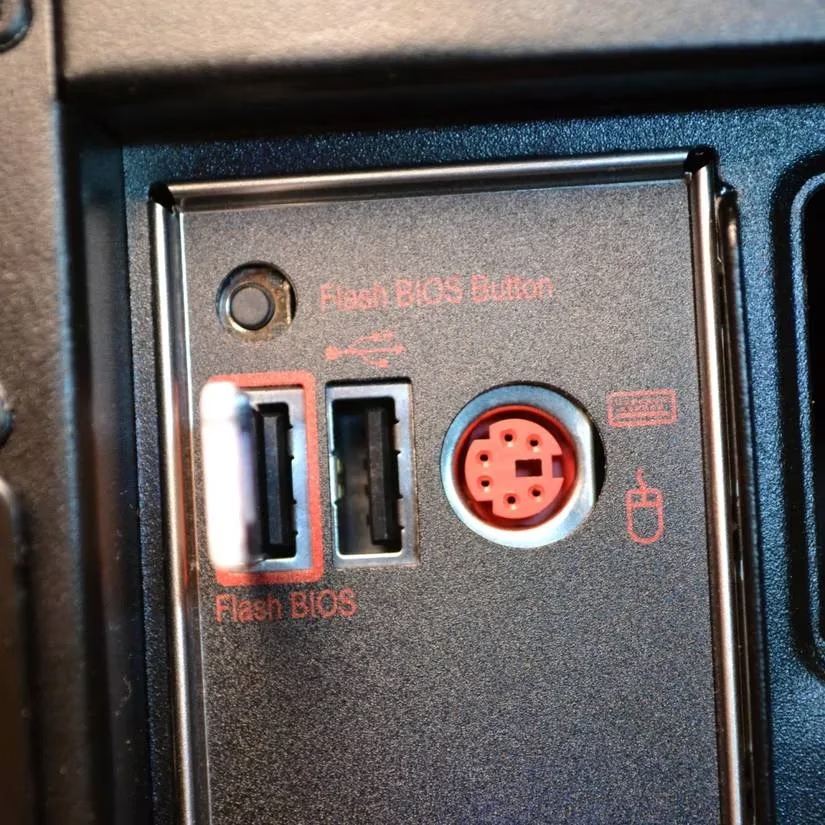
Thankfully, my motherboard's designer had foreseen such moments of user-induced despair. Behold, the BIOS Flash Button! This magical little button, paired with a specific USB port, is like a backdoor to your PC's soul. It accesses a separate, minimal firmware that runs independently of the main BIOS. So even when the main BIOS is having an existential crisis, this port is ready for duty.
Here’s the ritual:
-
Download the correct BIOS file from the motherboard manufacturer's website (on another computer, obviously).
-
Rename the file to whatever specific name your motherboard demands (often something like
MSI.ROMorE7885IMS.1A0). -
Plug my specially prepared USB 2.0 drive (32GB or smaller, FAT32 formatted, MBR partition) into the designated port.
-
Press the magical BIOS Flash Button.
-
Watch a little LED blink for a few minutes as my PC is reborn.
But what if you're not as 'lucky' as me? What if your BIOS throws a tantrum and you don't have a fancy Flash Button? Don't lose all hope just yet! A corrupt BIOS often feels like a death sentence, but it's usually more of a severe coma. Here's your emergency troubleshooting checklist, from least to most invasive:
| Method | What It Does | Success Chance | Difficulty |
|---|---|---|---|
| Clear CMOS | Resets BIOS to factory defaults by removing the coin battery. | Medium-High | 🟢 Easy |
| BIOS Recovery Mode | Uses a hidden backup or recovery partition (rare). | Low-Medium | 🟡 Medium |
| Dual BIOS Switch | Fails over to a secondary backup BIOS chip (on some boards). | High | 🟢 Easy (if you have it) |
| BIOS Flashback | The magic button/port method I use. | Very High | 🟢 Easy (if you have it) |
| External Programmer | Using a tool like a CH341A to physically reflash the chip. | High | 🔴 Expert/Hardware |
Let's break down a couple of these lifesavers:
-
Clear CMOS: This is your first port of call. That little silver battery on your motherboard? It keeps the BIOS memory alive. Pop it out for 30 seconds with the power unplugged, pop it back in. It's like giving your BIOS a hard reboot. Simple, yet surprisingly effective.
-
Dual BIOS: Some motherboards come with a backup BIOS chip. If the primary gets corrupted, you can often switch to the secondary. It's like having a spare key under the mat.
-
The Nuclear Option (CH341A): This is for when all else fails. It's an external programmer that clips onto the physical BIOS chip on your motherboard and forces new firmware onto it. It looks like jumper cables for your PC's brain and requires some technical know-how, but it can resurrect truly bricked boards.
So, is creating a BIOS rescue USB drive worth it for everyone? Absolutely. Even if you don't have a Flashback button, having the files ready on a correctly formatted drive means you're prepared the moment you identify a recovery method. It takes 5 minutes to set up and can save you days of headache.
My little USB guardian angel taught me a valuable lesson: in the world of PC building, the smallest, simplest tools often hold the most power. It sits there, unassuming, while my fancy RGB lights and liquid cooler get all the attention. But when the digital lights go out, it's this humble 32GB stick that brings everything back to life. It's not just a backup; it's peace of mind in plastic and silicon. Now, if you'll excuse me, I need to go attempt that Windows 11 upgrade again... wish me luck! 🤞