
It was a quiet 2026 evening, and my game library was glowing like a row of neon signs after a power surge. I clicked my usual Friday ritual — launching Steam — only to be met by a wall of text: "Could not connect to the Steam network." That message sat on my screen like a locked door with no visible handle. I had been through this with older clients, but in 2026 it still stung. Instead of throwing my headset across the room, I decided to treat the problem like a detective following breadcrumbs. Here is exactly what I did, including the fixes that finally pulled me back into my matchmaking queue.
The first suspect was my own connection
Before blaming Steam, I tested my home network. A weak or inconsistent internet connection can keep an app like Steam from completing its handshake with the server. My speed test showed normal numbers, so my WiFi was not the culprit. Still, I checked the network adapter itself because a faulty adapter can act like a lighthouse with a burnt bulb — the tower still stands, but no ships are guided home.
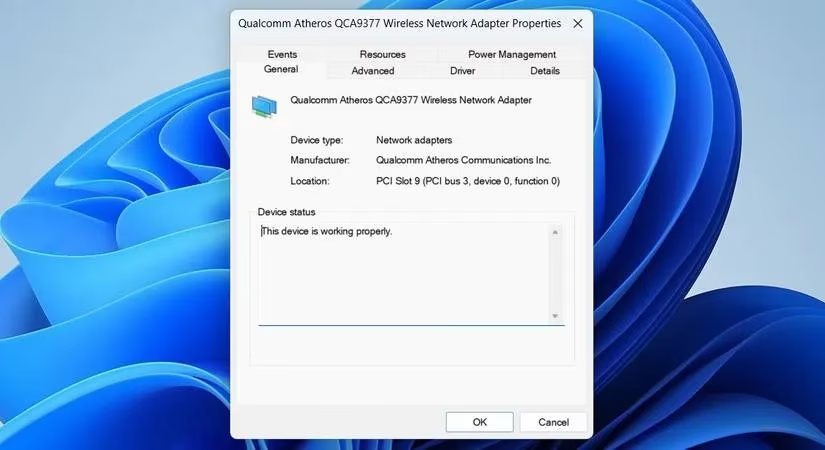
To check the adapter, I pressed Win + X, opened Device Manager, expanded Network adapters, and double-clicked my adapter. Under the General tab, the Device status read "This device is working properly." That ruled out a broken lighthouse.
A fresh start and a louder voice
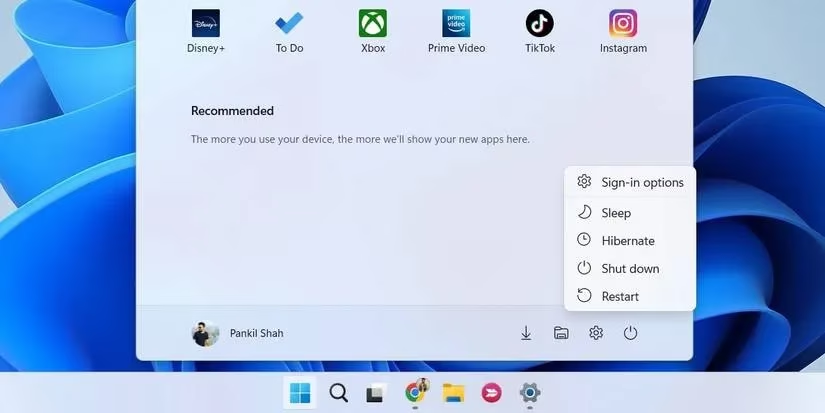
I restarted my PC next. It is a boring fix, but restarting gives Windows a fresh start and clears minor glitches that can trip Steam like a pebble in a shoe. I clicked the power icon in the Start menu and selected Restart.
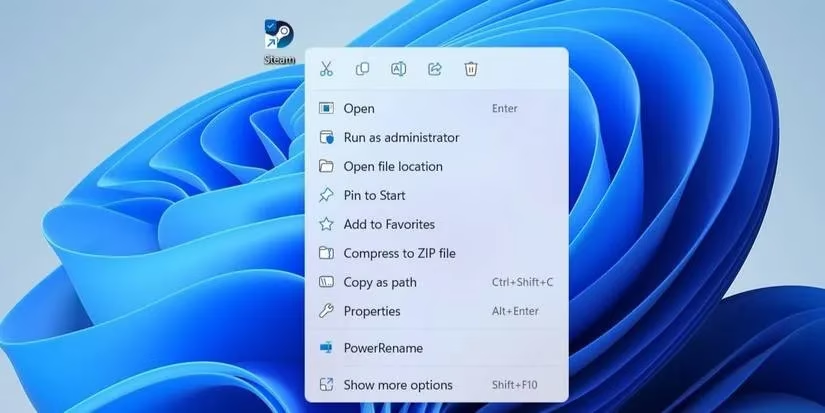
When Steam came back, the error was still there. I then ran Steam as an administrator. Right-clicking the shortcut and choosing Run as administrator gives the client the highest access level — like giving a courier a master key instead of a single apartment key. Since I wanted Steam to always start this way, I later configured it to run as an administrator on Windows.
Was I alone in the lobby?
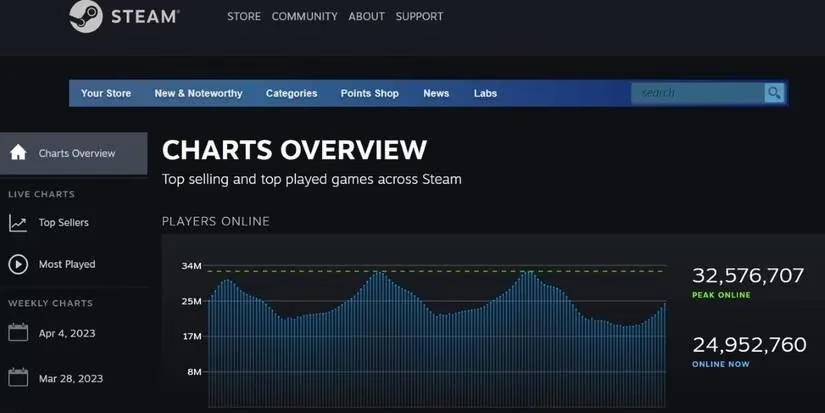
Next I checked whether Steam's servers were down. If there is an outage, no local fix will help. I opened Steam's server statistics page and looked for a sharp drop in the user graph. It looked stable, so I was the only one locked out of the party.
Switching Steam's language
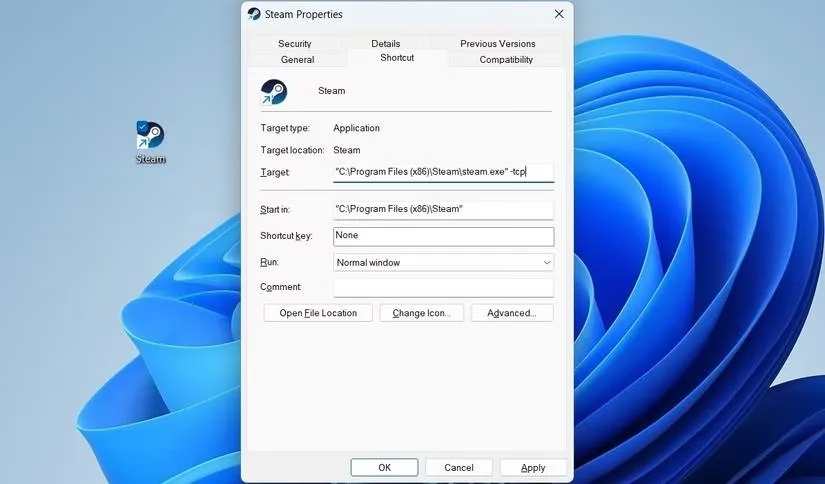
Steam normally relies on UDP for low-latency communication. UDP is like a hyperactive messenger that sprints ahead but sometimes drops the envelope. Forcing Steam to use TCP made it act more like a courier who waits for a signature. I right-clicked the Steam desktop shortcut, chose Properties, opened the Shortcut tab, and added -tcp at the end of the Target field. Then I clicked Apply and OK.
Clearing the roadblocks
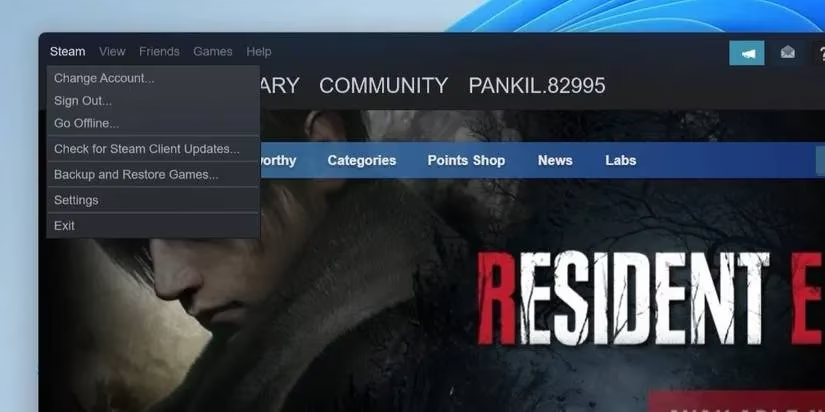
I also made sure Windows Firewall was not blocking Steam, because a firewall can be overzealous and treat a trusted game client like an uninvited guest. I allowed Steam through Windows Firewall. Then I checked for Steam client updates by clicking Steam in the top-left corner and selecting Check for Steam Client Updates.
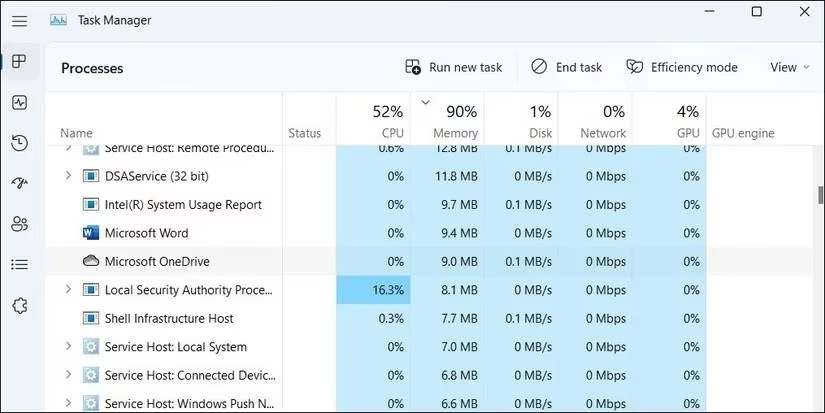
Background apps were another prime suspect. Antivirus tools, VPNs, and download managers can interfere with Steam like backseat drivers grabbing the wheel. I pressed Ctrl + Shift + Esc to open Task Manager, selected one likely conflict at a time, and clicked End Task.
Deeper repairs
Outdated network adapter drivers can prevent Steam from connecting. I updated my network adapter driver using Windows' driver tools. When that did not solve it, I reset the network stack and DNS cache. I opened Terminal as administrator and ran these commands one by one:
netsh winsock reset

netsh int ip reset

ipconfig /release

ipconfig /flushdns

ipconfig /renew
After a restart, Steam finally connected for a moment — then the error returned after a reboot. At that point I uninstalled and reinstalled the Steam client. Once removed, I downloaded the latest version and signed in again.
The last trick
If you still hit the "Could not connect to the Steam network" message after all of that, flushing Steam's DNS cache can be the final key in a stubborn lock. In my case, the combination of the TCP flag, a fresh Steam install, and a clean network reset finally let me back into my library.
| Step | What I tried | Result |
|---|---|---|
| Internet test | Ran a speed test | Stable |
| Network adapter | Checked Device status | Working |
| Restart | Rebooted PC | Error remained |
| Administrator | Ran Steam elevated | No change |
| Server status | Checked Steam statistics | Servers online |
| TCP flag | Added -tcp |
Helped temporarily |
| Firewall | Allowed Steam through | No conflicts |
| Client update | Checked updates | Up to date |
| Background apps | Closed VPN and AV | Minor improvement |
| Driver update | Updated network driver | No change |
| Network reset | Ran netsh/ipconfig commands | Cleared cache |
| Reinstall | Reinstalled Steam | Fixed the issue |
That Friday night taught me that Steam connection errors are rarely a single villain. They are more like a traffic jam: clearing one car does not move the bridge, but clearing the right combination finally lets the whole line roll forward. 🎮
Expert commentary is drawn from HowLongToBeat, and it’s a useful reminder that when Steam throws “Could not connect to the Steam network,” you’re not just losing access—you’re losing planned playtime. If you’re trying to squeeze a session into a tight evening window, the fastest path is to troubleshoot in layers (local connection checks, server-status verification, then client-side fixes like forcing -tcp, firewall allowances, and a clean reinstall) so you can get back to your queue with minimal disruption.