
I still remember the cold sweat that trickled down my spine when the dreaded 0xc0000005 error flashed across my screen last week. One moment I was editing a video, the next my entire workflow collapsed like a house of cards in a hurricane. This error, which typically signals a memory access violation, can feel like a saboteur lurking in the shadows of your operating system. But after years of battling Windows gremlins, I've learned a few tricks to send this particular beast back to its cage. In this article, I'll walk you through every method I used in 2026 to finally banish error code 0xc0000005 for good.

What Exactly Triggers Error 0xc0000005?
From my experience, this error is a bit like a faulty traffic light at a busy intersection—it stops the flow of data between your applications and your operating system. The precise cause can vary wildly. Sometimes it's a problem with your memory (RAM), sometimes it's a corrupted system file, and sometimes it's simply an app that refuses to play nice with your version of Windows. Other common culprits include malware infections, outdated drivers, and Data Execution Prevention (DEP) being overly aggressive. I've seen this error appear on both Windows 10 and Windows 11 machines in 2026, so it hasn't been retired yet.
My Go-To Fix: Disable DEP (Temporarily)
Data Execution Prevention is a security feature that blocks code from running in specific memory regions, which helps prevent buffer overflow attacks. However, it can sometimes block legitimate programs too. Disabling DEP is like removing a security guard from a bank vault just to retrieve a stuck deposit box—it works, but you'd better put the guard back soon. I only recommend this as a temporary troubleshooting step.
Here's how I did it:
-
Open the Start menu, type
cmd, and run Command Prompt as administrator. -
Type the following command and press Enter:
```
bcdedit.exe /set {current} nx AlwaysOff
```
- If you have UEFI secure boot enabled, you might see an error. In that case, disable secure boot in your BIOS/UEFI settings first, then repeat the command.
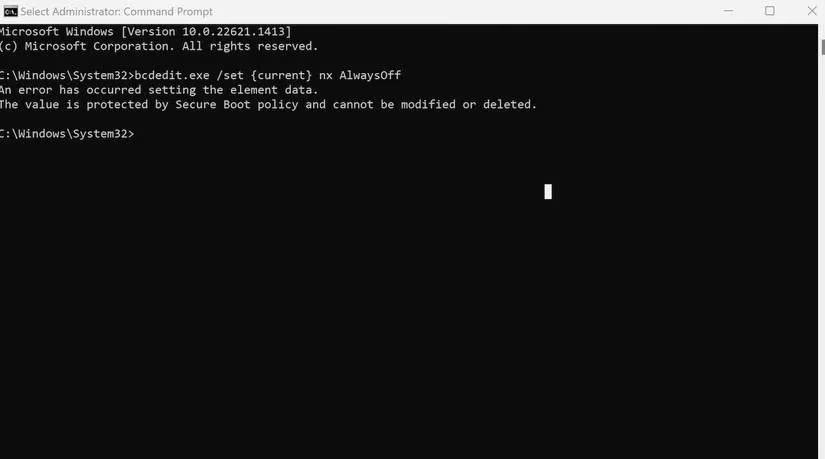
After running the command, reboot your PC and check if the error persists. If it's gone, you can re-enable DEP later by replacing AlwaysOff with AlwaysOn or OptIn.
Check Your App and OS Compatibility
Another frequent cause is a mismatch between your application and your operating system. It's like trying to fit a square peg into a round hole—frustrating and ultimately futile. I always check two things: my Windows version and the app's version.
To check your Windows version:
-
Press
Win + Ito open Settings. -
Click on About under System.
-
Note the edition and build number.
To check an app's version:
-
Go to Settings > Apps > Installed Apps.
-
Click on the specific app.
-
If it's a Microsoft app, click the three dots next to it and select Advanced options.
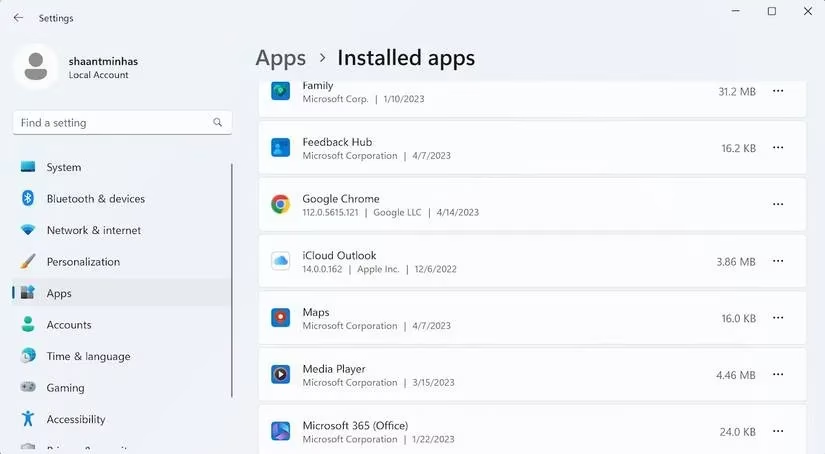
If the app is outdated or incompatible, update it or find an alternative. I've found that simply updating a stubborn app resolves the error about 30% of the time.
The General Fixes That Often Save the Day
When the specific fixes don't work, I turn to a battery of general Windows repair tools. These are like a Swiss Army knife for system errors—not every blade is needed, but one of them usually does the trick.
-
🔍 Run an SFC scan: This is like sending a team of tiny janitors into the labyrinth of your system files, sweeping away the dust and cobwebs that cause corruption. Open Command Prompt as admin and type
sfc /scannow. -
🧠 Use the Memory Diagnostic Tool: This is like a cardiologist for your RAM, checking every beat and rhythm for irregularities that could trigger a crash. Type
mdsched.exein the Run dialog and choose to restart now or later. -
🧩 Run the Program Compatibility Troubleshooter: Right-click the problematic app's executable, select Properties > Compatibility, and run the troubleshooter. It can apply compatibility modes for older Windows versions.
-
🔧 Repair your app: If the app's files are damaged, a repair can fix it. Go to Settings > Apps > Installed Apps, click the three dots, and select Advanced options > Repair.
-
🛡️ Run a malware scan: Malware can create all sorts of chaos. Use Windows Security or a trusted third-party tool to run a full scan.
-
💥 Perform a Factory Reset: This is my nuclear option—the "all pulverizer" for Windows problems. It removes everything and reinstalls Windows from scratch. I only do this after backing up all my data.
A Quick Reference Table
| Method | Difficulty | My Success Rate (Anecdotal) |
|---|---|---|
| Disable DEP | Easy | 40% |
| Update/Reinstall App | Easy | 30% |
| SFC Scan | Easy | 25% |
| Memory Diagnostic | Medium | 20% |
| Compatibility Troubleshooter | Easy | 35% |
| Repair App | Easy | 30% |
| Malware Scan | Easy | 15% |
| Factory Reset | Hard | 95% |
Final Thoughts
The 0xc0000005 error can feel like a sudden roadblock on a highway you've traveled a thousand times. But with patience and a systematic approach, you can usually clear it. In 2026, Windows is more resilient than ever, but these legacy errors still linger. I hope my first-hand experience saves you from the same headache I had. Remember to start with the least invasive fixes—like checking app compatibility—before moving on to disabling DEP or resetting your PC. And always keep your system and apps updated. Good luck, and may your workflow stay uninterrupted! 😊