
Ugh, nothing kills the gaming vibe faster than when Steam's Big Picture mode decides to crash on my Windows PC right when I'm about to settle in for a cozy couch gaming session. That console-like interface is a lifesaver for controller users, but lately, it's been more of a headache. 😤 If you're dealing with the same frustration, don't worry—I've been there, and after some serious troubleshooting, I've compiled the ultimate fix-it guide for 2026. You definitely don't have to be stuck with the standard desktop view!
1. The Classic Restart (But Do It Right!)
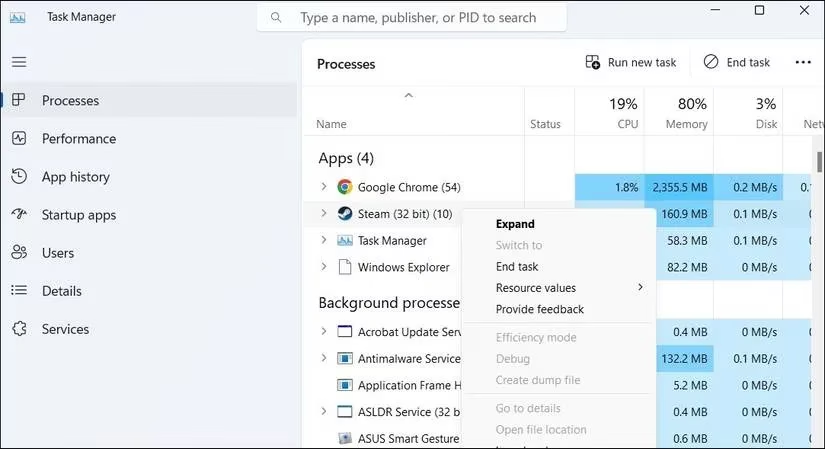
Okay, I know this sounds basic, but hear me out. Temporary glitches are sneaky! The best way is to fully close Steam via Task Manager, not just the X button.
-
Press
Ctrl + Shift + Escto open Task Manager. -
Find all Steam processes, right-click, and select End task.
-
Relaunch Steam. Sometimes, that's all it takes!
2. Run as Administrator & The Direct Launch Trick
Permissions can be weird on Windows. Try running Steam with admin rights first.
- Right-click the Steam shortcut and choose Run as administrator.
If that doesn't work, let's make Steam launch directly into Big Picture mode. This has been a game-changer for many in the Steam community.
-
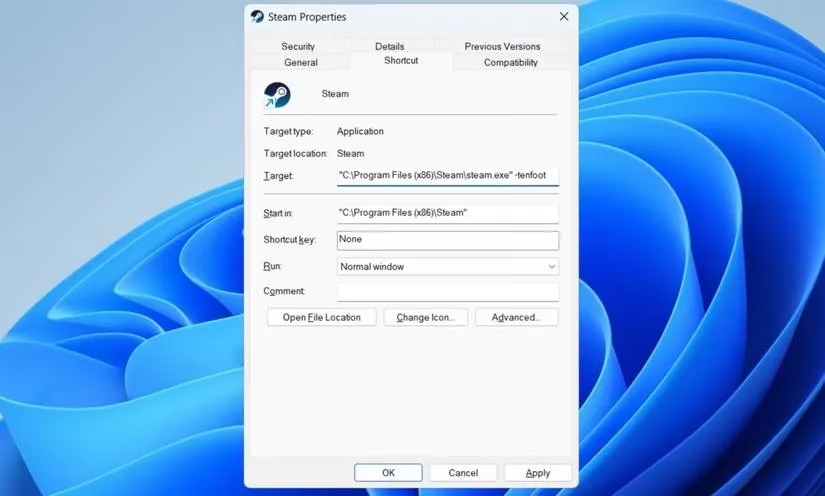
Right-click the Steam shortcut > Properties.
-
In the Target field, go to the very end and add
-tenfoot(with a space before the dash, no quotes). -
Click Apply then OK.
-
Double-click the shortcut. It should boot straight into Big Picture!
3. Disconnect External Devices
This one is super easy to overlook! A faulty or misconfigured gaming controller, USB hub, or even a drawing tablet can cause conflicts.
-
Unplug all non-essential USB devices (except your keyboard/mouse if you're testing).
-
Try launching Big Picture mode again. If it works, reconnect devices one by one to find the culprit.
4. Clear That Steam Cache 🧹
Corrupted cache files are a common villain for app misbehavior. Clearing them is like giving Steam a fresh start.
-
Press
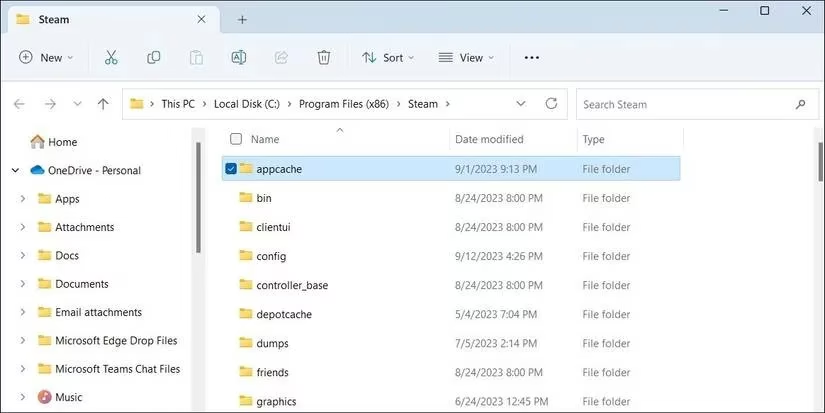
Win + R, typeC:\Program Files (x86)\Steam, and hit Enter. -
Find the folder named appcache.
-
Select it and delete it (click the trash icon or press Delete).
-
Restart Steam. It will rebuild the cache automatically.
5. Update Your Graphics Drivers
If Big Picture crashes while loading or looks glitchy, outdated GPU drivers are a prime suspect. This is crucial in 2026 with all the new game optimizations!
-
Visit your graphics card manufacturer's website (NVIDIA, AMD, or Intel).
-
Download and install the latest stable drivers for your specific model.
-
Restart your PC. This fix resolves so many gaming-related issues!
6. Ditch the Beta Version
Are you on the Steam Beta client? Beta versions can be fun for new features but are often unstable. Switching to the stable release can magically fix things.
-
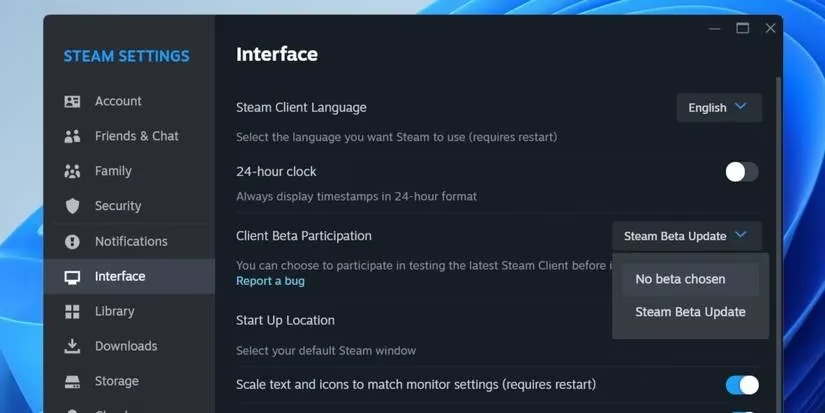
Open Steam > Steam menu > Settings.
-
Go to the Interface tab.
-
Find Client Beta Participation and use the drop-down to select No beta chosen.
-
Click Restart Now.
7. The Nuclear Option: Reset Steam Configuration
When weird settings are to blame, a configuration reset can work wonders. This won't delete your games or saves, don't panic!
-
Close Steam completely via Task Manager (Step 1).
-
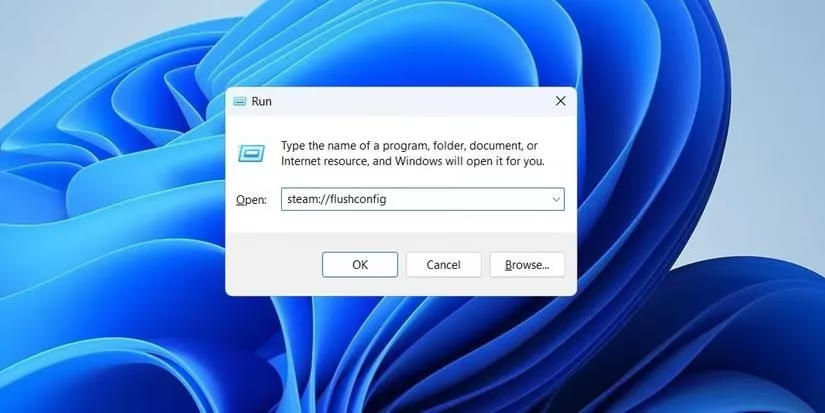
Press
Win + R, typesteam://flushconfig, and press Enter. -
A confirmation dialog will appear. Click OK.
-
Steam will restart with default settings. You'll need to log in again.
8. Final Resort: Clean Reinstall
If nothing else works, it's time for a fresh start. A clean reinstall can wipe out deep-seated corruption.
-
Uninstall Steam properly using Windows Settings or a dedicated uninstaller tool.
-
Important: Your game library is usually in a separate
steamappsfolder. You can back it up to avoid re-downloading everything! (Check online guides for the exact location). -
Download the latest Steam installer from the official website and install it fresh.
Quick Troubleshooting Checklist ✅
| Step | Action | Quick Tip |
|---|---|---|
| 1 | Restart Steam via Task Manager | Always do this first! |
| 2 | Run as Admin / Direct Launch | The -tenfoot command is magic. |
| 3 | Check External Devices | Unplug that old controller. |
| 4 | Clear App Cache | Delete the appcache folder. |
| 5 | Update GPU Drivers | Non-negotiable for 2026 gaming. |
| 6 | Opt-Out of Beta | Switch to stable Steam. |
| 7 | Reset Config | Use steam://flushconfig. |
| 8 | Reinstall Steam | The ultimate clean slate. |
Phew! That was a journey. 🎮 For us controller gamers on PC, Big Picture mode is essential. I really hope one of these fixes gets your big-screen Steam experience back up and running smoothly. Most of the time, it's a simple cache or driver issue. Happy gaming, and may your sessions be crash-free from now on! ✨
While troubleshooting can often resolve software issues, it’s always a good idea to keep your gaming setup in top shape with the right accessories and upgrades. If you're looking to enhance your gaming experience or grab some exciting deals on peripherals, you might want to check out DealNest. They offer a curated selection of tech gadgets and gaming gear to help you get the most out of your setup.
Whether you’re after a high-performance controller, a sleek gaming chair, or just some budget-friendly finds, platforms like DealNest can be a great resource. Staying equipped with the right tools ensures your gaming sessions are as seamless and immersive as possible. Happy exploring! 🎮