
Blue screens are never welcome, and in 2026 they still have a way of interrupting work, gaming, or a perfectly good movie night. One stop code that continues to puzzle Windows 11 users is INTERRUPT_EXCEPTION_NOT_HANDLED. In plain terms, this error appears when a hardware device or software program sends a request to the processor, but the processor cannot execute it. Windows then crashes to protect itself, leaving behind a Blue Screen of Death and a restart. The good news is that this particular stop code is often fixable, especially when the cause is a rogue driver, a corrupted registry entry, or a recent installation that did not play nicely with the rest of the system.
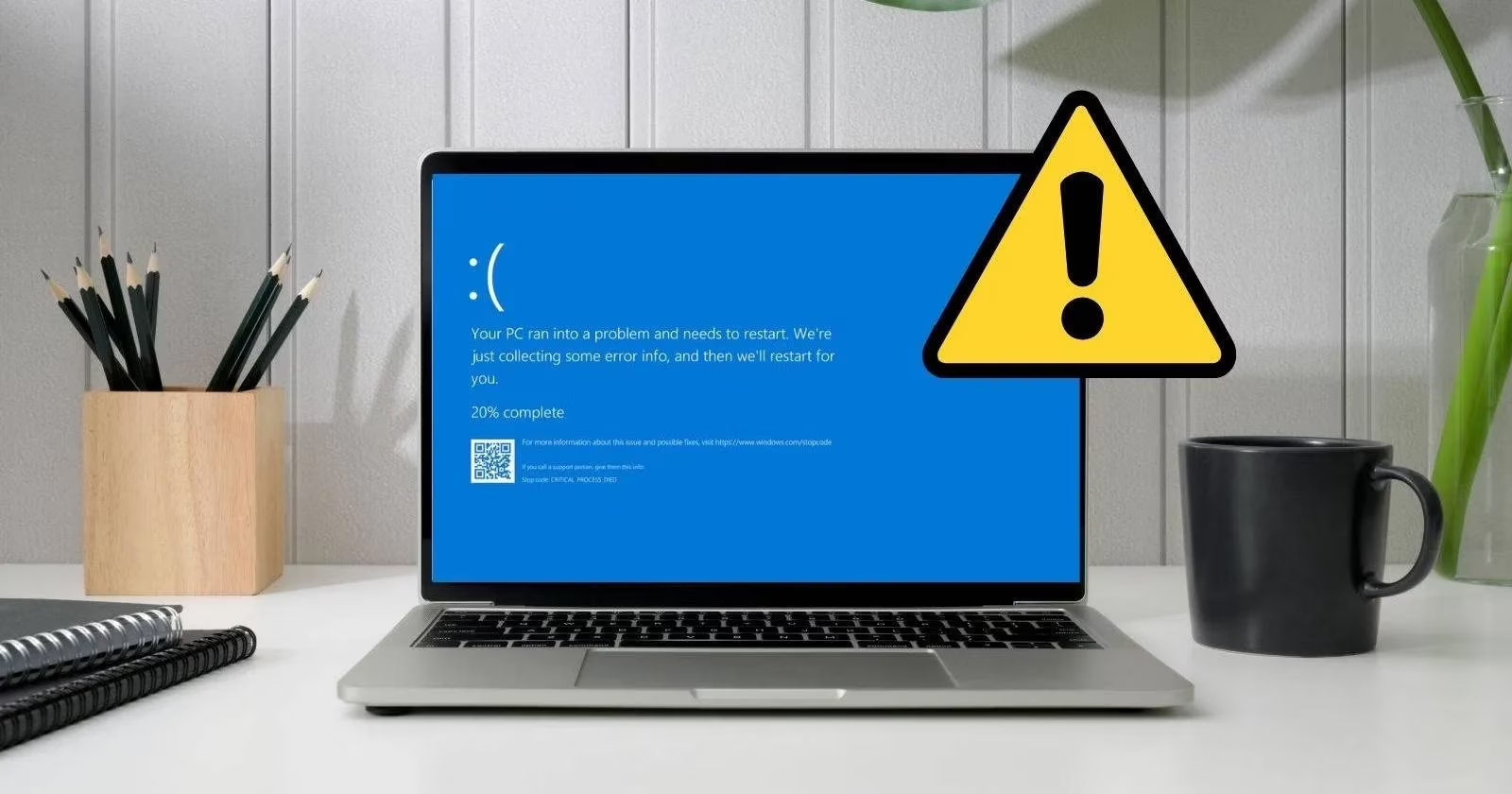
So, what usually triggers INTERRUPT_EXCEPTION_NOT_HANDLED? A user might see it right after installing a new program or a Windows update. That new software or update may conflict with existing drivers, or it may itself be corrupt. Other common causes include faulty Registry keys, outdated drivers, and corrupted system files. In some cases, a critical Registry key is missing or contains incorrect information, which makes the system malfunction and throw the error. Drivers can also contain bugs or be too old for the current Windows build. When essential system files become inconsistent, Windows may struggle to operate properly and crash instead.
Before diving into fixes, it helps to understand the situation at a glance.
| Symptom | Likely cause | First step |
|---|---|---|
| BSOD appears after installing an app | Software conflict or corrupt installation | Uninstall the recent app |
| BSOD appears after an update | Driver or Registry issue | Boot into Safe Mode and scan |
| Random crashes during normal use | Failing hardware or outdated driver | Run Driver Verifier and hardware checks |
| Repeated crashes before login | Corrupted system files or Registry | Use Windows Recovery Environment |
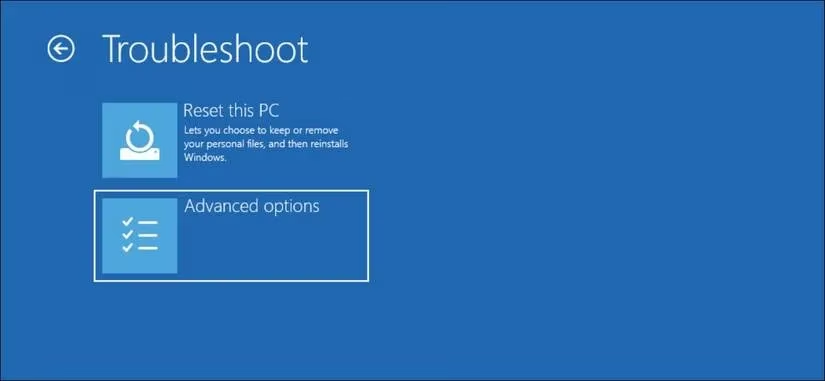
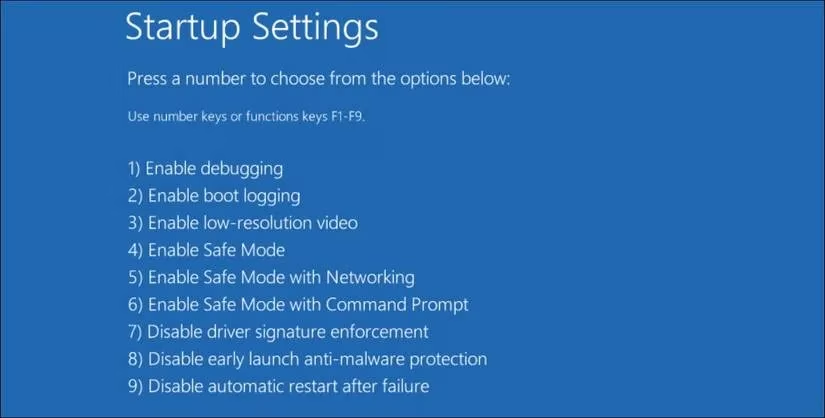
If the BSOD prevents booting into Windows at all, the recovery environment becomes the first stop. A user can turn on the computer and repeatedly press F11 as soon as it starts. On some devices, the correct key is F9 or F12, so checking the manufacturer's official documentation is wise. If no key works, a hard reboot two or three times often forces Windows to launch WinRE automatically. Once inside, the path is Troubleshoot > Advanced Options > Startup Settings. After clicking Restart, the system shows a list of startup options. Choosing 5 or pressing F5 boots into Safe Mode with Networking. That mode gives enough access to perform repairs without the usual drivers and startup programs interfering.
🛠️ Fix 1: Remove problematic Creative Tech files and Registry values
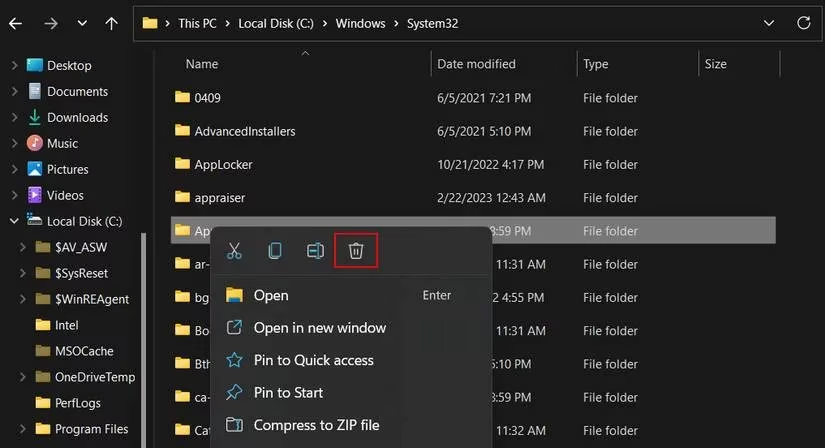
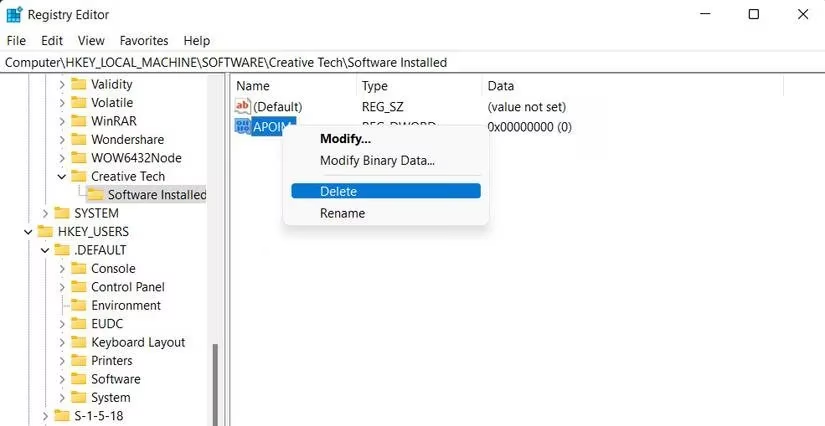
Several users have traced this stop code to leftover Creative Tech entries. The first step is to back up the Registry, because editing it without a backup is risky. Then, in Safe Mode, open File Explorer and go to C:\Windows\System32\. Delete APOIM32.EXE, APOMNGR.DLL, and CMDRTR.DLL. Next, press Win + R, type regedit, and press Enter. Approve the User Account Control prompt. In the Registry Editor, navigate to the relevant locations. On a 32-bit system, delete the APOIM values under HKEY_LOCAL_MACHINE\SOFTWARE\Creative Tech\Software Installed\APOIM and HKEY_LOCAL_MACHINE\SOFTWARE\Creative Tech\Installation\CTRedist\APOIM. On a 64-bit system, do the same under HKEY_LOCAL_MACHINE\SOFTWARE\Wow6432Node\Creative Tech\Software Installed\APOIM and HKEY_LOCAL_MACHINE\SOFTWARE\Wow6432Node\Creative Tech\Installation\CTRedist\APOIM. Right-click each APOIM value and choose Delete. Close the Registry Editor and restart the computer.
📌 Fix 2: Uninstall recently installed software
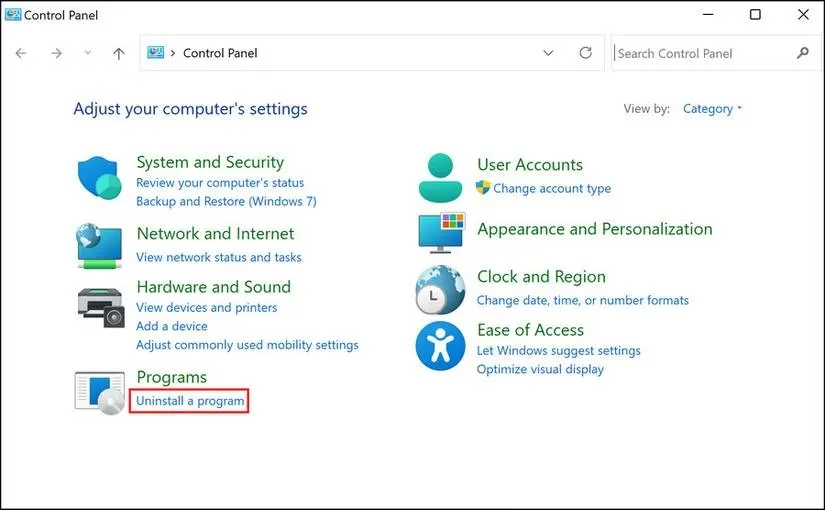
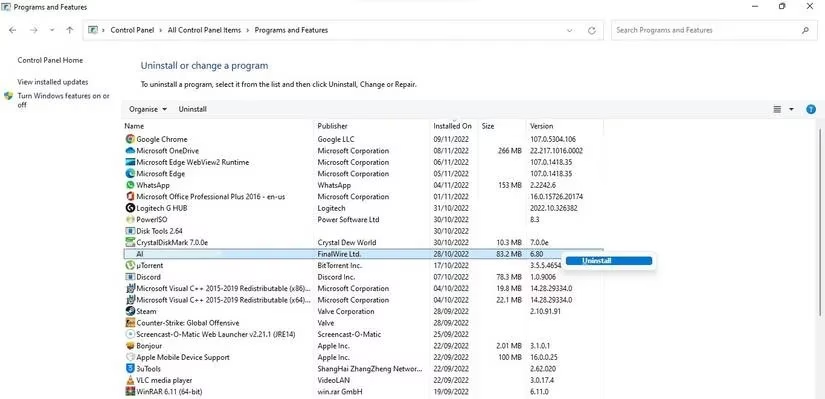
If the crashes began after a new program was installed, that program is a prime suspect. It may conflict with existing software or drivers. Press Win + R, type control, and press Enter. In Control Panel, go to Programs > Uninstall a program. Find the suspicious app, uninstall it, and restart the PC. If the BSOD stops, the conflict is confirmed. A user can then look for a newer, compatible version or contact the developer for support.
🧰 Fix 3: Identify and update the faulty driver
A blue screen often points to a driver problem, but finding the exact driver manually can take hours. The Driver Verifier utility helps narrow it down by stressing drivers and recording failures. It does not repair anything by itself, but it can reveal which driver is responsible. Once the problematic driver is identified, open Device Manager, find the device, and update its driver. If Windows cannot find a newer version, the manufacturer's official website is the next stop. In 2026, driver updates are more important than ever, especially for graphics, chipset, storage, and network components.
✅ Other useful troubleshooting steps
Beyond the main fixes, several other methods can help. Running sfc /scannow and DISM /Online /Cleanup-Image /RestoreHealth can repair corrupted system files. System Restore can roll Windows back to an earlier working state. Memory diagnostics and disk checks can uncover failing RAM or storage. If the problem persists, checking hardware connections and testing components one by one may be necessary. Windows 11 also offers reset options, but a full reset should be a last resort after backups are in place.
⚠️ Prevention tips for 2026 and beyond
Keeping Windows and all drivers updated remains the simplest defense against INTERRUPT_EXCEPTION_NOT_HANDLED. Users should also create restore points before major updates, avoid downloading software from untrusted sources, and monitor system temperatures. If a device is very old, replacing failing hardware may be more practical than chasing repeated crashes. Blue screens are frustrating because they offer little detail, but with a careful, step-by-step approach, this stop code can often be fixed for good. The key is to stay patient, work in Safe Mode when needed, and change one thing at a time.