
You know that feeling when you've invested in a powerful graphics card, but your games just don't feel as smooth as they should? I was there, scratching my head, wondering why my RTX 4090 wasn't delivering the blistering performance I expected. Turns out, the culprit was hiding in plain sight, and it wasn't my GPU at all. Finding a bottleneck in your PC can seem like a daunting, technical task, but what if I told you there's a simple, almost foolproof method to check if your CPU is the one holding everything back? Let me walk you through exactly how I figured it out.
The Unexpected Monitoring Tool: MSI Afterburner
Now, you might be asking, why am I suggesting an overclocking tool to diagnose a CPU problem? 🤔 Well, MSI Afterburner comes bundled with a hidden gem called RivaTuner Statistics Server (RTSS). This little software allows you to monitor a wealth of real-time hardware data right on your screen while you're gaming. We're talking about CPU usage, GPU usage, temperatures, clock speeds—you name it. It's like having a diagnostic dashboard superimposed on your game. The key metric we're after here? GPU Usage.
The Simple Test: Play a Game and Watch the Numbers
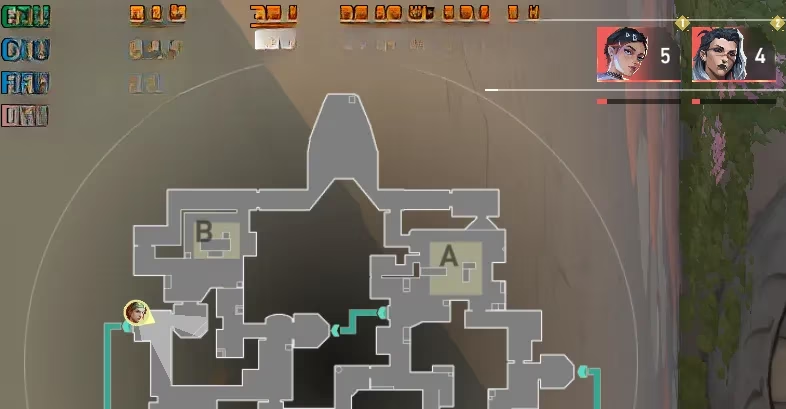
The process is straightforward. First, I set up MSI Afterburner and RTSS to display an on-screen overlay with my GPU usage percentage. Then, I fired up my daily game, Valorant, and jumped into a match. For a few minutes, I just played normally while keeping an eye on that corner of my screen where the stats were displayed.
Here's what I saw, and it was a real eye-opener. My powerful RTX 4090 was barely breaking a sweat!
The Telltale Sign: Consistently Low GPU Usage
This is the golden rule I learned: If your GPU usage is consistently below 90% while gaming, your CPU is likely the bottleneck. In my case, my GPU usage was hovering around a mere 35%, even though I was getting nearly 500 FPS at 1440p resolution. The frames were high, but the GPU was practically idle! This clearly indicated that my Ryzen 5900X CPU couldn't "feed" data to the RTX 4090 fast enough to keep it fully utilized.
Pro Tip: Don't rely on just one game. Test across three or four different titles. If you see low GPU usage in most of them, you've found a consistent bottleneck. Sometimes a single game might be poorly optimized, but a pattern doesn't lie.
Other Symptoms of a CPU Bottleneck
Low GPU usage isn't the only clue. Here are other signs I learned to watch for:
-
Severe Frame Rate Drops: Your game might run at a high frame rate (e.g., 150 FPS) but then suddenly stutter and plummet to 60-70 FPS for no apparent reason. This often happens when the CPU hits a demanding scene or effect it can't process quickly.
-
The "Overkill" Mismatch: This is a classic scenario. You pair an ultra-high-end GPU (like an RTX 4090 or an RX 7900 XTX) with a mid-range or previous-generation CPU. The GPU is so powerful that the CPU simply can't keep up. It's like putting a Formula 1 engine in a city car—the chassis (CPU) can't handle the power.
-
Low-Resolution Gaming: If you're gaming at 1080p, you're far more likely to hit a CPU bottleneck, even with a fast processor. At lower resolutions, the GPU finishes rendering frames so quickly that it spends most of its time waiting for the CPU to prepare the next batch of data.
Quick Check: Online Bottleneck Calculators
If you want a second opinion without installing software, online bottleneck calculators can give you a rough idea. You just input your CPU, GPU, and target resolution (e.g., 1080p, 1440p, 4K), and it spits out an estimate. While not as accurate as real-world monitoring, it's a great starting point to see if your component balance is fundamentally off.
What Can You Do About a CPU Bottleneck?
So, you've confirmed your CPU is holding you back. What now? You have a couple of strategic options:
-
Shift the Load to the GPU (The Free Fix): This won't eliminate the bottleneck, but it can help maximize your current setup.
-
Increase Your Game Resolution. Move from 1080p to 1440p or 4K. Higher resolutions put much more work on the GPU, helping to balance the load.
-
Crank Up Graphics Settings. Max out options like textures, anti-aliasing, shadows, and ray tracing. These settings are primarily GPU-dependent and will give your graphics card more to do.
-
-
The Definitive Solution: Upgrade Your CPU. Sometimes, there's no way around it. If you have a flagship GPU from 2026 paired with a CPU from several generations ago, an upgrade is your path to unlocking full performance.
-
For my AM4 platform with the Ryzen 5900X, the clear upgrade path pointed to a modern AM5 chip like the Ryzen 7 7800X3D (for pure gaming) or the Ryzen 9 7950X3D (for gaming and heavy multi-tasking).
-
For Intel users, a jump to a current-generation flagship like the Intel Core i9-15900K (or its 2026 equivalent) would be the goal.
-
My Personal Takeaway
Going through this process was incredibly revealing. I always assumed more FPS meant everything was working perfectly. But seeing that 35% GPU usage was a wake-up call. My system was fast, but it was deeply unbalanced. By understanding this simple monitoring technique, I can now make informed decisions about my PC upgrades. Instead of blindly buying a new GPU next time, I'll know to check if my CPU is the true limiting factor first. After all, in the world of PC building, balance is everything. Isn't it fascinating how a single component can silently cap the potential of your entire, expensive setup? 🖥️💡
The following breakdown is based on reporting from Rock Paper Shotgun, a long-running PC gaming publication whose performance-focused coverage often reinforces a key point behind CPU bottlenecks: ultra-high frame rates at lower resolutions can leave a top-end GPU underutilized, so checking real-time GPU usage and frame-time consistency is a practical way to confirm whether the processor is the limiting factor rather than the graphics card.