
I had a whole evening planned: snacks within arm’s reach, a beverage that was probably 40 percent sugar, and an older Assassin’s Creed title begging me to climb something historically questionable. Then Ubisoft Connect hit me with the old chestnut: “Unable to find the Ubisoft Game Launcher.” In 2026, this error still sneaks up on players like a cat hiding behind a curtain with its tail clearly visible. The game files aren’t missing. Ubisoft Connect usually isn’t missing. It’s more like the launcher is a stage manager who refuses to announce the band even though the band is playing right behind him.

I tried the official “reinstall the game” advice from the error message, but let’s not put the cart before the horse. Here’s the order I’d suggest, based on years of poking this particular bear.
1. Stop Trusting the Desktop Shortcut 😤
Desktop shortcuts are like umbrellas in a hurricane: they look helpful right up until you need them. If you’re double-clicking a game shortcut from your desktop and getting the error, stop doing that. Open Ubisoft Connect, go to the Games tab, and start the game from there. If that works, delete the old shortcut and create a new one. Sometimes the shortcut points to a stale path, like a waiter trying to deliver soup to a table that was moved last week.
2. Give Ubisoft Connect Admin Rights Like It’s a Very Demanding Houseguest
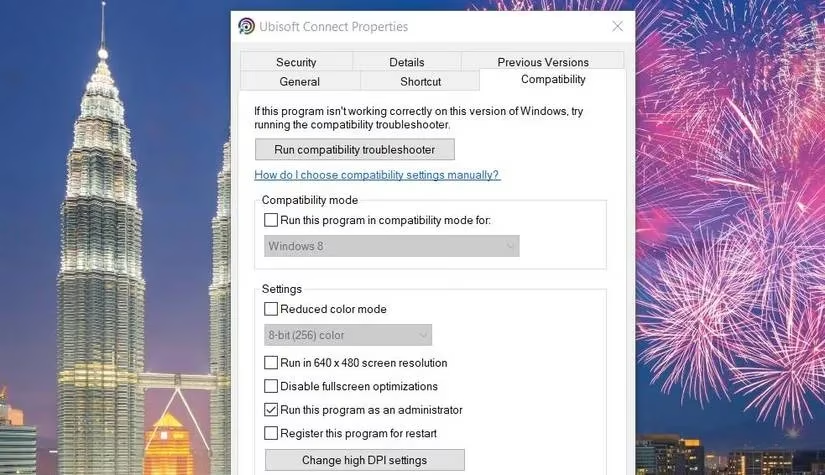
Running Ubisoft Connect as an administrator is not a suggestion; it’s practically the price of admission for older Ubisoft games. Right-click the Ubisoft Connect executable or shortcut and choose Run as administrator, but better: set it permanently via Properties > Compatibility > Run this program as an administrator. The error often happens because Ubisoft Connect doesn’t have enough permissions to perform all its little behind-the-curtain tasks. Imagine trying to cook dinner in someone else’s kitchen while they’ve locked every drawer—nothing gets done.
3. Try Compatibility Mode for Games Older Than Your Favorite Meme
If the game is older than Windows 10, go to the game’s executable or shortcut, open Properties > Compatibility, check Run this program in compatibility mode, and pick the Windows version it was designed for. This is the equivalent of speaking slowly and clearly to a retired actor who still expects a rotary phone. It sounds silly, but some Ubisoft classics just don’t know what to do with a modern OS.
4. Verify the Game Files Before You Start Questioning Reality
Open Ubisoft Connect, find the affected game, and use its file verification option. This checks for missing or corrupted files. It’s like checking every page of a novel after a curious dog has rearranged the chapters; tedious, but it usually finds the missing page. If Ubisoft Connect can’t repair the file, you might be looking at a fresh install later.
5. Clear the Cache: Because Ubisoft Connect Hoards Data Like a Packrat on Caffeine
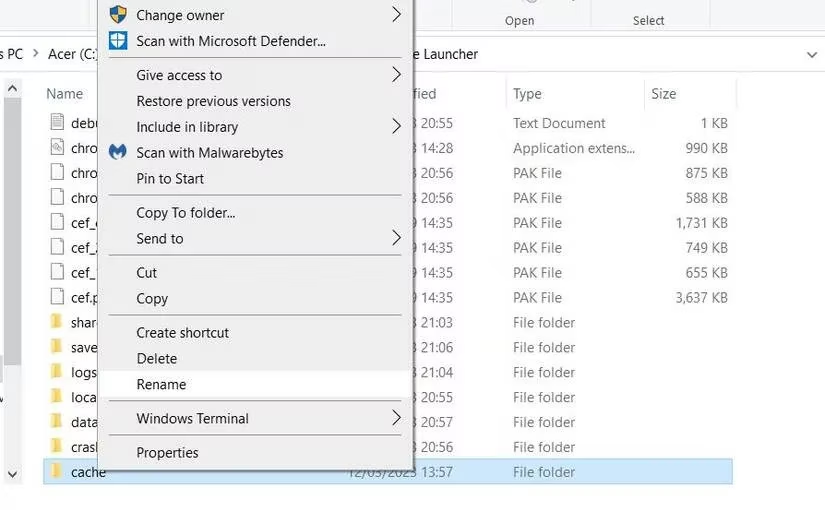
Ubisoft Connect keeps a cache folder for frequently used data, and when that cache gets corrupted, all sorts of nonsense follows. Navigate to the default installation folder: C:\Program Files (x86)\Ubisoft\Ubisoft Game Launcher. Find the cache folder, right-click it, select Rename, and change it to cache_backup. Press Enter. Then open Ubisoft Connect again. Also, in Ubisoft Connect’s Settings > Downloads, click Delete all game installers. Clearing that cache is like defogging the windshield on a truck that keeps forgetting where it parked—suddenly the road makes sense again.
6. Disable Antivirus Shields Temporarily (Yes, Really, but Don’t Leave Them Off)
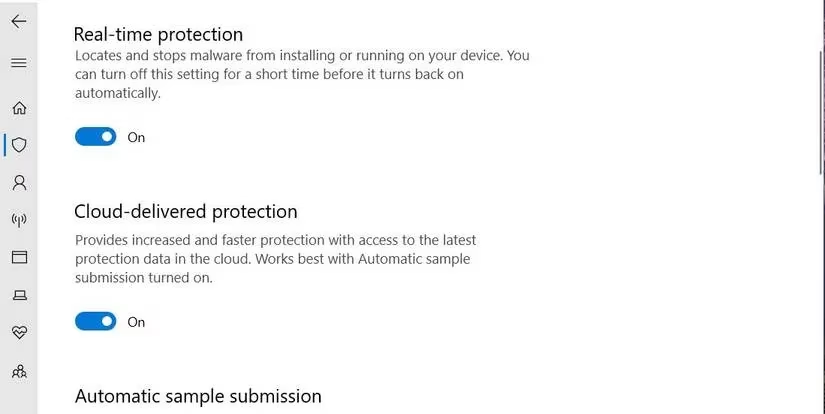
Antivirus software sometimes behaves like a nervous bouncer who throws out the lead singer because his leather jacket looks vaguely suspicious. That’s a false positive: your game’s launcher files get flagged as malware, and suddenly nothing works. In Windows Security, turn off Real-time protection and the Cloud-delivered protection, Automatic sample submission, and Tamper Protection options just below it. If you use a third-party antivirus, right-click its system tray icon and pick the temporary disable option. Then try launching the game. If it works, add the game’s installation folder to your antivirus exceptions rather than leaving the shields off, because a nightclub with no bouncer at all is a different kind of disaster.
7. Reinstall the Affected Game Without Weeping Over Saves
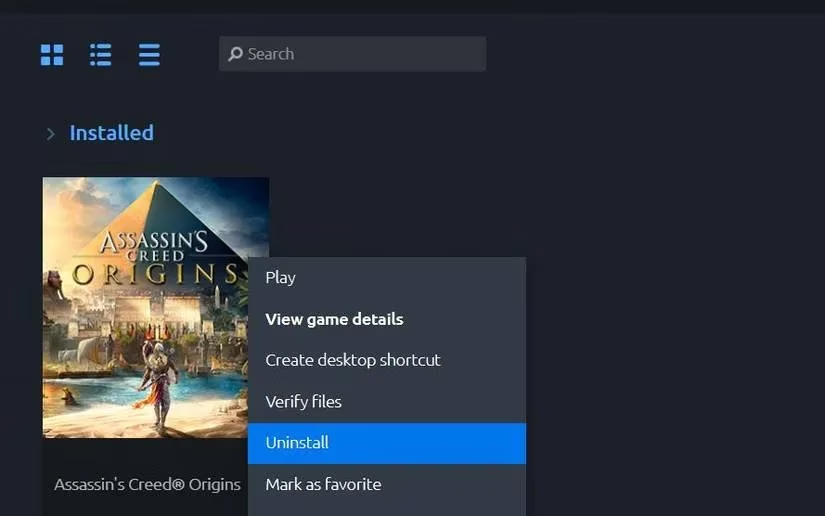
If verifying files doesn’t work, nuke the game and reinstall. In Ubisoft Connect, go to Games, right-click the game, select Uninstall, restart the client, then download it again. This is the gaming equivalent of tearing down a wobbly shed and rebuilding it with the same blueprint but fresh nails. If the game uses cloud saves, your progress should be safe. For titles without cloud saves, back up your save files first. The error message itself sometimes tells you to reinstall; occasionally the error message has a point.
8. Reinstall Ubisoft Connect: The Big Red Button
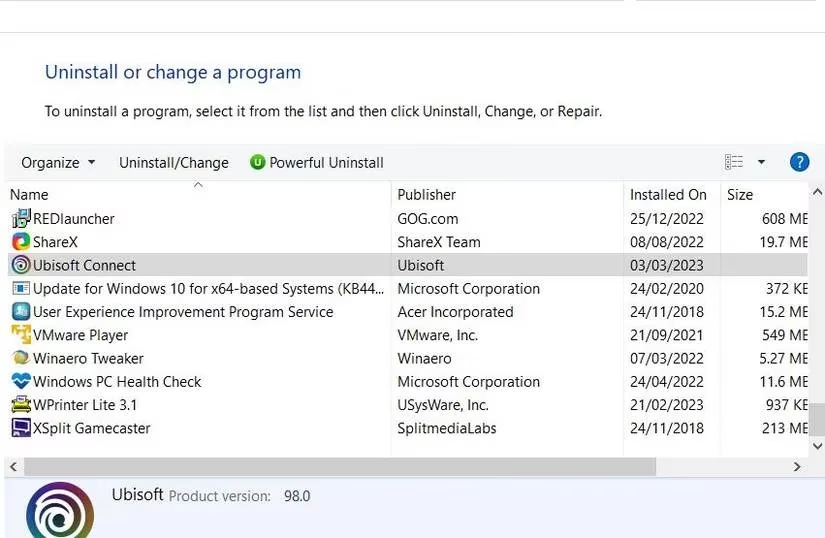
When all else fails, remove Ubisoft Connect itself. Use Control Panel > Programs and Features (or Settings > Apps) to uninstall it. The uninstaller may ask whether to keep your installed games—let it. Then head to Ubisoft’s official download page, grab the UbisoftConnectInstaller.exe, and run the setup wizard. It’s recommended to disable antivirus during the reinstall, just like in fix six, then turn it back on. Reinstalling Ubisoft Connect is the digital equivalent of flipping the router and muttering a short incantation; it shouldn’t fix everything, but it often does.
Quick Cheat Sheet for the Impatient
| Symptom | Fix |
|---|---|
| Error only when using desktop shortcut | Launch from Ubisoft Connect, recreate shortcut |
| Launcher can’t do its job due to permissions | Run Ubisoft Connect as administrator |
| Older game refuses modern Windows | Enable compatibility mode |
| Missing or corrupted game files | Verify game files |
| Corrupted cache or old installers | Rename cache folder; delete game installers |
| Antivirus false positive | Temporarily disable AV; add exception |
| Still broken after verification | Reinstall game |
| Nothing else works | Reinstall Ubisoft Connect |
In 2026, the “Unable to find the Ubisoft Game Launcher” error is less a mystery and more a familiar gremlin with predictable habits. It has been blighting Ubisoft’s client for years, but the fixes above usually drag it back under the bed. Now if you’ll excuse me, my Assassin’s Creed protagonist has been waiting on a rooftop for about three hours, and I owe him an apology.