
Let me paint the picture: it was a late-night gaming session in 2026, and after one too many mistyped passwords, Steam hit me with the dreaded 'too many login failures from your network' error. I stared at the screen like it had personally insulted my reflexes. The client refused to budge, and my library of unplayed games suddenly felt like a locked vault. Long story short, I had triggered Steam's login tripwire, and now the platform was treating me like a potential intruder in my own house.
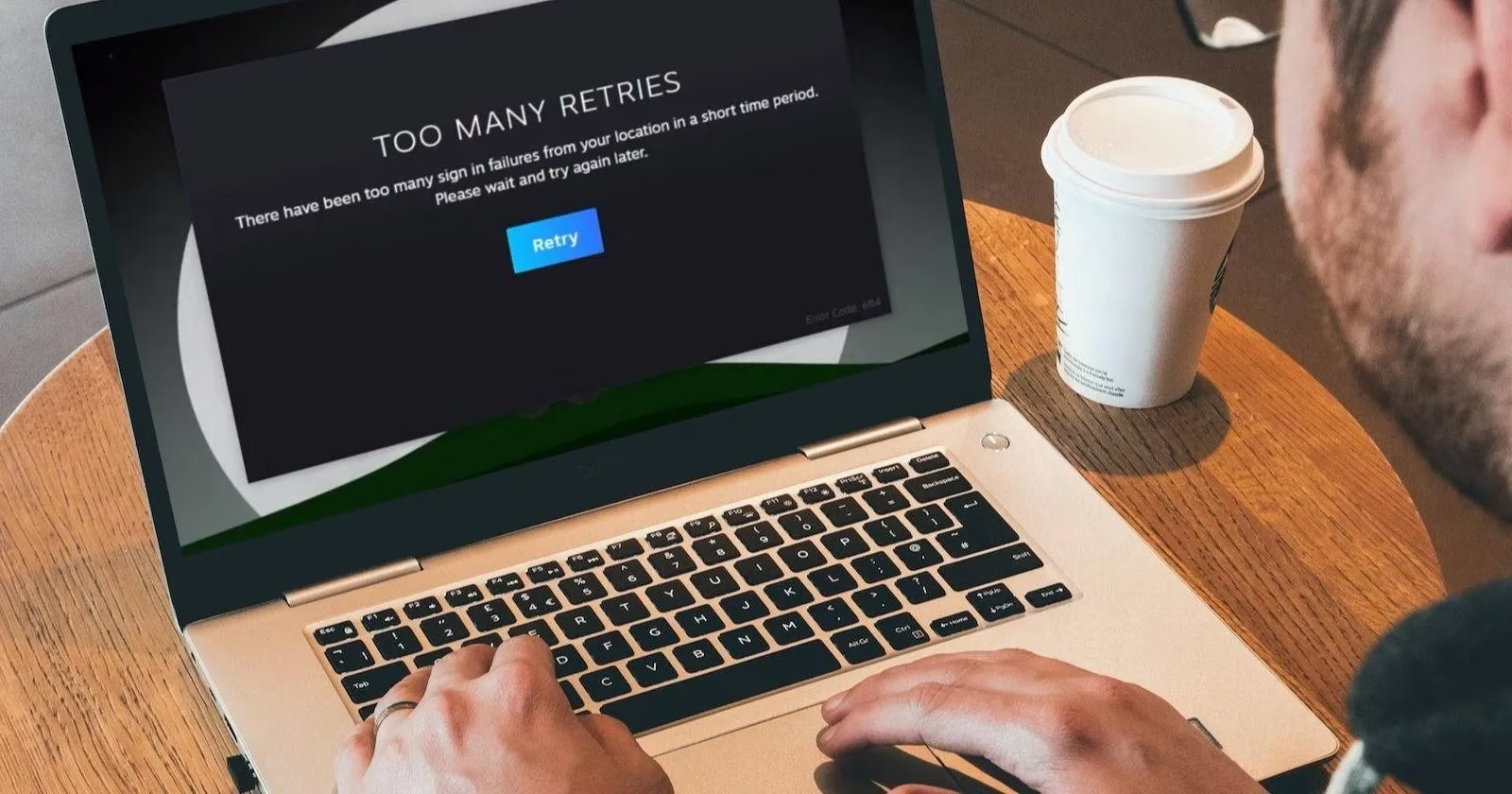
Now, before you start reinstalling Windows or rage-uninstalling Steam, let's talk about why this happens. Steam's login gatekeeper usually steps in to stop unauthorized access. If you made a series of failed attempts yourself, the fix is mostly technical. But if the error popped up on your very first login attempt, that is a huge red flag 🚩. Someone who knows your Steam account name might be trying to break in from your network or nearby location. In that case, you need to lock things down immediately.
The first thing I did was change my password, especially because my old one was embarrassingly weak. Then I turned on Steam Guard, Steam's two-factor authentication system. That way, even if someone had my login details, they would still need the code from my phone. Steam's bouncer is just doing its job, but I did not want a stranger trying on my account like a stolen hoodie.
Once my account was secured, I started testing the actual fixes.
1. Force-Quit Steam and Check for Ghost Logins
Sometimes the error is just a temporary Steam glitch. To rule that out, I force-quit the Steam client and relaunched it. On Windows, I opened Task Manager, found the Steam client process, right-clicked it, and hit End task. On macOS, I opened Activity Monitor, selected Steam, clicked the cross icon in the top-right corner, and hit Force Quit.
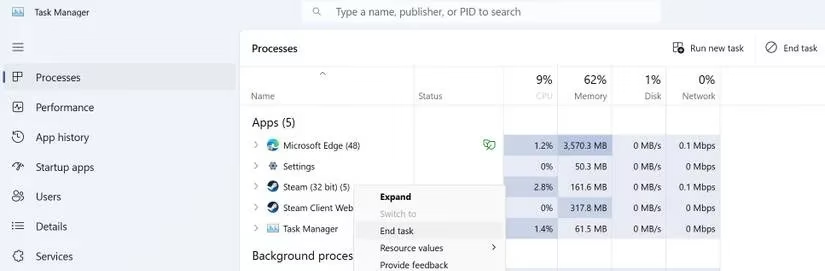
I also made sure my account was not logged in anywhere else. Ghost sessions can confuse Steam's login system, so closing every active session gave me a clean slate.
2. Switch Your Network or Use a Mobile Hotspot
Steam sometimes blocks login attempts from an entire network after too many failures. To bypass that, I switched from my home Wi-Fi to my mobile hotspot. If the login works on a different connection, the problem is likely with your primary network.
If that happens, disconnect your internet, reconnect it, and reboot your router. A fresh IP address from your internet service provider can sometimes make Steam's block vanish without any other work.
3. Give Your Location a Disguise with a VPN
When I saw the 'too many sign in failures from your location' error, I connected my device to a VPN. A VPN assigns your device a different IP address, so Steam no longer sees the blocked location. On desktop, I downloaded a VPN app and connected to a nearby server. In a browser, I installed a VPN extension and turned it on.
This step worked for me once, but it does not always help. If the VPN route fails, keep going.
4. Try a Different Browser
If you are signing in through a browser, the error might be browser-specific. I opened a different web browser and tried logging in there. When it worked, I knew the issue was not my Steam account but my primary browser acting up.
To fix a stubborn browser, I cleared the cache, disabled extensions that could interfere with the login process, and reset the browser settings. In the worst case, reinstalling the browser did the trick.
5. Reset Your Steam Password (Even If You Know It)
This one surprised me. Several Steam users have reported that resetting their password cleared the login error even when they knew the correct one. I gave it a shot.
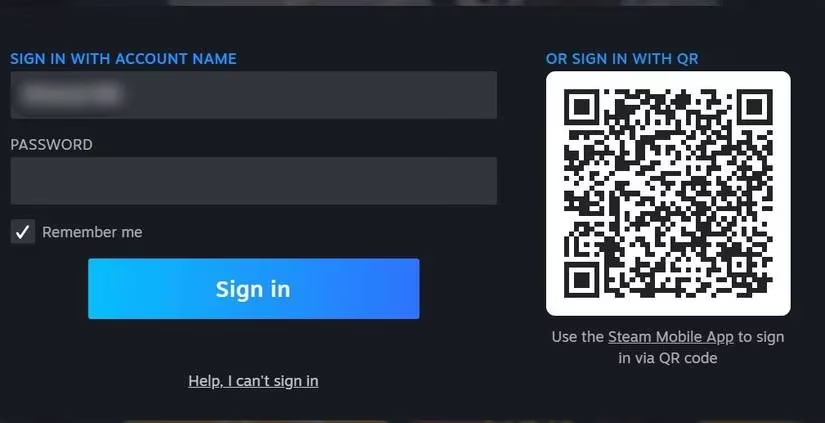
On the Steam website, I selected 'Help, I can't sign in', then clicked 'I forgot my Steam Account name or password'. I entered the email address or phone number linked to my account, clicked Search, and then followed the link or code sent to me. After setting a new password, I logged in successfully. It felt like giving Steam a little nudge to forget my past mistakes.
6. Wait It Out (The Boring but Honest Fix)
If none of the above works, the only reliable option is patience. Steam does not officially say how long the login limit lasts. In my experience, it was about 40 minutes. Many users report 30 minutes to an hour. A few unlucky souls had to wait a full 24 hours.
So, my advice: wait at least one hour. If you can, give it a full day before pulling your hair out.
7. Contact Steam Support as a Last Resort
If the error keeps showing up after a day, it is time to bring in the professionals. You can submit a ticket through the Steam Support page if you can sign in on the website. If the website also blocks you, email Steam support at [email protected].
I have also included a quick summary of what to try, in order:
| Step | What I Did | Why It Helps |
|---|---|---|
| 1 | Force-quit Steam and relaunch | Clears temporary glitches |
| 2 | Switched network or hotspot | Bypasses IP-based blocks |
| 3 | Connected to a VPN | Changes blocked location/IP |
| 4 | Tried a different browser | Rules out browser issues |
| 5 | Reset Steam password | Refreshes login security state |
| 6 | Waited 1–24 hours | Lets Steam's limit reset |
| 7 | Contacted Steam Support | Expert help for stubborn cases ❗ |
Encountering this Steam login error can make anyone lose their cool, but with the above steps, you should be back in your library before your gaming chair gets cold. Just remember: secure your account first, then troubleshoot, and let Steam's grumpy gatekeeper cool down.