
I still remember that morning. The sun was just peeking through my blinds, and I had this intense craving to dive into the latest AAA title—Chrono Titan, which had just dropped its massive 2026 expansion. I poured myself a coffee, sat down at my battle station, and pressed the power button with the kind of giddy excitement only a true gamer knows. Instead of the familiar whir and the Windows login screen, I got... nothing but a cold, blue screen staring back at me. Right in the middle, in that sterile white font, was error code 0xc000000f. My heart sank. Let’s be real—nothing kills the vibe faster than a boot error when all you want to do is slay some titans.
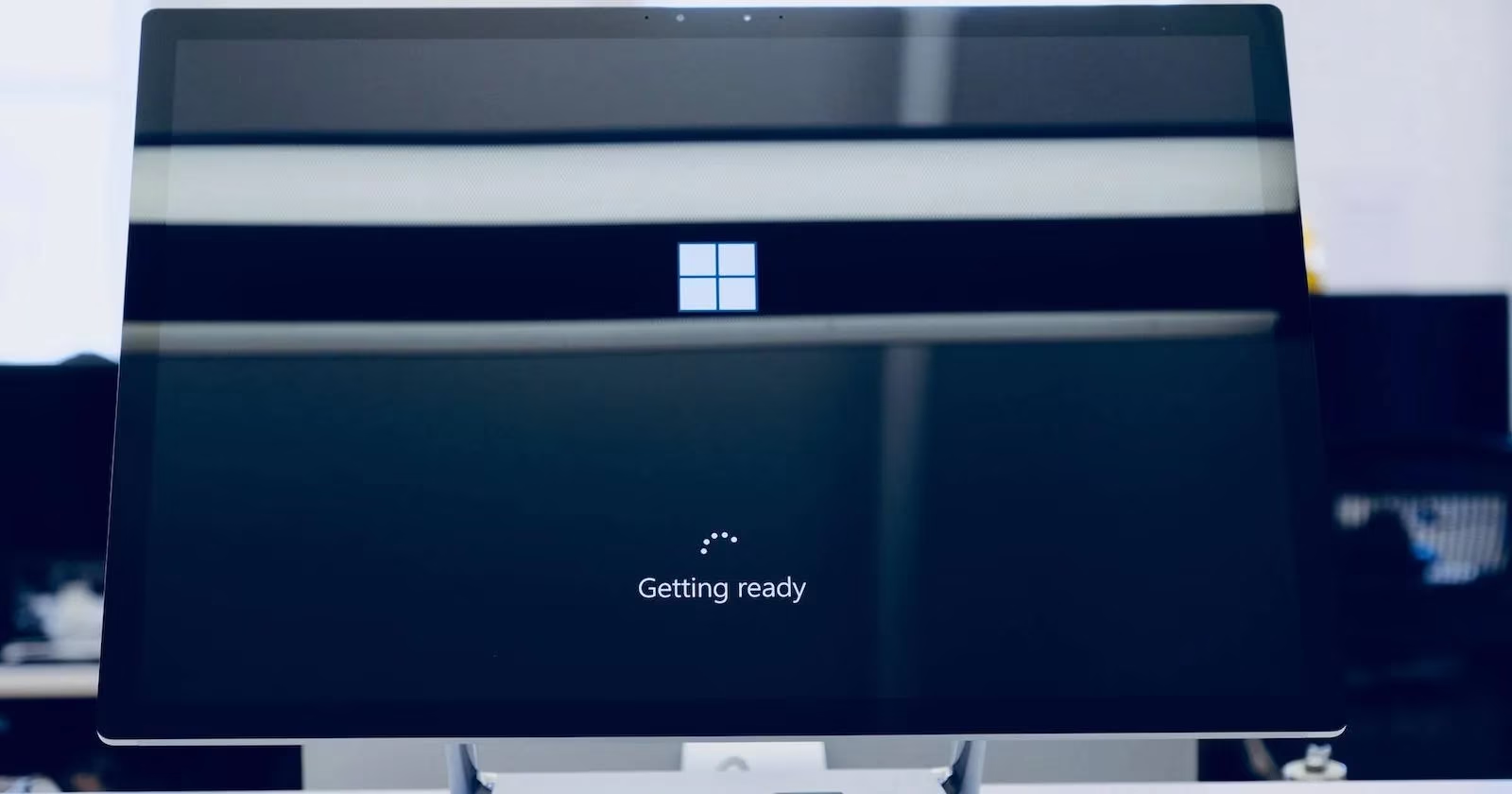
Now, I’ve been gaming on PCs for over a decade, so I’ve had my fair share of blue screens and cryptic codes. But this one felt... different. It wasn’t even letting me into the OS. I took a deep breath and reminded myself: panic is the real final boss here. The 0xc000000f error is a booting hiccup that can stem from all sorts of chaos—corrupt system files, a moody BIOS, or even a rogue Windows update. I rolled up my sleeves and prepared for a troubleshooting adventure.
First, I went for the oldest trick in the book: a simple restart. I know, I know, it’s the “have you tried turning it off and on again?” cliché, but there’s wisdom in clearing out your RAM and letting the system start fresh. I held down the power button until the machine surrendered, then turned it back on... same error. Big sigh. Time to get my hands dirty.
Since the normal boot path was a dead end, I grabbed my trusty Windows installation USB stick—yes, the one I made ages ago and thankfully never lost. I plugged it in, mashed the boot menu key (F12 for my motherboard, in case you’re wondering), and booted from the drive. After selecting my language, I clicked on Repair your computer. Then I followed the path: Troubleshoot > Advanced options > Startup Repair. The tool began scanning my system, and I sat back, fingers crossed. It’s like sending your PC to the doctor; you just hope the prognosis isn’t too grim. About five minutes later, it finished, but the reboot still greeted me with the same blue menace. Startup Repair had failed me this time. No problem—I had more arrows in my quiver.
One thing that often gets overlooked is hardware health. I built this rig about four years ago, and let’s be honest, computers age in dog years. Overheating, dust, or a slightly loose RAM stick can wreak havoc on boot sequences. I decided to check my hardware, thinking maybe a component was throwing a tantrum. I powered down, opened the case (a bit dusty, I admit), and reseated my RAM and GPU just for good measure. Nothing obvious was broken, but sometimes a good wiggle is all it takes. Still, the error persisted. I then thought about my SSD. A faulty drive can easily trigger a 0xc000000f. I booted back into the recovery environment and launched the Command Prompt. There, I typed chkdsk c: /f and hit Enter. The Check Disk utility scanned my SSD, found a few bad sectors, and repaired them. I held my breath and rebooted... but nope, the error still mocked me.
At this point, I was getting a bit nervous. But then it hit me—the Boot Configuration Data (BCD). This little file tells Windows where to find everything it needs to start up. If it’s corrupted, your PC basically forgets how to boot. I’ve fixed BCD issues before, so I felt a glimmer of hope. I went back to the recovery environment’s Command Prompt and started typing the sacred incantations:
bootrec /fixmbr

bootrec /fixboot

bootrec /scanos

bootrec /rebuildbcd
After each command, I pressed Enter and watched the console do its magic. When the rebuildbcd command finished, it prompted me to restart. I pressed Y and crossed my fingers so hard they almost cramped. The machine rebooted, and... the Windows logo appeared! No blue screen. I actually let out a little cheer. My gaming rig was back from the brink.
Looking back, the culprit was probably a corrupt BCD store—maybe after a recent Windows update that didn’t stick the landing. What I appreciate about this whole ordeal is that even when you’re staring down an error like 0xc000000f, there’s almost always a path back. If the BCD rebuild hadn’t worked, my final nuclear option would have been a factory reset. But let’s be real, as a gamer, the thought of reinstalling hundreds of gigabytes of games and losing save files makes me shudder. I’d only push that button if all else failed.
So, next time your PC throws a 0xc000000f at you right before a gaming session, don’t despair. Start with the basics: a reboot, then Startup Repair. If those fail, check your hardware and run chkdsk. And if you’re still stuck, rebuild the BCD. Nine times out of ten, that’s the magic fix. Now, if you’ll excuse me, Chrono Titan is waiting, and I have some temporal anomalies to destabilize. Game on!