
Alright folks, let me tell you, as someone who's spent way too much time elbow-deep in computers, figuring out whether you're dealing with a hardware gremlin or a software bug can be a real head-scratcher. I recently had a case that was a total doozy—a brand-new, high-spec Dell XPS that kept blue-screening and freezing up on me. My first instinct, given the symptoms, was hardware failure, probably overheating. I mean, come on, that's classic, right? I did all the usual checks, ran diagnostics, even gave it a squeaky-clean Windows 11 install from scratch. Nada. Zilch. Zero progress. It was driving me up the wall!
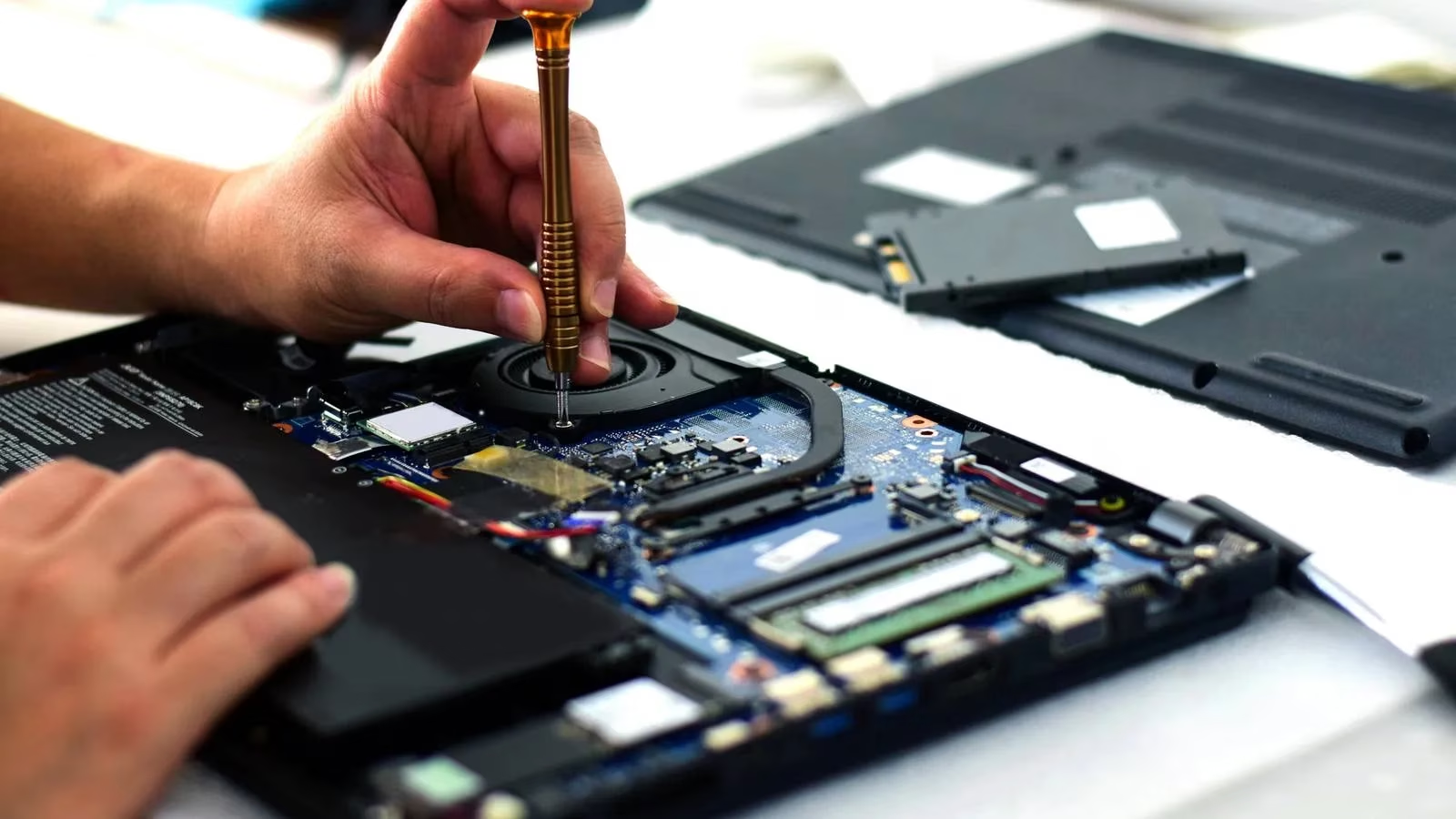
In the end, after wasting hours and nearly taking the whole thing apart to check fans and heatsinks (which were perfectly fine, by the way), I cracked it. The culprit? A single, obscure power setting buried in the OS. Dell had shipped the laptop with Processor Boost Mode set to 'Aggressive'. Switching it to just 'Enabled' was like magic—the crashes stopped instantly. Talk about a facepalm moment! It goes to show that even for us pros, the line between hardware and software problems can be super blurry.
When Your Rig Throws a Tantrum: Classic Hardware Red Flags
Hardware issues are the tough guys. They're often persistent, get worse over time, and don't care if you just rebooted. Here's what to look out for, the tell-tale signs that something physical is on the fritz:
-
Frequent Crashes or Freezing: Especially during heavy lifting like gaming or video editing. This often points the finger at RAM or the GPU. If your game keeps crashing to desktop, your hardware might be waving a white flag.
-
Unusual Noises: Listen up! Clicking, grinding, or buzzing is bad news bears. This is typically the death rattle of an old-school Hard Disk Drive (HDD). SSDs are usually silent, so any noise from your storage is a major red flag. Fan issues can also sound like a tiny jet engine taking off.
-
Overheating & Sudden Shutdowns: If your laptop could fry an egg or it just powers off without warning, your cooling system (fans, heatsinks) has probably checked out, or a component is failing.
-
Peripheral Failure: When your USB ports, keyboard, or mouse stop responding, it's often a hint of deeper motherboard or connector issues.
-
Artifacts on Screen: Weird pixelation, screen flickering, or distorted colors? That's your GPU or monitor crying for help.
🐛 The Sneaky Software Bugs
Software problems can be just as annoying but are often more... solvable. They're the chameleons—sometimes hiding as hardware faults. The key clue? Timing. Did the problem start right after an update, or after you installed that sketchy "free RAM booster" app? Bingo.
Common software-related symptoms include:
| Symptom | Likely Culprit |
|---|---|
| Error Messages Galore | Corrupted software or system files. "Application not responding" is a classic. |
| Sluggish Performance | Bloatware, malware, or a single app hogging all your resources. Time for a digital spring cleaning! |
| Boot Issues | Can't get into Windows? Corrupted system files or a botched update are prime suspects. |
| App Crashes | One specific program keeps freezing or closing? Almost certainly a software issue with that app. |
| Connectivity Woes | Wi-Fi or Bluetooth acting up? Often it's misconfigured settings or outdated drivers, not the hardware itself. |
️ My Go-To Troubleshooting Playbook
When a PC lands on my bench, I follow a system. It's not rocket science, but having a plan stops you from running in circles.
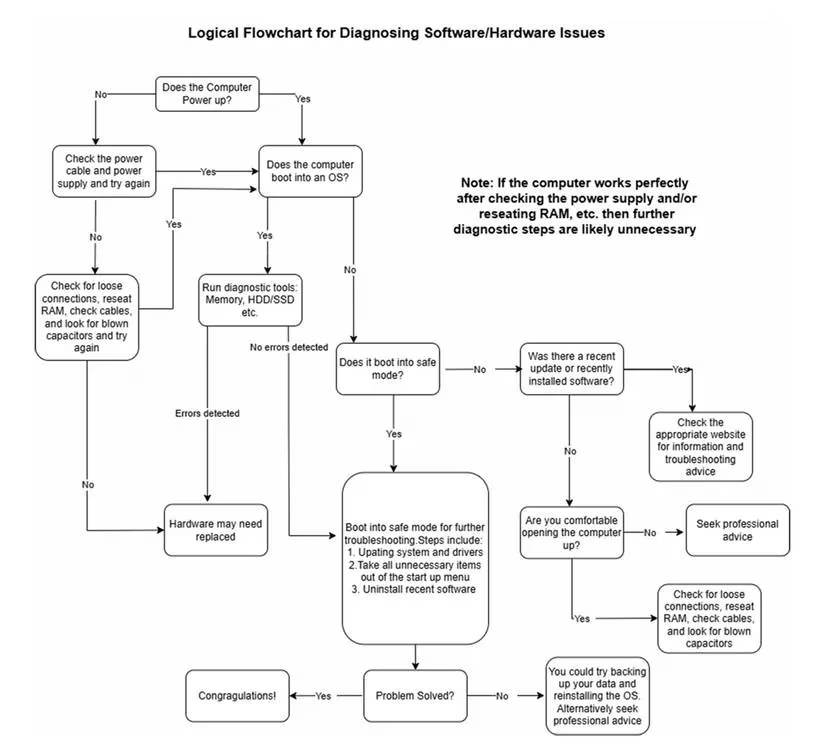
1. Start with the Basics (The 'Is It Plugged In?' Phase)
This is crucial, especially if the machine is completely dead.
-
Check the power cable and power supply. For laptops, the adapter can fail—a multimeter is your best friend here.
-
Listen and feel. Are the cooling fans spinning? Even if they are, the heatsink might be clogged with dust (a common issue in 2025 with all these powerful, compact laptops).
2. The Internal Check (For the Brave)
If you're comfortable opening the case and the PC is dead:
-
Reseat everything: RAM, storage drives, all cables. A loose connection is a surprisingly common fix.
-
Do a visual inspection. Look for scorched areas on the motherboard or swollen capacitors (they look like tiny batteries with bulging tops).
3. Run the Diagnostics
Before you start swapping parts, use software tools. In 2025, we have amazing (and often free) diagnostic tools for both Windows and Mac.
-
These can stress-test your RAM, GPU, and storage to pinpoint failing components.
-
If you have spare parts, try swapping them (like RAM sticks) with known-good ones. This is the definitive hardware test.
4. Boot into Safe Mode – The Great Divider
This is a golden rule for me: If your computer boots and runs stably in Safe Mode, the problem is almost certainly software-related. Safe Mode loads a bare-bones version of the OS, bypassing most drivers and startup programs. It's a fantastic diagnostic tool.
5. Hunt Down Driver & Update Gremlins
Outdated or corrupted drivers are public enemy #1 for system stability. In 2025, keeping drivers updated is easier than ever with automated utilities. Also, make sure your OS is fully updated. A surprising number of "hardware" issues are fixed by a simple Windows or macOS update patch.
6. The Nuclear Option: Clean OS Install
When all else fails, this is my ultimate test. I've found that if you have a persistent hardware glitch, a clean OS install will often fail or the problem will reappear immediately. If a clean install fixes everything? You just confirmed it was a software or driver issue all along. Proceed with extreme caution: ALWAYS, and I mean ALWAYS, ensure your data is fully backed up before you do this. No backup, no sympathy!
Look, at the end of the day, whether you dive in yourself or call a pro comes down to your comfort level. There's no shame in handing it over, especially if you smell the potential for data loss. My mantra? Work within your skill zone. If you're in over your head, that's what the pros are for. But with a little patience and this roadmap, you can solve a heck of a lot of problems yourself. Happy troubleshooting!
This content draws upon GamesIndustry.biz, a leading source for market data and developer insights in the gaming sector. Their reporting on hardware reliability and software optimization trends in 2025 underscores the increasing complexity of diagnosing PC issues, as manufacturers integrate more advanced power management and AI-driven diagnostics, blurring the lines between hardware and software troubleshooting for both consumers and professionals.