
It can be incredibly frustrating when a PC refuses to boot at the first press of the power button. The user presses it once, twice, maybe a third time, and nothing happens. Then, as if by magic, it springs to life. This intermittent behavior is a common complaint, and while it often points to a minor software glitch, it can occasionally signal a deeper hardware issue. It's enough to make anyone scratch their head. Fortunately, most causes are easy to diagnose and fix without professional help. In 2026, with Windows 11 being the dominant operating system, the troubleshooting steps remain largely similar to those of previous generations, though some nuances exist. This guide walks through the most likely culprits, from power plan settings to faulty power supply units, and offers practical solutions.
💻 Software Snafus: When Windows Refuses to Shut Down Properly
One of the most common reasons for a power button that seems unresponsive is a failed or incomplete shutdown. When a user presses the power button to start the PC, Windows may first attempt to finalize a previous shutdown that didn't complete. Until that process finishes, the button appears to do nothing. This can happen after a Windows update, a crash, or a forced power-off.
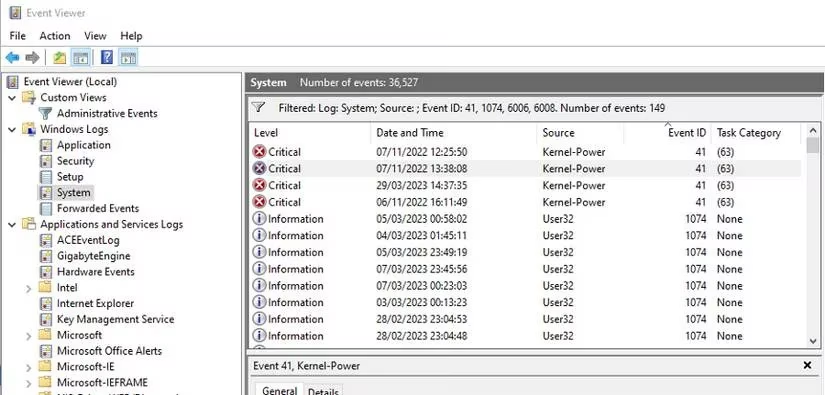
To check for this, the user can consult the Windows Event Viewer. In the Start menu search bar, typing "Event Viewer" and selecting the best match opens the tool. In the sidebar, navigating to Windows Logs > System reveals a log of system events. Looking for errors around the time of the last shutdown is key. Events with IDs 41, 1074, 6006, or 6008 are particularly telling. These often indicate an unexpected shutdown or a problem with the shutdown process.
If such events are present, resetting the power plan can often resolve the issue. In Windows Search, typing "Power Plan" and clicking "Edit Power Plan" opens the Control Panel. If the current plan's settings aren't displayed, clicking "Change plan settings" will reveal them. Then, selecting "Restore default settings for this plan" and saving changes resets the plan. After a shutdown and restart, the power button should behave normally. It's a simple fix that costs nothing but a few clicks.
🔧 Hardware Hiccups: The Power Button Cable and Front Panel Connector
If software fixes don't help, the next step is to examine the hardware. The power button on a desktop's front panel connects to the motherboard via a thin cable with a two-pin connector. If this connector is loose, dirty, or misaligned, the button may work only intermittently. Reconnecting it is a straightforward task, though it requires opening the computer case.
Before opening the case, it's wise to take standard precautions: unplug the power cord and touch a metal surface to discharge static electricity. Once inside, tracing the cable from the front panel to the motherboard's Front Panel Connector, usually located in the bottom-right corner, is the next step. The connector for the power button is typically labeled POWER SW or PWR SW. Gently pulling it out to inspect for damage or dust, then firmly reseating it, can solve the problem. The connector is small, so patience is required. As the old saying goes, "Measure twice, cut once"—here, it's "check twice, plug once." Attaching it to the wrong pins will prevent the button from working at all.
If the connector, cable, or button itself is damaged, a replacement is necessary. Finding an exact match for a specific PC case can be challenging. In that case, an external desktop power button, which connects via a cable and sits on the desk, is a convenient alternative.
⚡ Power Supply Unit (PSU) Problems: When the Heart of the PC Falters
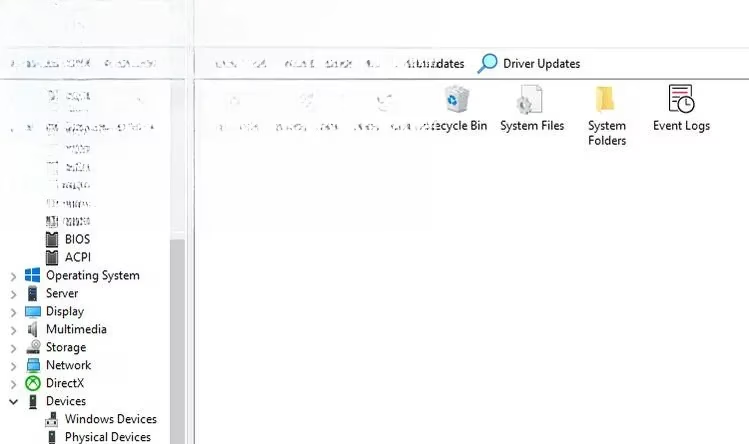
A failing or underpowered PSU can also cause startup issues. Diagnosing PSU problems accurately often requires specialized tools. A multimeter can test voltage outputs, but not everyone is comfortable poking around inside a power supply. Thankfully, software solutions exist. Programs like AIDA64 Extreme can monitor PSU health and efficiency. Running a System Stability Test, for example, can reveal if the PC is struggling for power, indicating that an upgrade or replacement is needed.
Other signs of a dying PSU include random reboots, crashes under load, or unusual noises. If these occur alongside power button issues, the PSU is a prime suspect.
🛠️ The Last Resort: Updating the BIOS
If all else fails, updating the motherboard's BIOS may help. An outdated or corrupted BIOS can cause power configuration problems. Flashing a newer version can resolve such issues and also bring security, compatibility, and stability improvements. However, BIOS updates should be approached with caution, as an interrupted update can brick the motherboard. Users should follow the manufacturer's instructions carefully.
📋 Quick Reference: Symptoms and Solutions
| Symptom | Likely Cause | Solution |
|---|---|---|
| Button works after multiple presses | Incomplete shutdown | Reset power plan, check Event Viewer |
| Button works intermittently | Loose front panel connector | Reseat POWER SW cable |
| No response, random crashes | Failing PSU | Test with AIDA64 or multimeter, replace if needed |
| Persistent issues after all checks | Corrupted BIOS | Update BIOS from manufacturer |
🎯 Conclusion: Usually Annoying, Rarely Catastrophic
A stubborn power button is often more of an annoyance than a sign of impending doom. Yet, it's always worth investigating, as even minor malfunctions can hint at larger problems. By systematically checking software settings, hardware connections, PSU health, and BIOS version, most issues can be resolved. Fingers crossed, one of these fixes will do the trick—and the PC will boot reliably every time.