
Let me paint a picture for you: It’s a lazy Sunday afternoon in 2026, you’ve just fired up your slick Windows 12 (or still-trusty Windows 11) machine, ready to grab the latest indie gem from the Microsoft Store, and bam—up pops the dreaded error code 0x80d03801. I’ve been there more times than I care to admit, and let me tell you, it’s a real vibe killer. The Microsoft Store has come a long way since its humble beginnings, morphing into a one-stop shop for apps, games, and even movies, but it’s not bulletproof. Even in the age of Copilot-powered everything, this particular gremlin still sneaks past the guards. The good news? You’re not up a creek without a paddle. I’ve rounded up a bunch of battle-tested fixes that have worked for me and countless other users across Windows 11 and 12. So grab a cup of coffee, and let’s squash this bug like a pro.
What’s Cooking Behind Error 0x80d03801?
Before we dive into the nitty-gritty, it’s worth peeking under the hood. Why does this error show its ugly face? Knowing the culprit can save you from a repeat performance down the line. Here’s the lowdown on the usual suspects:
-
Network gremlins: A spotty internet connection is often the prime offender. When you’re pulling files from Microsoft’s servers, even a hiccup can trigger this error. It’s like trying to stream 4K with two bars of Wi-Fi—ain’t gonna happen smoothly.
-
Corrupted cache: The Microsoft Store, much like your browser, hoards temporary files to speed things up. But when that cache gets corrupted, it can throw a wrench into the works.
-
Server overload: Believe it or not, sometimes Microsoft’s own update servers get slammed, especially on Patch Tuesday or during a major game launch. If the servers are gasping for air, error 0x80d03801 can pop up on your end.
-
Misconfigured proxy or VPN: If you’re routing your traffic through a proxy or VPN, any misconfiguration can confuse the Store and bring downloads to a screeching halt.
-
App corruption: If the Microsoft Store app itself has taken a hit—perhaps after a botched update—it can start throwing tantrums, including our friend 0x80d03801.
Now, don’t sweat it if the exact cause remains a mystery. We’ve got a solid playbook of fixes that’ll get you back in the game, no questions asked.
Fix 1: Give Your Network Connection a Health Check
First thing’s first: let’s make sure your internet isn’t the bottleneck. Over the years, I’ve learned that sometimes the simplest fix is staring you right in the face. In 2026, Windows still comes packed with a handy network troubleshooter—an unsung hero, if you ask me. Here’s how to let it do its thing:
-
Hit Win + I to open Settings, then head to Network & internet. Glance at the status—if it says “No Internet” or “Limited,” you know where the problem lies.
-
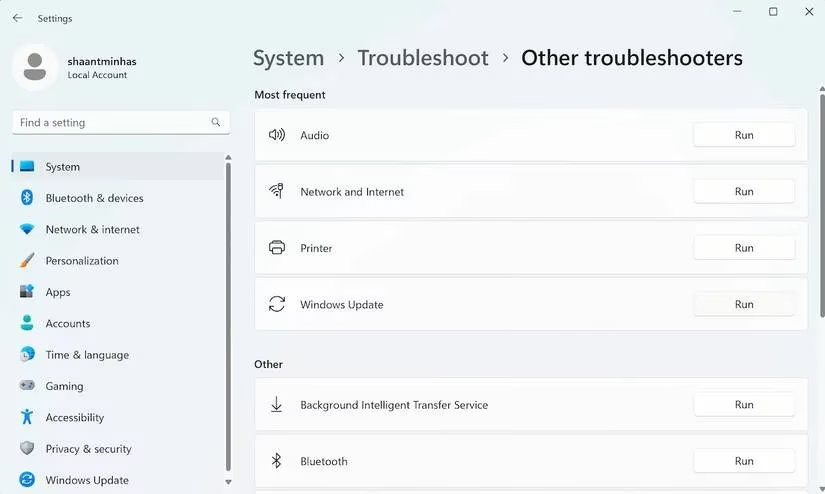
Don’t panic. Navigate to System > Troubleshoot > Other troubleshooters.
-
Find Network and Internet and click Run. Let the troubleshooter work its magic—it’ll reset adapters, flush DNS, and fiddle with settings you probably didn’t even know existed.
Once it finishes, try downloading that app again. In many cases, this alone will kiss that error goodbye. Pro tip: if you’re on Wi-Fi, switch to a wired connection for a few minutes just to rule out interference. It’s an old-school solution, but hey, if it ain’t broke…
Fix 2: Nuke the Microsoft Store Cache
Cache corruption is a sneaky beast. I’ve seen it mess up everything from web browsers to, yep, the Microsoft Store. The good news? Flushing it is a piece of cake. You don’t need to be a tech wizard—just follow these steps:
-
Click the Start button and type wsreset in the search bar.
-
Right‑click wsreset (it’ll pop up as a command) and select Run as administrator.
-
A blank command prompt window will appear for a few seconds—don’t close it! Then the Microsoft Store will launch automatically, fresh as a daisy.
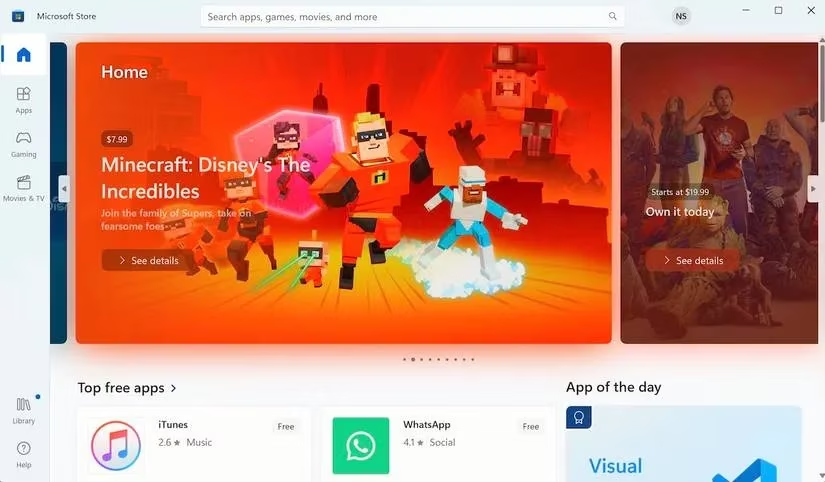
If you were dealing with a mangled cache, this reset should have sorted it out. I can’t count how many times I’ve muttered “wsreset” like a magical incantation and watched the Store spring back to life. Give it a shot—it’s quick, painless, and has a surprisingly high success rate.
Fix 3: Repair or Reset the Microsoft Store App
Sometimes the Store itself is the problem child. Maybe an update went sideways, or some internal data got corrupted. Windows has built‑in repair tools that can straighten things out without breaking a sweat.
-
Press Win + I to launch Settings.
-
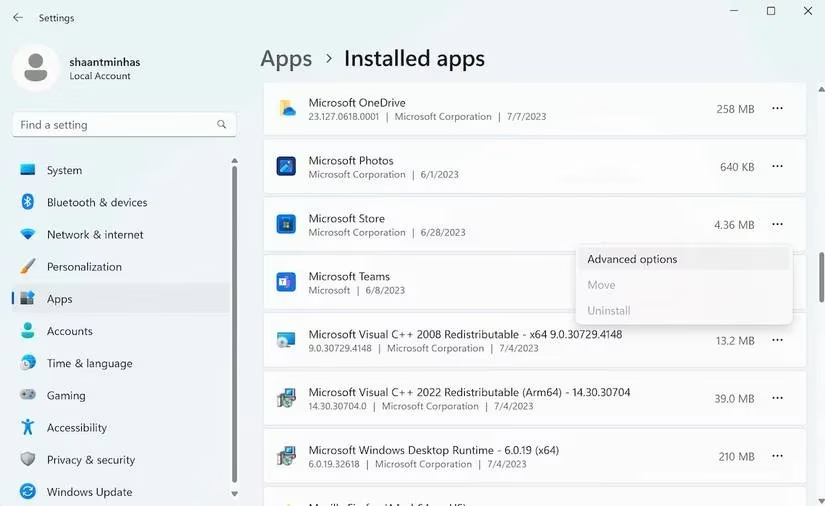
Go to Apps > Installed apps (or just “Apps & features” on some versions).
-
Scroll down to find Microsoft Store. Click the three‑dot menu (or right‑click) and select Advanced options.
-
Under the “Reset” section, click Repair first. Windows will attempt to fix the app without touching your data.
If repair doesn’t cut it, don’t throw in the towel just yet. Click the Reset button next. Note that this will nuke all the app’s local data and sign you out, but it often clears up stubborn errors. I’ve had to resort to a full reset a couple of times, and while it’s a minor inconvenience, it’s a small price to pay for a working Store.
Fix 4: Keep the Store Up to Date
Here’s a head‑scratcher: sometimes the very app that’s glitching is out of date. Microsoft regularly rolls out updates for the Store—not just to add features, but to squash bugs like the one you’re facing. In 2026, automatic updates are generally reliable, but they can occasionally miss a beat. Play it safe and check manually:
-
Launch the Microsoft Store (it might limp along even with the error).
-
Click on Library in the bottom left (or the three‑dot menu on newer versions), then select Get updates.
-
If an update is available, it’ll download and install automatically. Once done, restart the Store and try your download again.
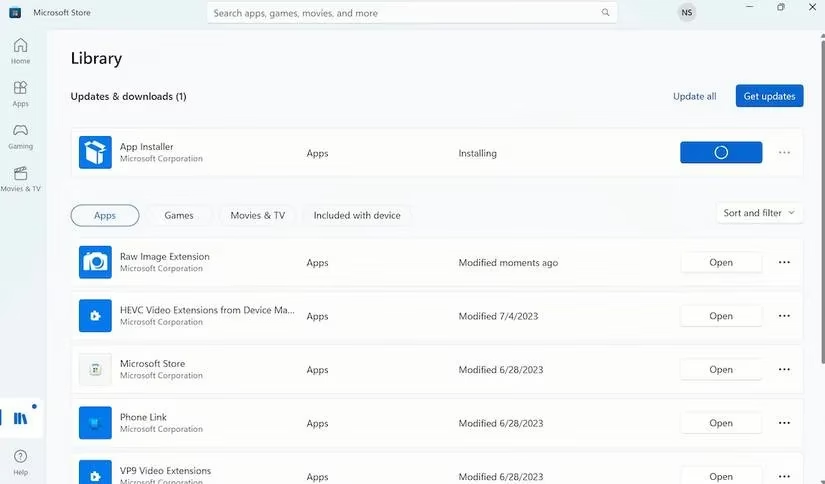
In my experience, after a big Windows feature update, manually checking for Store updates can prevent a world of hurt. So make it a habit, yeah?
Fix 5: Double‑Check Your Proxy Settings
If you’re using a proxy server (maybe for work or to bypass geo‑restrictions), a tiny misconfiguration can wreak havoc on the Microsoft Store. Even in 2026, I see folks tripped up by this. Here’s how to set things straight:
-
Open the old‑school Control Panel (type “control panel” in Start) and go to Internet Options.
-
Click the Connections tab, then hit LAN settings.
-
If you’re not intentionally using a proxy, make sure Use a proxy server for your LAN is unchecked. If you are using one, verify the address and port are correct.
-
Also, uncheck Automatically detect settings if you’re experiencing weirdness—Windows can sometimes get confused.
After tweaking, restart the Store and give your download another whirl. If a proxy was the culprit, you should be sitting pretty now.
Wrapping Up
Error code 0x80d03801 might seem like a monster under the bed, but with a little patience and these tried‑and‑true methods, you’ll have it tamed in no time. I’ve personally used every single one of these tricks on Windows 11 and the shiny new Windows 12, and they’ve never let me down. The key takeaway? Start with the simple stuff—check your network, clear the cache—then work your way up to more involved steps if needed. And remember, tech hiccups are just part of the digital ride. So next time you see that error, don’t rage‑quit; just pull up this guide, channel your inner IT guru, and get back to what matters: actually enjoying your apps. Stay savvy, and happy downloading!