
The unmistakable flash of a blue screen can bring any workflow to a screeching halt. When the stop code reads PFN_LIST_CORRUPT, accompanied by the hexadecimal identifier 0x0000004E, it signals a serious memory or page file corruption that has forced Windows to crash. This error does not discriminate; it can appear on modern Windows versions including Windows 10, Windows 11, and the most recent feature updates of 2026. While seeing a Blue Screen of Death (BSOD) is unsettling, understanding the root causes and knowing the right repair sequence can restore stability without panic.

Why does this happen? The PFN (Page Frame Number) list is a critical data structure that the operating system uses to track physical memory pages. When this list gets corrupted, the system can no longer manage memory accurately, leading to immediate shutdown. The underlying triggers vary widely. Hardware degradation — such as a failing RAM stick or a hard drive with bad sectors — can inject errors into memory operations. Software conflicts, where a background application or service interferes with low-level memory management, are equally common. Outdated or faulty device drivers, which mediate all communication between hardware and the OS, may mishandle memory allocation. Even a persistent malware infection can deliberately corrupt memory structures. Given this broad range of possibilities, a systematic approach is essential.
Before any troubleshooting begins, log in with an administrator account. Most repair tools require elevated privileges, and attempting fixes without them often results in access-denied messages. It is also wise to back up important files. While the procedures below are generally data-safe, any disk or memory repair carries a minimal risk, and having a recent backup offers peace of mind.
Inspecting the Hard Drive with CHKDSK
Because storage problems frequently masquerade as memory errors, a logical first step is scanning the system drive. The built-in Check Disk utility (CHKDSK) does exactly this. It searches for bad sectors, file system inconsistencies, and lost clusters, then attempts automated repairs.
Launch Command Prompt as an administrator by pressing Win + R, typing cmd, and using Ctrl + Shift + Enter. Confirm any User Account Control prompts. In the terminal, execute chkdsk /f and press Enter. If the drive is in use, the tool will ask to schedule the check for the next restart — type Y and reboot. As the system restarts, a blue screen-like interface appears, showing the scan progress. Patience is key here; a full check on a large drive may take over an hour.
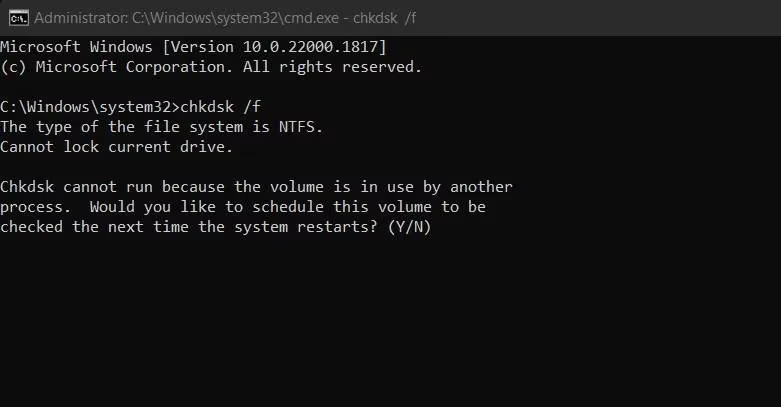
What if bad sectors are found? CHKDSK marks them as unusable. If the number of bad sectors grows over time, the hard drive is likely failing physically and should be replaced. After the scan, check if the BSOD recurs. For stubborn cases, a more thorough check using chkdsk /r can locate and recover readable information from damaged areas, though it takes significantly longer.
Diagnosing Faulty RAM with Windows Memory Diagnostic
Hard drives are not the only hardware culprit. Faulty RAM modules directly corrupt page frame lists. Windows includes a dedicated tool to check for memory defects. Search for "Windows Memory Diagnostic" in the Start menu, launch it, and choose Restart now and check for problems. The computer will reboot into a blue diagnostic screen running a series of memory tests. This process may last 15–30 minutes. Once it finishes, Windows restarts normally.
The results don’t pop up immediately; they are logged in the Event Viewer. Open Event Viewer, navigate to Windows Logs > System, and look for an event with the source MemoryDiagnostics-Results. If any errors are reported, could a loose RAM stick be the cause? Reseating the modules might help, but if errors persist, replacement is the only reliable fix. For laptops with soldered memory, professional repair is often necessary.
Eliminating Software Conflicts by Disabling Security Tools
Third-party antivirus suites, while protective, sometimes hook deeply into kernel-level operations and accidentally interfere with memory management. Temporarily disabling the security software can quickly reveal whether it is the culprit. Right-click the application’s system tray icon and choose to disable protection, or open the program’s settings and toggle off real-time scanning.

After disabling, use the system normally — launch applications, transfer files, or even run a stress test. If the PFN_LIST_CORRUPT error vanishes, it’s time to consider switching to a more compatible security solution, or to rely on the integrated Windows Security suite, which has matured dramatically by 2026. Don’t forget to re-enable protection after testing. For users who already depend on Windows Defender, temporarily turning it off via Virus & threat protection settings can help isolate the issue, though this should be done with caution and only offline.
Repairing Corrupted System Files with SFC and DISM
Sometimes the corruption is not in hardware but in the system files themselves. The System File Checker (SFC) scans protected operating system files and replaces damaged versions. Open Command Prompt as administrator and run sfc /scannow. The verification process takes several minutes. If SFC fixes anything, a message confirms it. But what if SFC reports it cannot repair some files? The underlying component store may itself be corrupt. In that case, the Deployment Image Servicing and Management (DISM) tool comes to the rescue. Execute the following command:
DISM /Online /Cleanup-Image /RestoreHealth
This downloads fresh system files from Windows Update (or a specified source) and repairs the image. After DISM completes, run sfc /scannow again. Should the BSOD continue even after these steps, the problem likely lies outside the core OS files.
Returning to a Stable State with System Restore
If the 0x0000004E error started appearing after a recent driver installation, application update, or system change, reverting to a previous restore point can roll back the configuration without affecting personal files. Search for Create a restore point in the Start menu, open the System Properties dialog, and click System Restore. Choose a restore point dated before the errors began. The process requires a reboot and may take 10–20 minutes. While system restore is not a permanent fix for hardware faults, it undoes many software-induced conflicts instantly.
Applying Universal Blue Screen Fixes
Many BSODs share common root causes. Keeping Windows fully updated through Settings > Windows Update ensures the latest bug fixes and hardware abstraction layer improvements are in place. In 2026, driver updates are frequently delivered alongside monthly patches, but it is still wise to manually check for driver updates in Device Manager, especially for chipset, storage, and graphics components. Does the error occur in Safe Mode? If not, a clean boot — launching Windows with only essential services — can identify which third-party process is interfering. Beyond these, resetting virtual memory settings by letting Windows automatically manage paging file size often resolves PFN-related problems.
When All Else Fails
If the troubleshooting steps fail to eliminate the error, the hardware may be degrading in ways that software tools cannot detect. Stress-testing the RAM with a tool like MemTest86+ or examining drive health with the manufacturer’s diagnostic utility can uncover deeper flaws. At this point, reaching out to Microsoft support or a qualified technician is the safest route. The 0x0000004E stop code need not be a permanent scar on a Windows experience; with methodical diagnosis and a calm, step-by-step approach, a stable system is nearly always within reach.